LinkedIn Ads puts your LinkedIn ad account inside Nuvora. Open it in the menu: it holds three tabs.
- Dashboard: how the ad account is doing, read live from LinkedIn each time you open it.
- Campaigns: your campaigns as they run right now, to switch on or off, change and create.
- Ad Library: LinkedIn’s public record of ads, to see what other companies run.
Nothing is copied into Nuvora. The Dashboard and Campaigns read your ad account from LinkedIn when the page opens, with your own LinkedIn access, and every change goes straight back to LinkedIn.
Connect your ad account
Until an ad account is connected, the Dashboard and Campaigns show Connect your LinkedIn Ads account, with the message “LinkedIn Ads is not connected. Connect your own LinkedIn access on My Connections.”
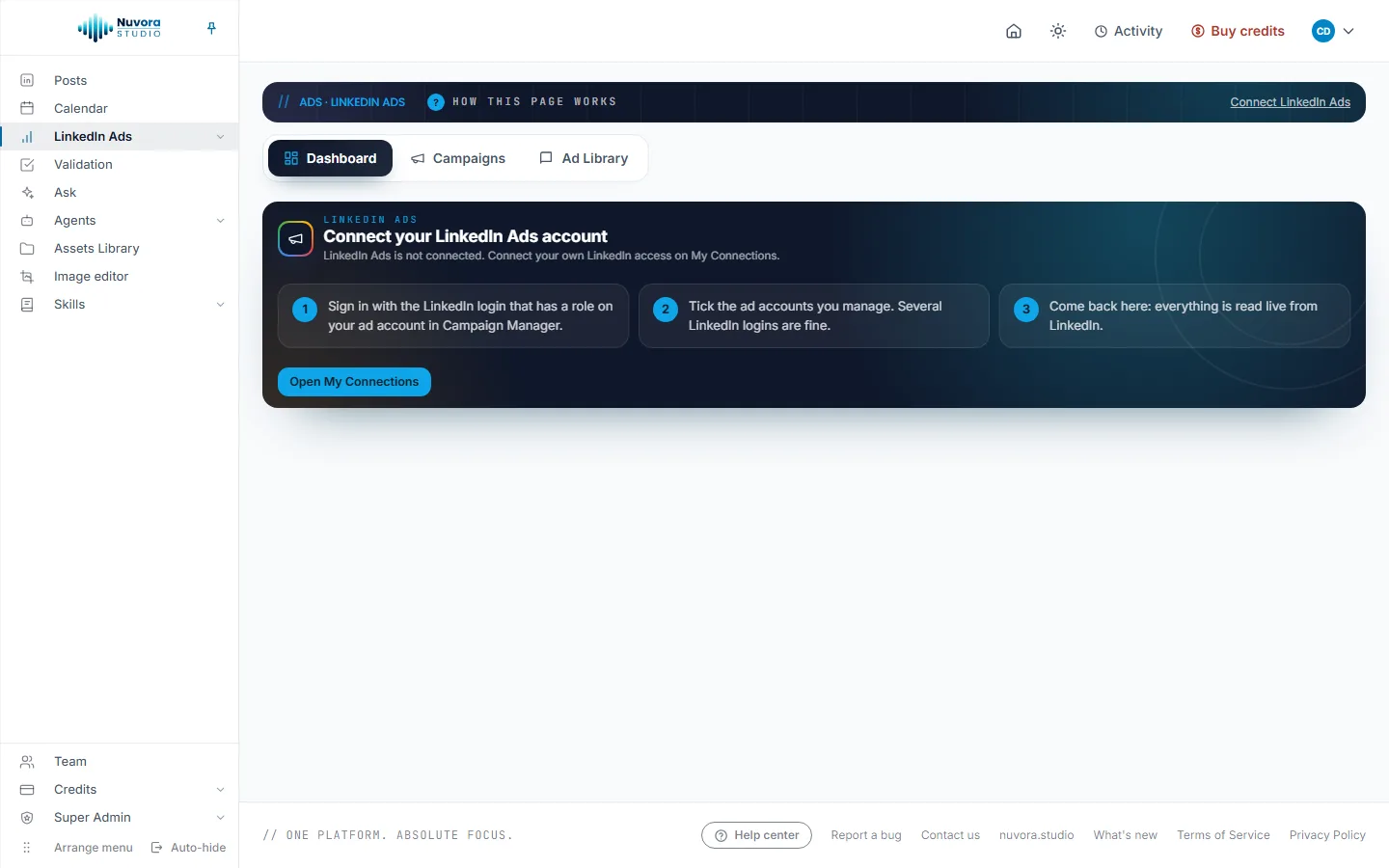
The connection is personal: it is your own LinkedIn login, and LinkedIn itself decides what you may see and change. A teammate connects their own.
- Click Open My Connections, or the Connect LinkedIn Ads link at the top of the page, which opens My Connections in a new tab. See My Connections.
- On the Your LinkedIn ad accounts card, click Connect LinkedIn Ads.
- Sign in to LinkedIn with the login that has a role on your ad account in Campaign Manager, and allow access.
- Back on the card, under Accounts you manage with this login, tick the ad accounts you want in Nuvora. Each tick is kept at once.
- Come back to LinkedIn Ads.
If you reach ad accounts through more than one LinkedIn login, click Connect another LinkedIn login on the card: its accounts join the same list. Disconnect removes a login, and its ad accounts leave the LinkedIn Ads pages until you connect it again.
Pick the ad account you work in
Once accounts are ticked, the page header shows LinkedIn ad account: a list of the accounts you ticked, each with its number and its currency. Pick one and the page reloads on it. Your choice is kept for the three tabs. Manage accounts opens My Connections in a new tab.
If no account is ticked, the pages say “No LinkedIn ad account is chosen. Tick the accounts you manage on My Connections.”
The Dashboard
The Dashboard opens on the last 30 days. Pick 7 days, 14 days, 30 days or 90 days at the top. Every figure is compared with the period just before, of the same length. Periods end yesterday, in UTC, as LinkedIn reports them.
Figures are kept for ten minutes. Refresh reads LinkedIn again. Campaign Manager opens the same ad account on LinkedIn in a new tab.
All amounts are in your ad account’s currency.
The figures at the top
| Figure | What it is |
|---|---|
| Spend | What the ad account spent over the period. |
| Results | Conversions on your website plus the leads from LinkedIn forms. |
| Cost / result | What one result costs you. |
| Clicks | Clicks on your ads. |
| Click rate | Clicks divided by impressions. |
| Avg click price | What one click costs on average. |
| Impressions | How many times your ads were shown. |
Each figure shows its change against the period before, with a small trend line.
The cards below
- Day by day: what you spent each day and the results it brought. The last day is hatched as Still settling: LinkedIn can take a day to settle its figures.
- Budget this month: spend so far against what the daily budgets of your running campaigns allow.
- Needs your attention: problems that cost money now, found by plain rules on your own figures. Nothing is changed for you. It flags, for example, a rejected ad, a campaign switched on but not showing, a campaign that showed nowhere over the period, a campaign that spent for no result, a campaign few people click, a campaign that spends its whole daily budget, a campaign with one ad only, a campaign ending in less than three days, and clicks costing more than before. Open the campaigns takes you to the Campaigns tab.
- Biggest changes: the campaigns that moved most against the period before.
- Campaigns: every campaign over the period, the biggest spender first, with Budget / day, Spend, Impressions, Clicks, Click rate, Results and Cost / result. Switch between Running and All.
Under the Dashboard, LinkedIn Ads findings lists what the LinkedIn Ads watcher agent noticed. See Agents.
Campaigns
The Campaigns tab reads your campaigns from LinkedIn when it opens and writes every change straight back. The figures cover the last 30 days.
At the top: Running campaigns, Ads in the account, Spend, 30 days, Click rate, Results and Cost / result, then New group, New campaign, Refresh and Campaign Manager.
On the left, Campaign groups lists your groups (show All or Running). Click a group to see its campaigns on the right. Each campaign shows its objective, how you pay, its daily budget, its figures, and a note when LinkedIn holds it back.
What you can change
| Where | What you can do |
|---|---|
| A campaign group | Switch it on or pause it with its switch. Pausing a group stops all its campaigns. |
| A campaign | Switch it on or pause it. Change its Name, Daily budget, Bid and End date, then click Save the changes. Archive archives it on LinkedIn (a draft has no Archive button). |
| An ad | Switch it on or pause it. Preview shows the post as LinkedIn draws it, when the post is public; Open the post on LinkedIn opens it there. |
Ads in Campaign Manager opens the campaign’s ads on LinkedIn, where ads are added and the audience is narrowed.
Every change is confirmed first
Every change opens a confirmation before anything is sent:
- The dialog reads “Reading what LinkedIn holds now, nothing is sent yet…”.
- It lists exactly what will change, against what LinkedIn holds right now, and checks it. When all is well it says “This is exactly what will be sent to LinkedIn.”
- Click Apply in LinkedIn to send it, or Cancel to leave everything as it is.
Once LinkedIn accepts, the page says “Done in LinkedIn.” and reads the campaigns again. If a check fails, the dialog says why and Apply in LinkedIn stays off.
Create a group or a campaign
- New group: give it a Name, choose whether it starts Switched on (its campaigns still need switching on one by one), then click Check and create.
- New campaign: it starts as a draft, and nothing spends until you switch it on. Pick its Campaign group, a Name, an Objective (Website visits, Leads, Website conversions, Engagement or Brand awareness), How you pay (Per click or Per 1,000 impressions; brand awareness is bought per 1,000 impressions only), the Bid, the Daily budget (LinkedIn asks for at least 10 a day in most currencies), the Language of the audience, and under Where it shows at least one country, region or city. Click Check and create.
Both go through the same confirmation. A new campaign’s audience starts with the places and the language only: narrow it by job title, industry or company size in Campaign Manager, add its ads there, then switch it on here.
Who can change campaigns
Two conditions, both needed:
- In Nuvora: a Creator or Admin role. A Viewer reads LinkedIn Ads but the page says “Your role in this workspace reads LinkedIn Ads without changing it.”
- On LinkedIn: a role of campaign manager or above on the ad account. With a lower LinkedIn role the page says “Your LinkedIn role on this ad account reads campaigns without changing them.” An account manager can raise your role in Campaign Manager.
Ad Library
The Ad Library is LinkedIn’s public record of ads. Use it for competitive research: what other companies advertise, in which formats, where and for how long.
The one-time LinkedIn authorization
LinkedIn requires a signed-in access to search its Ad Library.
- If you connected LinkedIn Ads on My Connections, the search uses your own connection, and the page says Searching with your own LinkedIn Ads connection.
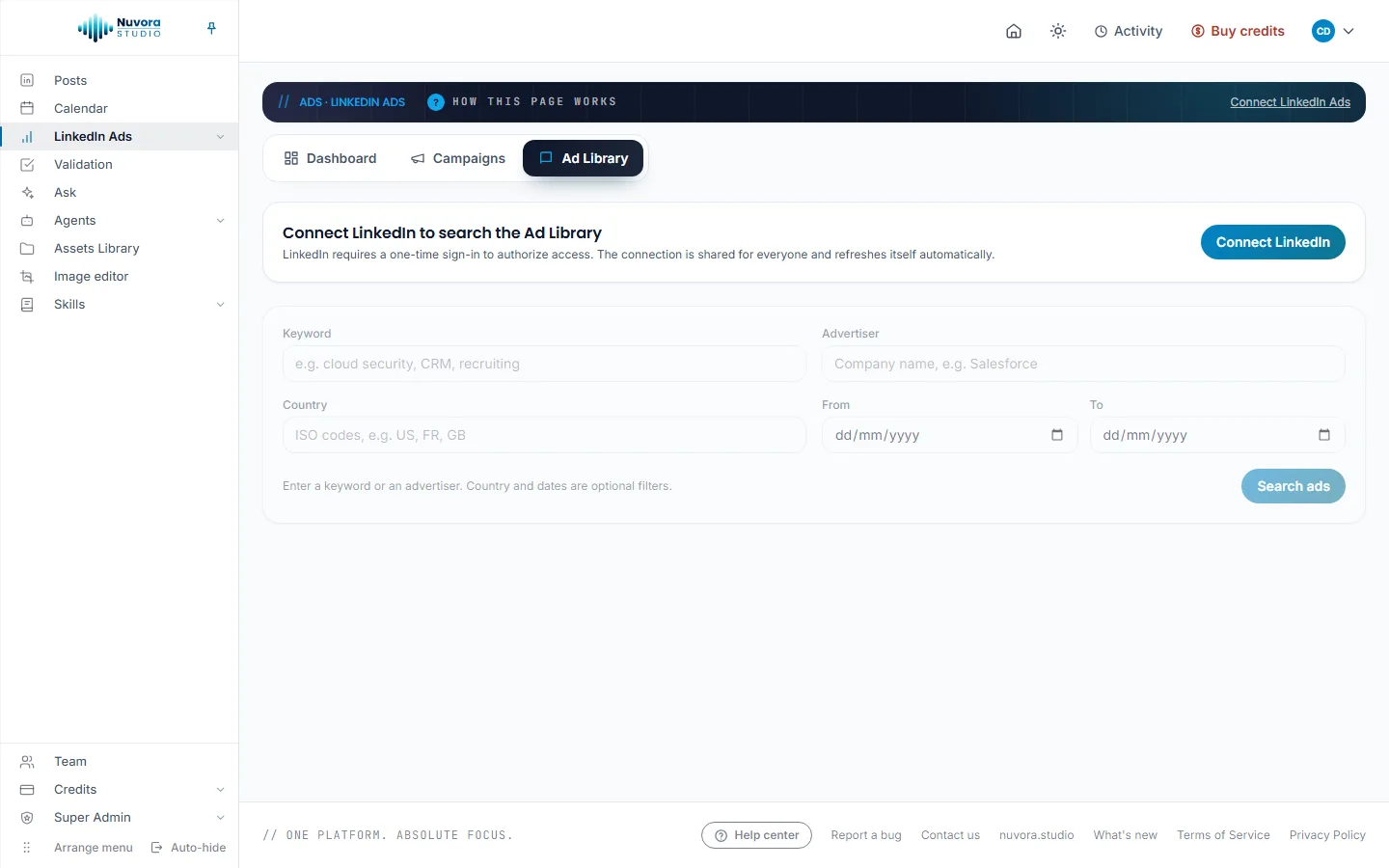
- Otherwise it uses a shared connection. Until one exists, the page shows Connect LinkedIn to search the Ad Library: “LinkedIn requires a one-time sign-in to authorize access. The connection is shared for everyone and refreshes itself automatically.” An Admin clicks Connect LinkedIn and signs in once. Anyone else sees “Ask an administrator to connect it.”
Search
- Type a Keyword (a topic, for example) or an Advertiser (a company name). One of the two is required.
- Narrow it if you want: Country takes ISO codes such as US, FR or GB, and From and To set a date range.
- Click Search ads.
Each result shows the advertiser (and who paid, when that is another company), the ad format, the dates it ran and its impressions. For ads shown in the EU, LinkedIn also discloses Share of impressions by country and Targeting, shown on the card when available. See the ad beside the list opens the ad on LinkedIn in a window next to the results. Load more brings the next results.
If nothing matches, the page says “No ads matched this search. Try a broader keyword or drop the filters.”
What it costs
Nothing in Nuvora. Reading the Dashboard, changing campaigns on the Campaigns tab and searching the Ad Library use no credits. What your campaigns spend is billed by LinkedIn on your ad account, and nothing spends until you switch a campaign on yourself.
The LinkedIn Ads watcher agent and questions about your ad account in Ask are paid AI runs. See Agents and Ask.
Who sees LinkedIn Ads
| Role | LinkedIn Ads |
|---|---|
| Admin | Reads the three tabs, changes campaigns, connects the shared Ad Library access. |
| Creator | Reads the three tabs, changes campaigns. |
| Viewer | Reads the three tabs, changes nothing. |
| Client | No access. |
Whatever the role, the Dashboard and Campaigns show only the ad accounts you connected and ticked yourself, read with your own LinkedIn access.