Posts in the menu holds your LinkedIn posts, from the first draft to the published post. You write a post with AI or by hand, give it a picture or a carousel, and publish it on your LinkedIn profile or on a company page you administer, now or at a time you pick. Or you post it yourself in LinkedIn’s own composer.
Before you start
To publish from Nuvora, connect your LinkedIn account. Connections are personal: you connect your own LinkedIn on My Connections, in the menu under your picture. Nobody else can post with it, and you can’t post with a teammate’s. See My Connections.
One connection covers your profile and the company pages you administer. LinkedIn sends back your profile along with every company page that lists you as an admin allowed to post. Keep your profile and the pages you post for, and remove the ones you don’t. A page that is missing means LinkedIn doesn’t list you as its admin: ask the page owner to add you, then connect again.
The connection lasts 60 days. You get an email before it runs out, and one click renews it.
Writing a post, and publishing it yourself in LinkedIn’s composer, need no connected account.
Who does what. Creators and admins write, add pictures and publish. Viewers can open the module and read the posts they can see. Client logins don’t see the module at all: a post reaches a client through Made for.
Open the module
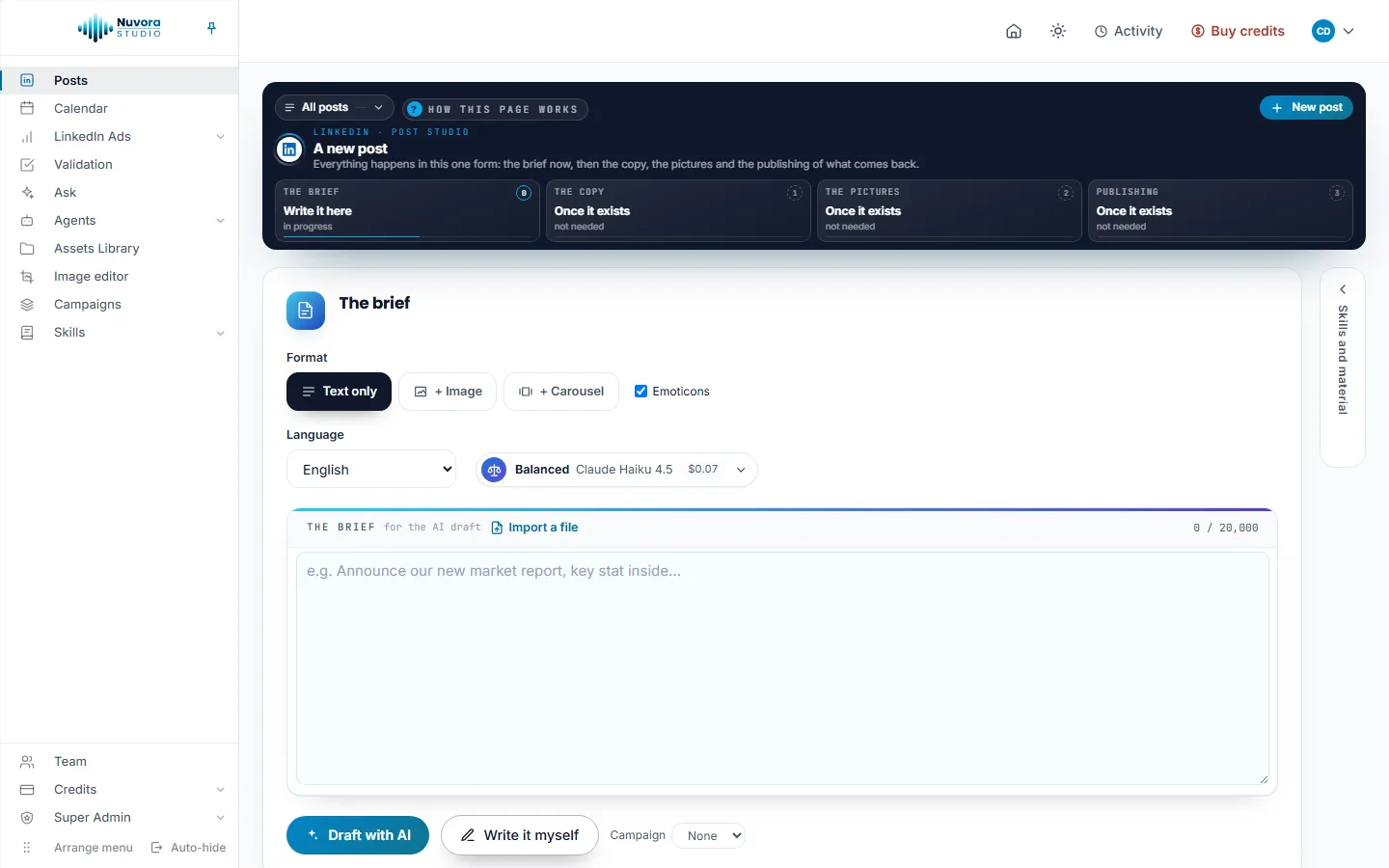
Click Posts in the menu. The dark band at the top holds:
- the post list button, which shows the open post’s title (or All posts) and how many posts there are;
- How this page works, a short note about the module;
- New post, which clears the form for a fresh post;
- the four steps of the open post as tiles, numbered 00 to 03: The brief, The copy, The pictures and Publishing. Each tile shows its state (done, in progress, to do or not needed); click it to open that step.
Find a post
Click the post list button to open every post in a panel over the page. Each row shows the title, the status (draft, waiting for validation, approved or published), the day it was written and how many pictures it has.
- Type in the search box to match words of the title or the copy, a status, or a date written as 2026-09, September or 14/09/2026.
- Fill Written from and to to keep the posts written between two days. Leave one empty for everything before or after. Clear the dates drops both.
Click a row to open that post. The panel closes when you click elsewhere or press Escape.
Who sees a post
A post belongs to the person who wrote it. Until you share it, only you see it. On the band, the line under the title says who can see the post; click Who sees it, pick Only me or Everyone in the team, then Save.
A post made for a client is also shown to that client’s people, whoever it is shared with inside the team. See Made for a client.
Write the brief
- Pick the Format: Text only, + Image or + Carousel. You can change it later, on the pictures step.
- Leave Emoticons ticked to have a few emoji spread through the post, or untick it for none.
- Pick the Language, and the model that writes: Quick, Balanced, Best or any model under All models, each with what a post costs. The star Recommended here marks the model Nuvora runs when nobody chooses. Your pick is remembered for next time. See Choosing a model.
- Write the brief the way you’d brief a writer: the angle or the news, who it speaks to, and what the post has to achieve. The box takes up to 20,000 characters. Import a file adds the text of a .txt or .md file to the box; the file itself isn’t kept.
- Click Draft with AI, or Write it myself to open the editor with no AI call and nothing billed. Whatever is already in the brief box becomes the first text of your post.
The Campaign choice next to Draft with AI files the post, its pictures and every autosaved edit in a campaign. The pictures step shows the same choice. See Campaigns.
The strip at the right edge, Skills and material, unfolds two cards:
- Material to write from, all optional: Files (PDF or plain text; the text is taken out and kept with the post, the file itself is never stored), a Context folder from the Assets Library (every text document in that folder and its subfolders is read before the writing starts; the same list holds your team’s campaigns under Campaigns, and a campaign brings its brief, the list of its assets and the text of its documents), Pages to read (web addresses, one per line, read at the moment of the run) and Keywords to target (type a term and press Enter).
- Skills, where LinkedIn post format is already picked. It carries LinkedIn’s posting rules: with it, the draft is checked against them and fixed once if it breaks one, and a draft still over 3,000 characters after that is refused rather than saved. Add your own skills, or unpick it to write free-form. See Skills.
The draft opens on the copy step, with a line that says what it cost. The run also shows in Activity at the top of the page, so you can leave while it works.
Edit the copy
The copy step has one editor, with a working title on top and the copy under it. Whatever sits in that box is what goes out. LinkedIn keeps up to 3,000 characters, and a counter under the box shows how much of that room the copy takes. Only the first lines show before “see more”, so make the first one stand on its own.
Beside the editor, The post itself shows the post as LinkedIn will. You can type straight on it too: it is the same text.
- It saves itself about a second after you stop typing, when you leave the field, and when you switch tabs or close the page. A line next to Save says Saving…, Saved or Not saved: with the reason.
- Add an emoticon opens an emoji picker.
- Versions. Every version of the copy is kept. Type what to change under Another version (“shorter”, “end on a question”), pick a model, and click Write another version. Once there are two or more, click a version to load it, Use this version to make it the one that goes out, or Delete to drop it. The green dot marks the version that goes out, to validation and to the Assets Library.
- Rewrite one passage. Highlight a passage and click Rewrite with AI beside it. Pick a quick edit (Shorter, Longer, Plainer, More concrete, Fix the writing, More emoticons, Fewer emoticons) or type your own instruction; only that passage is rewritten.
- Draft again. The brief tile brings back what the post was written from. Change it and click Draft again: the new copy is a new version of the same post, and the one you have is kept.
Add pictures
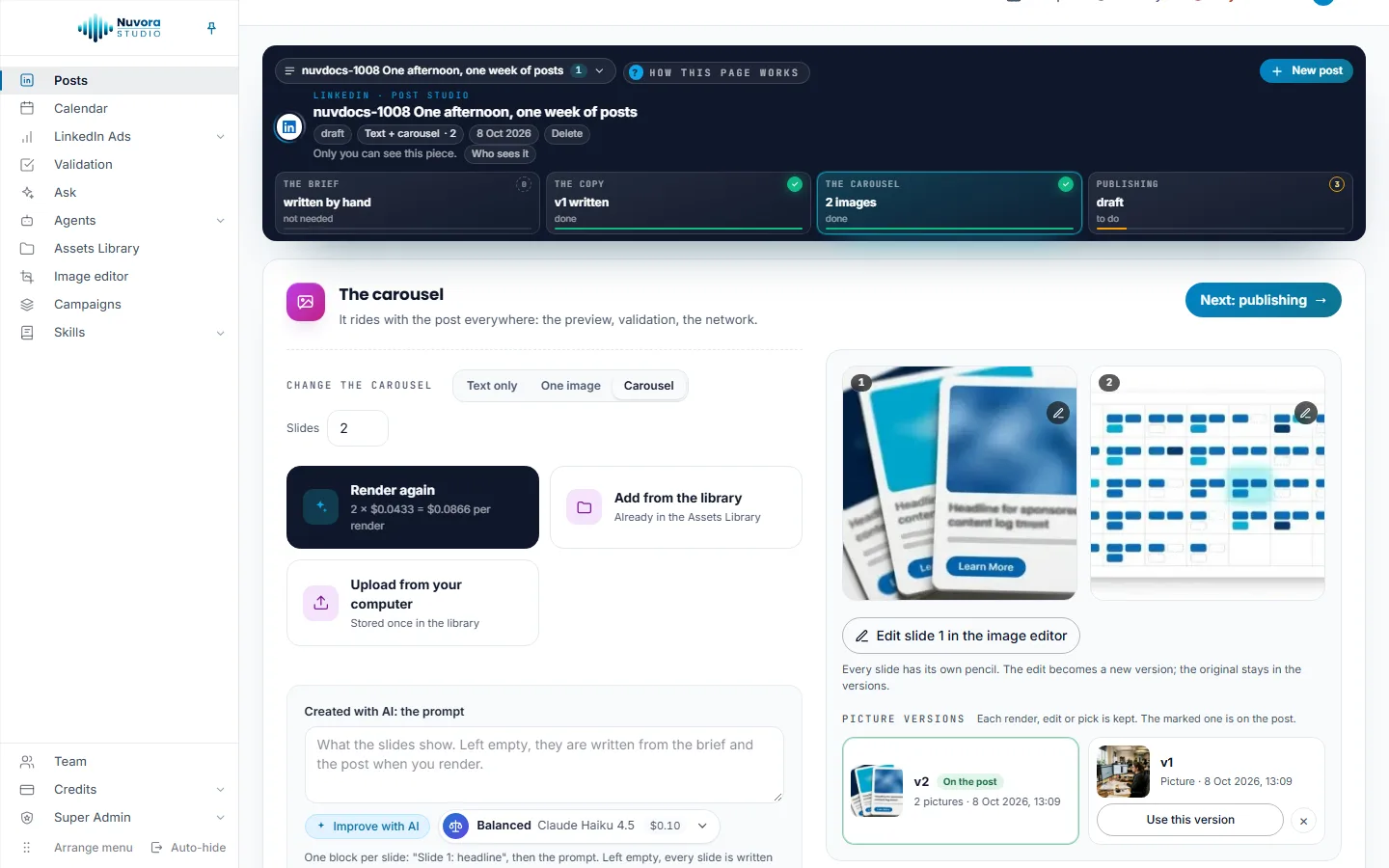
Open The pictures. The shape comes first, and you can change it at any time: Text only, One image or Carousel. For a carousel, Slides sets how many (2 to 8). Then pick one of three ways in:
- Render with AI (Render again once there’s a picture), with its price under the name.
- Pick from the library (Add from the library once there’s a picture): a picture already in your Assets Library.
- Upload from your computer: the file is saved in your Assets Library and put on the post.
The step is split in two. On the left, the three ways in and the render settings; on the right, what the post carries now, which stays in sight while a render runs.
Render with AI. Under Created with AI: the prompt, write what the picture shows, or for a carousel one block per slide. Leave it empty to have it written from the brief and the post. Improve with AI writes the prompt for you to edit; the model picker beside it chooses the text model that writes it, with what that costs. Pick the Engine and the Aspect: the engine list opens on the cheapest engine, so a render you start without touching it always costs the least. The button under the settings (Generate the image, Generate the carousel, or Generate a new image once there is one) shows the price before you press.
A render shows in Activity, and the post keeps the result if you leave. The × on a picture takes it off the post; it stays in the Assets Library. Click a picture to see it large.
Picture versions. Every set of pictures the post has carried is kept, numbered v1, v2 and so on: each render, each edit, each pick from the library and each upload makes one. The list sits under the pictures, newest first, each version with its first picture, how many pictures it holds and when it was made. The one the post carries reads On the post. Click Use this version to put an earlier set back on the post; the × next to it removes that version from the list, and its files stay in the Assets Library.
Edit a picture. Under the pictures, click Edit in the image editor (Edit slide 1 in the image editor on a carousel), or point at any picture and click its pencil under the ×: every slide has its own. The picture opens in the Image editor, on its Social panel set to LinkedIn. Pick where it goes (Post, portrait takes the most room on phones; Post, square and Post, landscape are the others), choose Crop to fill or Fit it whole over a blurred picture or a color, then click Apply the format. You can also adjust its light and colors, write on it, draw an arrow or place a logo. Then save with Save and use it in the post: the edited copy takes the place of the picture in the post, in the same slide, as a new picture version. The original stays in the versions and in the Assets Library. Editing is free.
The clean picture. On a post with pictures, Attach the clean picture (Attach the clean pictures on a carousel), on the bar under the phone preview, takes the AI marks out of the picture files: the Content Credentials LinkedIn shows as a CR badge, and the tags the generator writes. Each marked picture is redrawn without them, saved to the Assets Library and put on the post in its place, as a new picture version. The pixels don’t change, and the original stays in the versions. A picture with no AI mark is left as it is. It’s free.
You can pick a PNG, JPEG, WebP, GIF or AVIF file. LinkedIn takes JPG, PNG and GIF as they are; a WebP or AVIF picture is turned into a JPG when the post goes out. A picture that goes out as it is can weigh up to 10 MB.
Made for a client
When your team works for clients, creators and admins see Made for on the band of an open post. Pick the client the post is for: it is saved at once, and the post’s pictures follow. That client’s people then find the post, with its pictures, in their Client space. Pick No client: the team only to take it back.
The line appears once your team has at least one client. See Your team.
Send it for approval
Under The post itself, the bar holds Send for validation. Name a teammate, or one of the client’s people for a post made for a client. The thread opens in a new tab. See Validation.
While it waits, the post is locked: the band reads Waiting for validation: this post is locked until the validator decides. Nothing can be changed or deleted meanwhile. Nothing on it can be changed, deleted or published until they decide. Approved, the post becomes approved; sent back, it returns to draft for another round.
Publish automatically
Open Publishing and stay on the Publish automatically tab. Nuvora posts through LinkedIn itself, in the name of the profile or the page you tick.
- Under Who it goes out as, tick one or more of your accounts. Each tile says Profile or Page. Nothing is ticked when the step opens. Without a connected LinkedIn account, the tab offers a button that opens My Connections in a new tab.
- Open What LinkedIn asks for and set:
- Shape: Feed post, or Article with a link. An article asks for The link this article points to; LinkedIn doesn’t read that page, so the post’s title and first picture make the preview.
- Who sees it: Anyone on LinkedIn or Connections only.
- Nobody may share this post on, to turn off reposts.
- Click Publish now to send it this second. To send it later, click Schedule: a When it goes out block opens. Pick a Day and a Time, or a chip: In an hour, Tonight, 18:00, Tomorrow, 09:00 or Monday, 09:00. Then click Schedule it.
The buttons stay locked until an account is ticked: the badge next to the tabs reads Off until you tick one, then Ready when you are. The time is read in your own time zone, set in Settings. A scheduled time must be at least two minutes ahead and no more than a year away, and one post can go to up to 20 accounts.
Nuvora looks at the queue every five minutes, so a post set for 09:00 goes out between 09:00 and 09:05. It checks the post against LinkedIn’s limits again before sending. Nuvora sends no email post by post: once a day at 08:00 your time, one email recaps the scheduled posts that went out or did not, and your Publishing log in User Settings keeps every one of them. Every scheduled and published post also shows on the Calendar.
Publish manually
The Publish manually tab needs nothing connected and nothing ticked.
- Click Publish interactively.
- LinkedIn’s own composer opens in a new tab, with the copy in it.
- Follow How it goes, press by press: one picture waits on your clipboard (press Ctrl+V or Cmd+V in the composer), several slides are downloaded as files to drag in, slide 1 first. Read the post once more, then post it there.
On the way over, Nuvora takes the web addresses out of the copy and lists them under the button, so you can paste them in the first comment. LinkedIn’s composer drops a plain “&” from the copy it receives, so ampersands travel written out as a word; the note under the button says how to put them back. If the copy arrives empty or cut short, click Copy the text and paste it again.
What you give up by posting it yourself lists the trade-offs: you can’t pick an hour, and Nuvora is never told the post went out, so it joins neither the queue nor the calendar on its own. Once it’s live, set it yourself under Where it stands: pick published, type the address in Published URL (once live) (+ Add an address for each other account it went out on), and click Save. A post marked published shows on the Calendar.
Follow the queue
Everything you schedule or send lands under In the queue, one row per account:
| Status | What it means | What you can do |
|---|---|---|
| Scheduled | Waiting for its time | Cancel |
| Sending now | Going out | Wait |
| Published | Live, with View live | Edit or delete it on LinkedIn itself |
| Did not go out | Refused, or waiting to retry | Try again now, Cancel |
Cancel takes the post out of the queue after you confirm. It stays in the module and can be scheduled again.
A temporary problem on LinkedIn’s side is retried by itself, three attempts in all, and the row shows when the next attempt is due. A content problem or an account that needs reconnecting is not retried. What LinkedIn said shows on the post, in your Publishing log and in the next daily recap email. An account that stopped working shows Reconnect on its tile and can’t be ticked: reconnect it on My Connections. A tile also shows the days left when the connection has a week or less to go.
Once a post is out, Nuvora can’t change or remove it on LinkedIn. To edit or delete it, do it on LinkedIn.
What it costs
These are paid: Draft with AI, Draft again, Write another version, a rewritten passage, Improve with AI, and each picture rendered. The price of a render is on the buttons before you press, and Improve with AI shows its price in the model picker beside it. For the others, what the run cost shows on the status line as soon as it comes back.
These cost nothing: Write it myself, typing in the editor, editing a picture in the Image editor, going back to an earlier picture version, and publishing on LinkedIn, through Nuvora or by hand. Files you upload are kept in the Assets Library and count toward storage. Every charge against your credits is listed in Usage, under Credits in the menu.
Delete a post
Delete on the band removes the post from Nuvora for good, after you confirm. A post already out stays on LinkedIn. Admins can delete any post. You can delete your own post while it is still Only me. Nobody can delete a post while it waits for validation.