In Nuvora, a team is a group of people who share one pool of credits. Everything the team does with AI is paid from the team’s credits first. A team can also work for clients: the companies it writes LinkedIn posts for. Open Team in the menu.
Working alone or in a team
Working alone? You need no team. You work as a Creator, and the credits you buy pay for what you do. The Team page says You work on your own. When you want to work with others, type a Team name there and click Create the team: you become the team’s Admin, and the people you invite share the team’s credits with you.
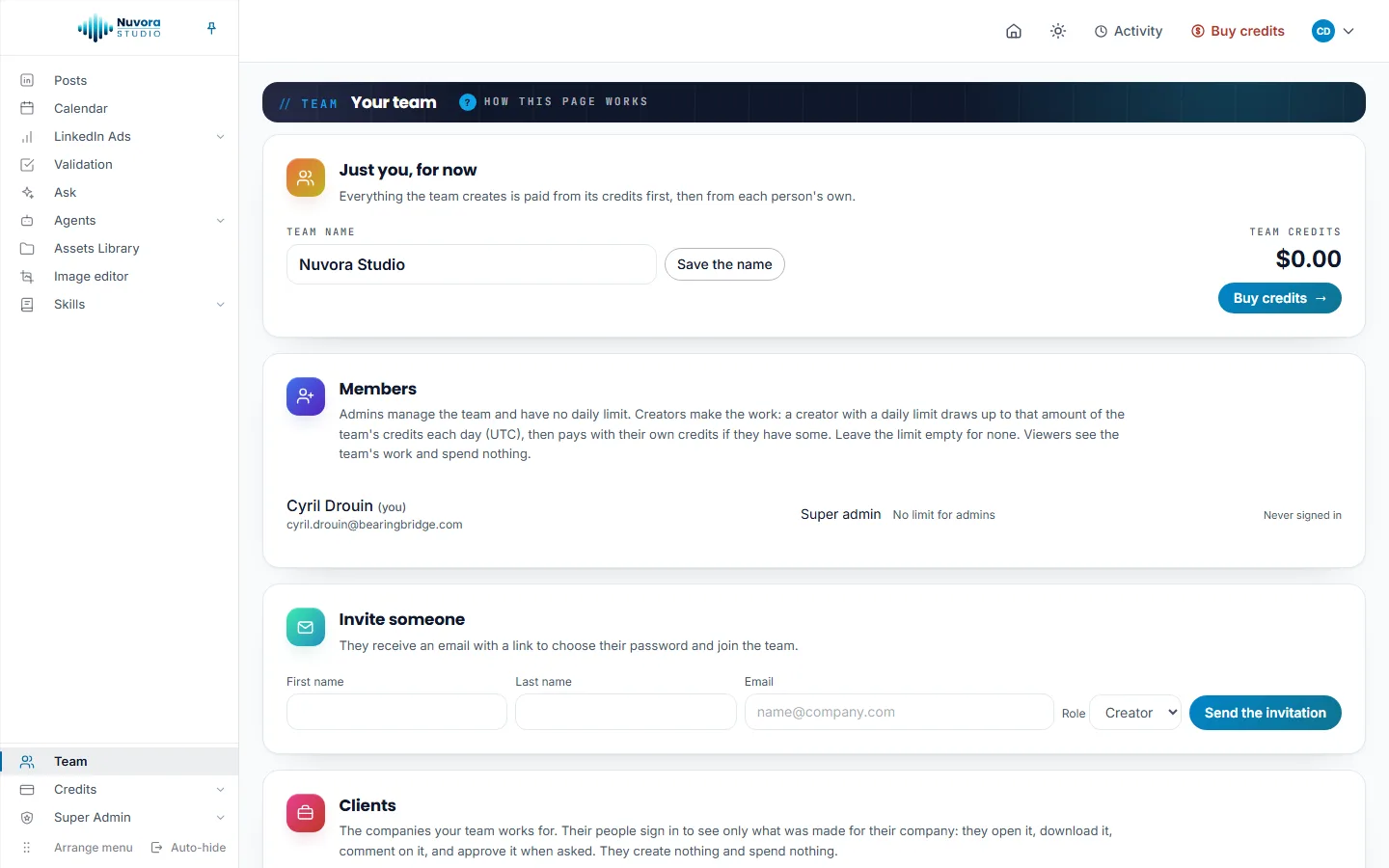
In a team, the page says how many people share the team’s credits, and lists them under Members. An admin also sees the team’s balance there, under Team credits.
The four roles
Nuvora has four roles.
| Role | What they do |
|---|---|
| Admin | Runs the team: invites people, answers requests to join, chooses each person’s role, sets each creator’s daily limit, pauses a login, renames the team, adds clients and gives their people a login, buys the team’s credits, and writes the team’s skills and agents (Team skills and Team agents in the menu). Admins have no daily limit. |
| Creator | Makes the work: writes and publishes LinkedIn posts and runs the LinkedIn ad account, paid actions included, with the team’s credits and within the daily limit an admin may set. Can also buy credits of their own. Says which client a post is made for, and sends work for approval in Validation. |
| Viewer | Sees the team’s work. Creates nothing and spends nothing. |
| Client | A person at one of the companies the team works for, given a login by an admin. Sees only what was made for their company, in their Client space: downloads it, comments on it and approves it. Holds no credits and spends nothing. |
The person who creates a team is its first admin. Your own role is shown in User Settings, under your picture at the top right, with a line that says what it allows.
Modules and rights per person
Beyond the role, each person’s access can be fitted more finely:
- Modules: a module switched off for someone disappears for them entirely, menu and pages. The modules are Posts, Calendar, LinkedIn Ads, Validation, Ask, Agents, Assets Library, Image editor, Campaigns and Skills.
- Rights: what a person may do in each area (see it, create in it, change it, delete from it), graded on Posts, Publishing and scheduling, LinkedIn Ads, Validation, Assets, Image editor, Campaigns, Ask, Agents, Skills, Scratchpad, Log, Team members, Team settings and Shared credits. Each right follows the person’s role until it is changed for them. The Scratchpad row is the person’s own notes, files and recordings: every role writes in its own, Viewers included. See Scratchpad. The Log row opens the person’s own history (runs, notifications, agent runs, emails received, sign-ins and paid actions), which nobody else sees; viewing is all it takes. See Log.
An admin changes both on the person’s own page: on the Team page, click Details in their row, adjust the Modules and Rights, module by module cards, then click Save changes. Back to the team returns to the list. Nobody can change their own rights.
The same page shows what the person did. The Activity card sums up what they spent today and this month, their paid actions since the account was opened, and the number of features they used in the last 30 days. Under Modules and features, last 30 days, each module they worked in lists its features, with the pages they opened, the changes they made, the paid runs, what those cost and the day they last used it. Below, Everything they did lists the last pages opened and changes made, and Paid actions the last paid runs with their price. When the person created their account themselves, the band at the top of the page also shows the country they gave at sign-up.
Invite someone
Admins see the card Invite someone. It is for the people of your team; a client’s people get their login on the Clients card instead (see Clients).
- Type the person’s First name, Last name and Email.
- Pick the Role: Creator, Viewer or Admin.
- Click Send the invitation.
They receive an email with a link to choose their password and join the team. On that page they tick the Terms of Service and click Join and sign in. A new creator shares the team’s credits with no limit until an admin sets one.
Pending invitations are listed under Waiting for an answer, each with its role and Link valid until and a date, or The link has expired. An invitation stays valid for 7 days. Cancel the invitation stops its link from working. To invite someone again after the link expired, send a new invitation.
An address that already belongs to another team can’t be invited: the page says “This person already belongs to another team. Ask a super admin to move them.” Write to us through Contact us in the footer if that happens.
Requests to join
When someone signs up with Join a team and names your team or an admin’s email address, the request appears under Requests to join, with the date they asked.
- Accept as creator: they receive an invitation by email, where they choose their password.
- Decline: the request is dropped.
Daily limit on the team’s credits
For each creator, an admin can set a daily limit, in US dollars, on the team’s credits. Type the amount in the person’s row and click Save. Leave the field empty for no limit. Under the field, Used today shows what they have drawn from the team’s credits today.
The limit resets at midnight UTC. A creator who reaches it continues on their own credits, if they bought some. Otherwise their AI runs are refused until the next day. See Balance and payments.
Admins have no daily limit, and their row says No limit for admins. A viewer’s row says A viewer spends nothing.
Members who are not admins see the list of people and their roles, with this line: “Everyone here creates from the team’s credits. Your administrators decide who joins and how much each member may use a day.”
Change a role
In a person’s row, pick Creator, Viewer or Admin in the role list. The change applies at once, and a line at the top of the page confirms it. You can’t change your own role.
Pause a login
Pause login stops a person from signing in, after you confirm. Nothing they made is lost, and they are told by email. Let back in restores their access at any time, and they are told again. Each row also shows Last seen with a date, or Never signed in.
You can’t pause your own login.
A login nobody has used for two months can also be closed on its own: its owner first receives an email asking them to sign in within a month, and if they don’t, the login is paused and they are told by email. It then shows in the list like any paused login, and Let back in restores it. See Account and sign-in.
Clients
The Clients card, for admins, lists the companies your team works for. Their people sign in to see only what was made for their company: they open it, download it, comment on it, and approve it when asked. They create nothing and spend nothing.
Add a client
- Under New client, type the company’s name.
- Click Add the client.
The page confirms that the client is added and invites you to give its people a login. Two clients of the same team can’t share a name.
To rename a client, change the name in its field and click Rename.
Give a client’s people a login
Each client has its own small form under its name.
- Type the person’s First name, Last name and Email.
- Click Give them a login.
They receive an invitation by email, with the role Client, and choose their password on the invitation page as anyone else would. Until they do, they are listed under their client as Invited, with Link valid until and a date, and Cancel the invitation next to them. A client with nobody yet reads Nobody from this client can sign in yet.
Once they have signed in, each login shows its email and Last seen, or Never signed in. Pause login stops that person from signing in, and Let back in restores it.
Make a post for a client
Nothing reaches a client until you say it was made for them. Creators and admins do that on the post itself, in Posts: once your team has at least one client, the post shows a Made for list in its header. Pick the client, and the choice is saved at once. The post’s pictures, and the copy of its text in the Assets Library, are tagged for the same client.
Pick No client: the team only to take a post back from a client. The team keeps seeing everything it made, whoever it was made for.
When you send a piece to Validation, the validator list holds your colleagues, then each client’s people under Client: and the client’s name. A piece made for a client can only go to that client’s people or to a colleague. Naming a client’s person on a piece made for nobody yet makes it that client’s, so its people can open it.
What a client sees
A client login lands on its Client space, titled Made for and its company’s name. It holds what the team made for that company, newest first: posts, pictures and files. It never shows a cost. Its menu has only Client space and Validation, and it holds no credits. Downloads by a client are paid from the team’s credits. See Client space.
Delete a client
Delete the client asks you to confirm first. What was made for the client stays with the team, no longer tagged for anyone, and the client’s logins are paused. Their pending invitations stop working.
Invoices and sign-in
The Invoices and sign-in card, for admins, holds two decisions the team takes for itself.
- Invoiced to (a person or the company), Invoices sent to and Billing address: the team’s billing details. Click Save the invoice details. Every invoice for the team’s credits is made out to the team’s name, at the email address under Invoices sent to and the Billing address, and the next invoice carries any change.
- Ask for a code sent by email at each sign-in: after the password, every member types a 6-digit code mailed to them. A browser they choose to trust skips it for 30 days. The switch is on for a new team. See Account and sign-in.
Rename the team
Admins see the team’s name in an editable field at the top of the page. Change it and click Save the name. A team name needs at least 2 characters and can’t contain a web address or an email address.
The same card shows admins the team’s balance, under Team credits, with a Buy credits button. See Balance and payments.