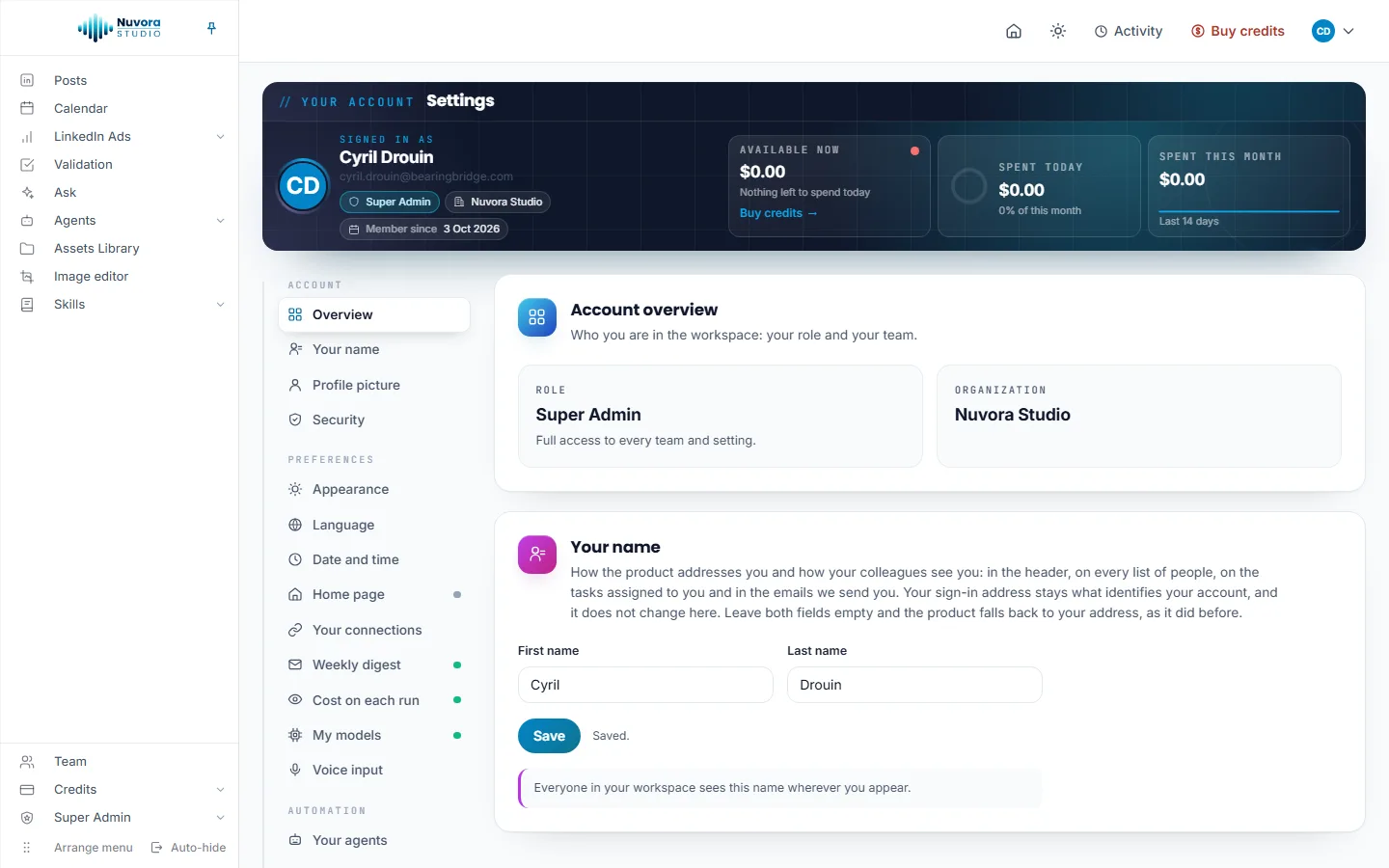
Open User Settings from the menu under your picture, at the top right of every page. The band at the top of the page shows who is signed in, your role, your team and the day you joined, then three figures: Available now, Spent today and Spent this month. When your balance is empty or running low, Buy credits appears under the first one. A client login holds no balance.
The sections are listed on the left, in four groups: Account (Overview, Your name, Profile picture, Security), Preferences (Appearance, Language, Date and time, Home page, Your connections, Weekly digest, Tips, My models, Voice input), Automation (Your agents) and Billing (Invoices, Activity log). Click one to scroll to it.
Overview
Account overview shows your role and your team. Your role is one of Admin, Creator, Viewer or Client, with a line that says what it allows:
- Creator: “Creates with the team’s credits, within the daily limit an admin sets.”
- Viewer: “Sees the team’s work. Creates nothing and spends nothing.”
- Client: “Sees what the team made for your company, downloads it, comments on it and approves it.”
An admin manages the team, its people and its shared credits. See Your team.
Your name
Under Your name, type your First name and Last name and click Save. It is how Nuvora addresses you and how your teammates see you, in the header, in the lists of people and in the emails we send you. Your sign-in address doesn’t change here. Leave both fields empty and Nuvora uses your email address instead. A name can’t contain a web address or an email address: Nuvora says so and keeps the one you had.
Profile picture
Under Profile picture, drop a picture on the box or click Upload picture. JPEG, PNG or WebP. Square photos work best; larger images are cropped and resized automatically. Remove takes it off. You can also click your picture in the band at the top of the page.
Security: sign-in email and password
Sign-in and security has two tabs, and a third when your team asks for a sign-in code.
- Login email: type the New email and your Current password, then click Update email.
- Password: type your Current password, the New password (at least 8 characters) and Confirm new password, then click Update password. The Password strength panel beside the form checks the length, upper and lower case letters, a number and a symbol as you type.
- Sign-in code: the browsers you told Nuvora to trust. See Trusted browsers.
Your current password is checked again before either change is applied.
Appearance
Under Appearance, pick System (follow this device), Light or Dark. The choice applies at once, with nothing to save, and belongs to this browser, not to your account: you can read dark on a phone and light at a desk. The sun or moon button in the top bar switches between light and dark in one click, and the same three choices sit in the menu under your picture.
Language
Nuvora speaks English, French and Chinese. The language changes the interface only: the menus, buttons and messages. Your posts, files and everything your team writes stay in the language they were written in.
You pick it in three places:
- User Settings, under Language: choose it in My language and click Save. The page reloads in that language. The choice is saved on your account, so it follows you to every browser and device you sign in from, and the emails Nuvora sends you are written in it too.
- The menu under your picture: the Language · Langue · 语言 row holds English, Français and 中文. Click one and the page reloads in it.
- The sign-in page, before you sign in: click English, Français or 中文 under the sign-in card. The page reloads in that language and remembers it on this browser.
If your team offers English only, the section says so: an admin adds the other languages on the Team page.
Date and time
Under Date and time, pick your Time zone (or Follow this device), a Date format and a Time format (24-hour or 12-hour). Each choice shows an example written with today’s date. Click Save: the page reloads and every date in Nuvora, the calendar and the hour a post goes out included, is written the new way.
Home page
Under Home page, pick the page you land on when you sign in in Open this page when I sign in. Default for my role lands you on Posts. You can also click the house button in the top bar on any page to make it your home page; click it again to go back to the default. Following a link straight to a page still opens that page.
Your connections
Your LinkedIn profile, your company pages and your LinkedIn ad accounts are connected on their own page. Open My Connections takes you there. See My Connections.
Weekly digest
Every Monday, Nuvora can email you what changed in Nuvora during the past week, in plain language and in your interface language: the same entries as What’s new, at the bottom of every page. A week without changes sends nothing.
Under Weekly digest:
- Send me the weekly digest of what’s new: on, the Monday email comes to you; off, it stops.
- Email me when a new AI model is added: an email when a new model joins your lists.
Each switch is saved the moment you flip it. Every digest also carries an unsubscribe link, so you can stop it from your inbox. See what’s new opens the list of changes, and Manage all your emails opens the page where you choose every optional email we send you.
Tips
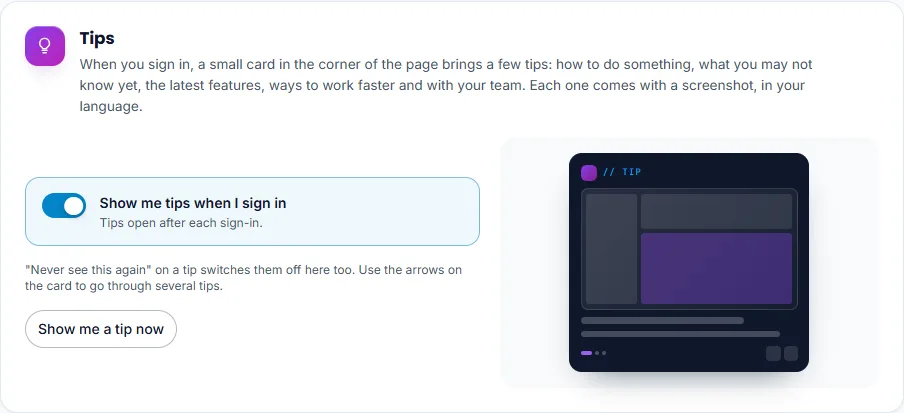
When you sign in, a small card in the bottom right corner of the first page brings a few tips, each with a screenshot of Nuvora in your language. See Discovery and tips for how the card works.
Under Tips:
- Show me tips when I sign in: on, the card opens after each sign-in; off, it no longer does. The switch is saved the moment you flip it. Never see this again, on a tip, switches it off here too.
- Show me a tip now opens the card on the spot, whatever the switch says.
My models
My models lists every AI model your team allows, in tabs. Every one is switched on for you, the models added later included. Switch off a model you don’t want to see: it leaves your own model lists, in Posts, Ask and everywhere else, and nothing changes for anybody else. Each switch is saved the moment you flip it.
A model switched off still runs where it is already set: this only tidies the lists you pick from. The last model of each kind always stays on. A model your team forbids is not listed at all.
Compare the models on public benchmarks, on the card, opens Model benchmarks, where the text models your team allows are compared on public scores and on what a post or an article costs. A text model you switch off also leaves the Quick, Balanced and Best choices: the choice moves to the closest model in price that you kept. See Choosing a model.
Voice input
Every text box with more than one line, the brief of a post included, has a microphone in its corner. Click it and speak: your words appear where your cursor is as you say them. Click again to stop.
Under Voice input:
- Show the microphone on text boxes: switched off, no microphone is shown and nothing is ever recorded.
- Model: the model that listens, with the number of languages it knows and its price a minute.
- The language you speak: Detect it automatically, or pick yours, which helps with short phrases, accents and names.
Click Save. Each dictation is billed by the second like any other run, and its price shows under the box when you stop. Your voice streams to the model and turns into text as you speak; nothing is recorded or saved in Nuvora. Your browser asks once for the microphone the first time you use it.
Your agents
Your agents explains that the agents can be tuned for you alone: your own instructions, model and monthly budget, on top of what your team set. Personal agents spend your own budget. Open your agents opens Agents. See Agents.
Invoices
Under Invoices, type the Name on the invoice and the Address printed on the invoices for credits you buy for your own account, then click Save. Credits bought for the team are always invoiced to the team. See Balance and payments.
Activity log
Activity log lists every paid action you ran, what it used and what it was billed: the number of actions recorded, what you spent this month and today, a chart of the last 14 days, the spend by action, and the full list, which you can filter.
Publishing log
Publishing log lists what happened to every LinkedIn post you scheduled or published: when, the post, the account, the outcome (Published, Did not go out, Will be tried again, Edited on the network or Deleted) and the link to the post or what LinkedIn said. Three figures sit on top: Published, Did not go out and Tried again later. Filter the list by typing, or with All, Published, Did not go out and Other; Show more brings older events.
The scheduled posts that went out or did not also reach you by email, once a day at 08:00 your time, all in one recap: Nuvora sends no email post by post, and a day with nothing to report sends nothing. To stop the recap, switch off Social publishing on the page Manage all your emails opens; the log stays.
The sign-in code by email
New teams ask for a second step when you sign in. After your password, Nuvora sends a 6-digit code to your email address. The screen One more step says where it went and how long it is good for: 10 minutes.
- Type the code under Sign-in code.
- Leave Trust this browser for 30 days, so it only asks for my password. ticked on a computer you use every day, or untick it on a shared one.
- Click Confirm and sign in.
Send another code sends a fresh one; the previous code stops working. Sign in as someone else goes back to the password step. A mistyped code tells you how many attempts are left.
An admin switches the second step on or off for the whole team on the Team page, under Invoices and sign-in. See Your team.
Trusted browsers
The Sign-in code tab in Sign-in and security lists the browsers you told Nuvora to trust. Drop one and its next sign-in asks for a code again. Stop trusting every browser drops them all. The tab only shows when your team asks for a sign-in code.
Forgot your password
- On the sign-in page, click Forgot password?.
- Type your Login email address and click Send reset link. The I’m not a robot box above the button ticks itself first, as on the sign-in page.
- If an account exists for that address, a reset link is on its way. It stays valid for about an hour.
- Open the link, type a New password of at least 8 characters and Confirm password, then click Set new password.
- The page says Password updated. Click Sign in.
A reset link works once. If it has expired, the page says This link is invalid or has expired: click Request a new link.
A login left unused
A login nobody has used for two months can receive an email asking its owner to sign in before a date, one month later. The email gives the last time the login was used (or says it never was) and the day it will be deactivated. Signing in once before that day is enough: the login stays as it is and nothing else changes. Staying signed in on a browser you use every day counts as using it too.
If nobody signs in by then, the login is deactivated and you get an email saying so. Nothing is deleted: the account and its history are kept, and an admin of your team can let you back in from the Team page (see Your team). Forgot your password in the meantime? Use Forgot password? on the sign-in page, as described above.
Discovery
Discovery, in the menu under your picture, opens the page your first sign-in landed on: every module of your menu, the first steps, the help center and the quick tour. See Discovery and tips.
Sign out
Click your picture at the top right, then Sign out.