Nuvora runs on prepaid credits: 1 credit = 1 US dollar. You buy credits, and each AI run is paid from them at the price shown on the run itself. Credits never expire. Open Credits in the menu: it holds Buy credits, Invoices and Usage.
What pays for a run
Every AI run is paid from the team’s credits first, then from your own:
- The team’s credits. Your team buys credits into one shared balance. If an admin set you a daily limit on it, you draw up to that amount each day; the limit resets at midnight UTC.
- Your own credits. What you buy for your account is yours, with no daily allowance and no cap of any kind. They are used once today’s shared allowance is gone, or when the shared balance is empty.
The figure in the top bar of every page is what you can spend right now: what you may still take from the team’s credits today, plus your own credits.
The Buy Credits page opens on the same figure, labeled Credits left, with a badge: Active, Running low or AI features are off. Under it, the figure is broken down into what the team’s credits allow you today, Your own credits, and Total you can spend right now.
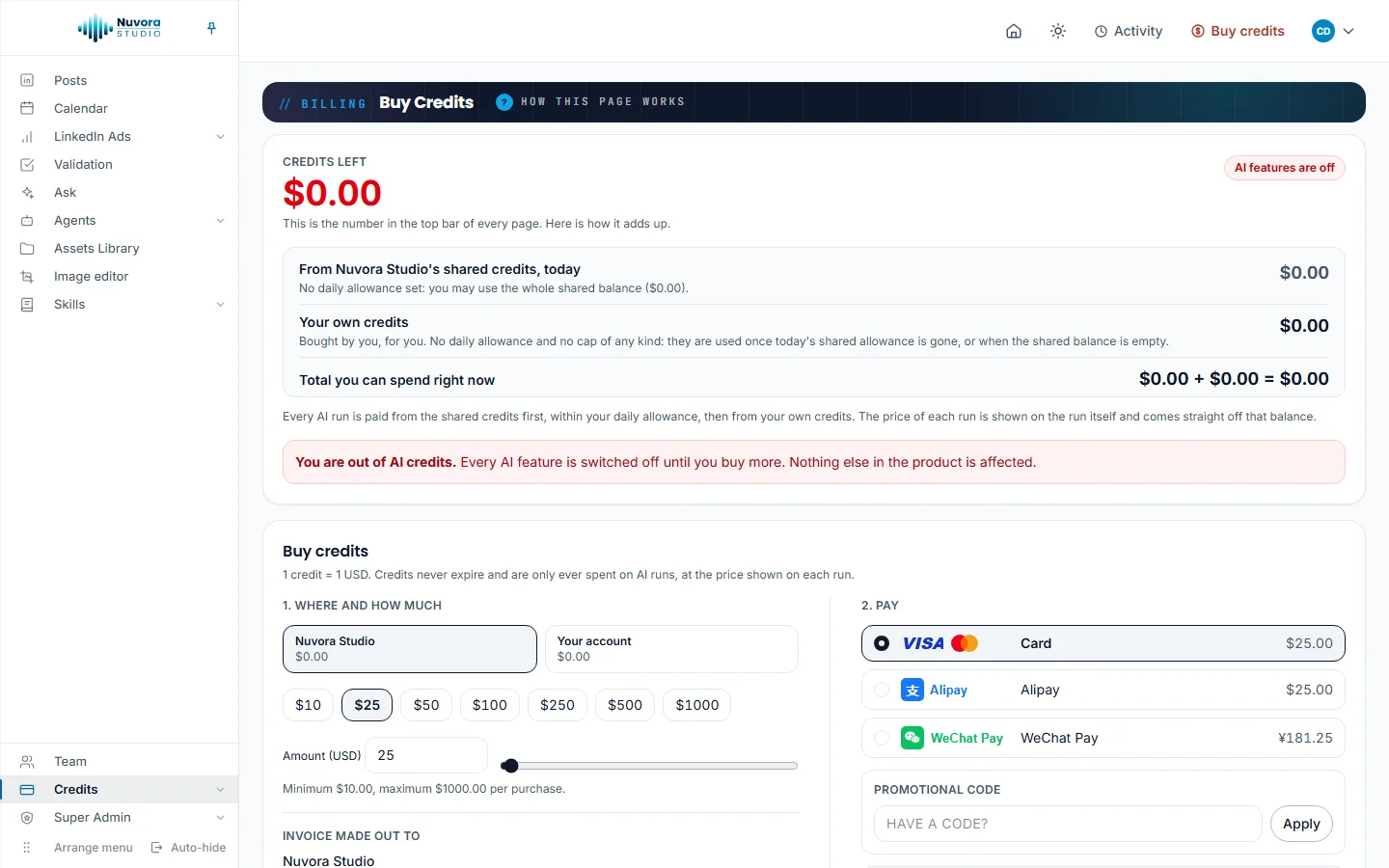
When less than $5.00 is left, an amber box suggests buying credits or switching on automatic top-up. At zero, the page says “You are out of AI credits. Every AI feature is switched off until you buy more. Nothing else in the product is affected.” Your posts, your calendar and your files stay where they are.
If you have used today’s allowance while the team still has credits, the page says Today’s shared allowance is used up. It resets at midnight UTC. Buy credits of your own to keep going now, or ask an admin to raise your daily limit (see Your team).
What costs money
The price of each run is shown on the run itself, and that amount comes straight off your credits. In Nuvora, these are paid:
- drafting a post with AI, and rewriting a passage of a post with AI;
- the pictures of a post rendered with AI, and the picture prompt written with Improve with AI;
- each answer in Ask, and its web search when you switch it on;
- each run of an agent, including a test run, and a post drafted from an agent’s finding;
- storing the team’s files, as a small daily rent taken from the team’s credits, and downloading a stored file. See Assets Library.
Publishing a post on LinkedIn costs nothing, and neither does writing a post yourself. See Posts.
Buy credits
- Open Credits > Buy credits.
- If you’re an admin, pick which balance to fill under 1. Where and how much: the tab with your team’s name, or Your account. The team is selected first. Everyone else buys for Your account and sees no tabs.
- Choose an amount: pick a preset from $10 to $1000, type your own in Amount (USD), or use the slider. The minimum is $10.00 and the maximum $1000.00 per purchase.
- Check Invoice made out to. See Invoices.
- Under 2. Pay, pick Card, Alipay or WeChat Pay.
- If you have a promotional code, type it under Promotional code and click Apply.
- Before your first purchase only, tick the box that accepts the Terms of Service, including that credits are never refunded.
- Click the buy button, which shows the amount you chose, for example Buy $25.00 of credits. It reads Opening Stripe… and takes you to Stripe’s payment page.
- Pay on Stripe. You come back to the Payment page, which shows the result of your purchase.
A card payment is confirmed within seconds. Alipay and WeChat Pay can take a little longer while the payment settles.
Payment methods
- Card: Visa, Mastercard and other international cards, charged in US dollars.
- Alipay: charged in US dollars.
- WeChat Pay: charged in yuan at the fixed rate shown on the page. You receive exactly the dollar amount of credits you chose, and the button shows both amounts.
You type your payment details on Stripe’s own page, never in Nuvora.
Paying from mainland China?
When you pay from mainland China, the page shows a reminder above the buy button: the payment can take up to 2 minutes. Keep the Nuvora page and the Stripe page open until you land back in Nuvora; closing the tab, refreshing or switching networks cuts it. If you already paid, your credits and the invoice still arrive once Stripe confirms.
The same box offers to pay locally: Nuvora can issue a fapiao (发票). You pay in China in RMB, and your account is credited. Write to hello@nuvora.studio with the amount you want.
Promotional codes
A promotional code never changes what you pay: it adds free credits on top of your purchase. Once the code is accepted, the box shows the code and what it adds, and the summary shows Credits you receive. The free credits arrive once Stripe confirms the payment.
A code may apply from a minimum purchase, to some accounts only, or a limited number of times; the box says why when a code does not apply. Remove takes it off.
Automatic top-up
Automatic top-up charges a saved card when the balance drops below a threshold, so a long run is never cut short. It works with a card only: Alipay and WeChat Pay can’t be charged unattended.
- On Credits > Buy credits, under Automatic top-up, click Save a card. Stripe opens to store the card, then brings you back.
- Tick Top up automatically.
- Set the rules:
- Below ($): charge when the balance falls under this amount.
- Top up by ($): how much to add each time.
- Daily limit ($): the most that can be charged automatically in one day.
- Click Save top-up settings.
Two guards bound it: at least five minutes between charges, and the daily limit. A declined card pauses it: the card then reads Automatic top-up is paused. with the reason, and Try again switches it back on. Replace card stores another one.
An admin sets the automatic top-up of the team’s credits on the team’s tab; anyone can set one for their own credits on Your account.
Invoices
Stripe issues an invoice for every purchase and for every automatic top-up. The amount is always in US dollars, whichever way you paid.
Open Credits > Invoices. Admins pick Whose invoices with the same two tabs. The Invoices table lists the Date, Type, Amount, Paid with, Status and Invoice number, with View to open the invoice online and PDF to download it.
Under it, Credit history lists every movement on the balance, newest first: purchases and top-ups in, runs out, and any refund or adjustment. The last 100 movements are shown.
Only an admin sees the team’s invoices and history. Every member sees their own.
Who the invoice is made out to is set when you buy:
- A purchase for the team is always invoiced to the team, under its name, with the email address and billing address an admin keeps on the Team page, under Invoices and sign-in (see Your team).
- A purchase for Your account is invoiced to you, or to your team if you’re an admin and choose so.
Your own name and address for invoices are kept in User Settings > Invoices.
Usage
Usage, under the same menu entry, is the log of every paid action: what ran, when, and what it cost, for the current month or the previous one. Pick the month in Month.
Everyone sees their own actions. Admins see everyone in the team, grouped by person, and can pick one person in User. Each line gives When, Action, Type, Model, Tokens and Cost. Actions you will meet include:
| Action | What it is |
|---|---|
| Social · post draft | A post drafted with AI. |
| Text rewrite | A passage of a post rewritten with AI. |
| Social · visual prompt | A picture prompt written with Improve with AI. |
| Social · visual | A picture of a post rendered with AI. |
| Ask Intelligence | An answer in Ask. |
| Ask Intelligence · web search | The web search behind an answer. |
| Agent run, Agent test run | A run of one of your agents. |
| Agent finding · post draft | A post drafted from an agent’s finding. |
| File storage (daily) | The daily rent of the team’s stored files. |
| File download (transfer) | A download of a stored file. |
The same figures appear in User Settings > Activity log.