Two things help you find your way in Nuvora. Discovery is a page that presents everything you can do, opens on your first sign-in and stays one click away afterwards. Tips come on a small card each time you sign in: one way of doing things at a time, with a screenshot.
The Discovery page
When it opens
The first time you sign in, Nuvora opens Discovery before any other page, whether you have just created your account, accepted an invitation or signed in for the first time with a login your admin made for you. The page then reads Welcome aboard. If you were heading for a page, from a link in an email for instance, Continue to your page, at the top, takes you there.
After that, open it whenever you like: click your picture at the top right, then Discovery. The page then reads Everything you can do.
A client login never lands on it: it goes straight to its Client space.
What it shows
The page follows your own menu: it presents only the modules you can open, in the order of your menu. A module an admin switched off for you does not appear.
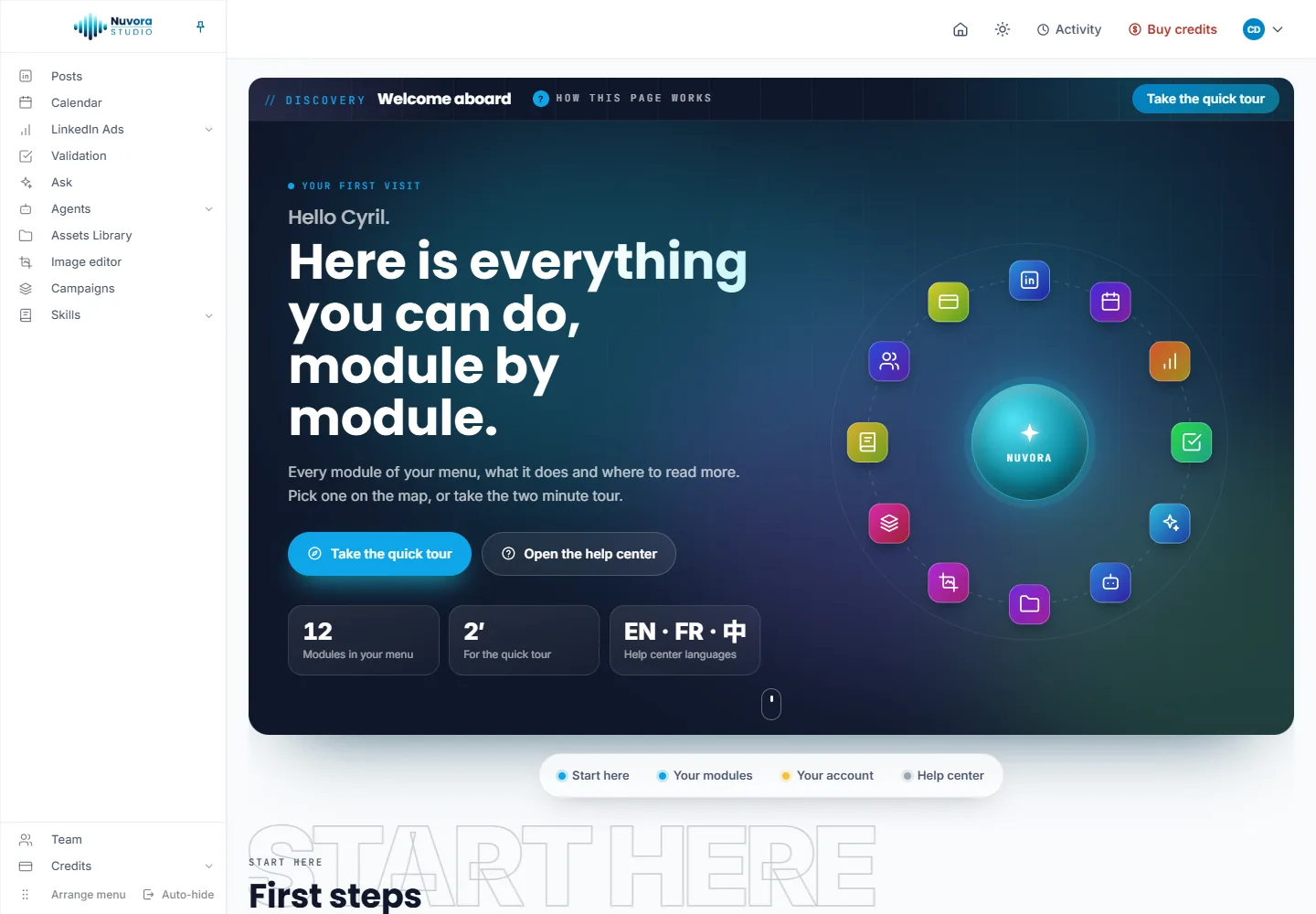
- At the top, a greeting with your first name, Take the quick tour and Open the help center, the number of modules in your menu, and a map of those modules. Point at one on the map to read what it does; click it to jump to it further down.
- A bar of sections follows you down the page: Start here, Your modules, Your account and Help center. Click one to go to it.
- First steps: three things worth doing first. Connect your LinkedIn account (Open My Connections), since posts go out from your own profile or company page; Add credits (Open Credits); and Work alone or as a team (Open Team), as you can start on your own and create a team later.
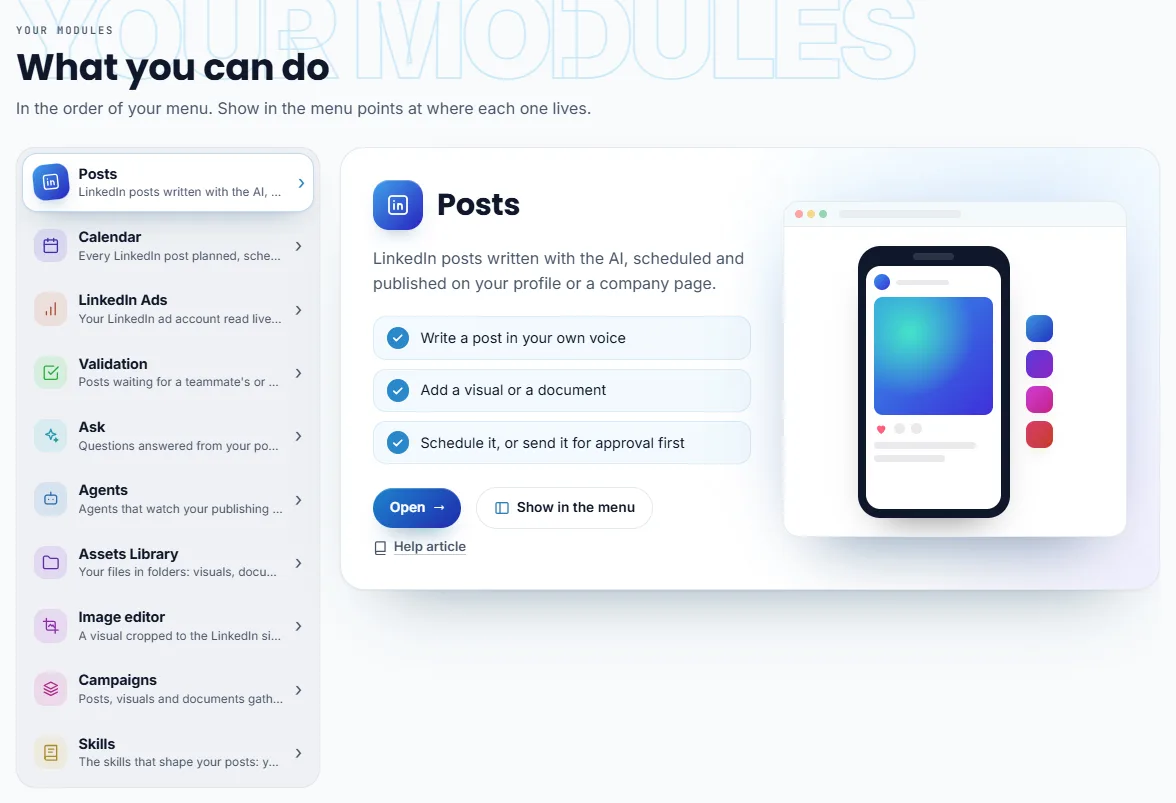
- What you can do: your modules, listed on the left. Click one and it opens beside the list: what it does, three things you can do with it, and three links. Open takes you to the module, Show in the menu points at it in the menu on the left, and Help article opens its article in this help center, in your language, in a new tab. While you leave the list alone, it moves from one module to the next by itself.
- Your account: Team and Credits, and Partner for commercial partners, presented the same way.
- Help center: a few articles to start with, then What’s new, every change to Nuvora, and Report a bug.
The quick tour
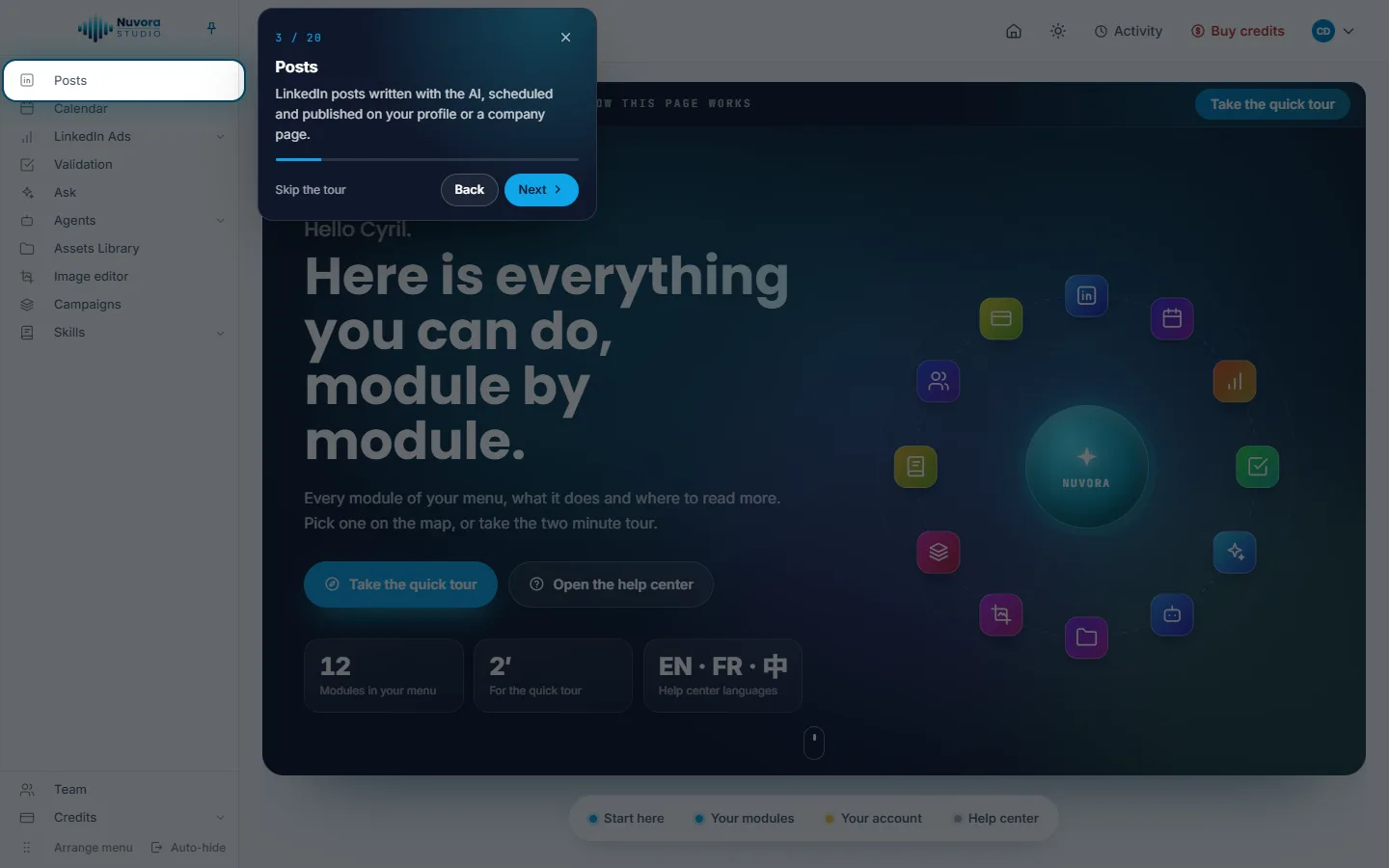
Take the quick tour, at the top of the page or in the greeting, dims the screen and lights up each part of it in turn, with a word on what it does: the menu, then each module in it, the buttons at the top of the screen (your home page, Activity, your balance, the menu under your picture), and the help center link at the foot of the page. It takes about two minutes.
- Next and Back, or the arrow keys, move through the tour; the counter says where you are.
- Skip the tour, the cross or Escape stops it.
- The last step, You are all set, closes with Done.
Show in the menu, on a module, runs a one step tour that points at that module alone.
Tips after you sign in
A moment after the first page you open once signed in, a small card appears in the bottom right corner of the screen, under the connection check’s notification when there is one. It never covers the page: you can keep working while it’s there.
The card holds up to eight tips, the ones you haven’t read yet first, and a tip about a feature added in the last weeks leads the way. Each tip has its kind (How to, Did you know?, New feature, Work faster or For your team), a screenshot of Nuvora in your language, a title and a sentence or two.
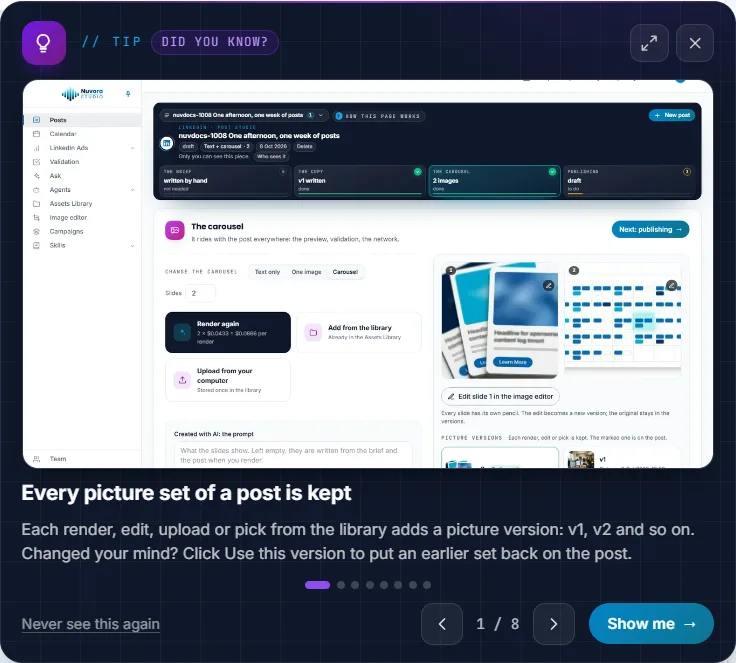
- The arrows, or the left and right arrow keys, go to the previous or the next tip. The counter, 1 / 8 for instance, says where you are.
- Show me opens the page the tip is about. The card stays open there, so you can read the tip again while you try it.
- Full screen, the button at the top, shows the tip over the page, its screenshot as large as the window allows. The same button, a click on the dimmed page or Escape puts it back in its corner.
- Close, the cross, puts the card away until your next sign-in.
- Never see this again switches tips off. The card then says Tips are off, with a link to Settings, where you can switch them back on.
The card follows you from page to page in the same browser tab until you close it. You only get tips about pages you can open: a tip on LinkedIn Ads never reaches somebody whose menu has no LinkedIn Ads.
On your very first sign-in, the card waits: it appears on the first page you open after Discovery.
Switch tips off or back on
Open User Settings from the menu under your picture, then Tips:
- Show me tips when I sign in: on, the card comes after each sign-in; off, it no longer does.
- Show me a tip now opens the card on the spot, whatever the switch says.
See Account and sign-in.