An agent watches part of your LinkedIn work for you. On a schedule, it re-reads its data, compares it with what it saw last time, and reports what changed as findings: short alerts with the real dates and figures, and a suggested next step.
Nothing runs until someone adds an agent. Open Agents in the menu: it holds four entries, which are also the four tabs at the top of each Agents page.
| Menu entry | Tab | What it holds |
|---|---|---|
| My agents | Personal | Your own agents: the only ones you edit, test and duplicate. They spend your own budget. |
| Team agents | Team | The agents shared across the team. Admins only. |
| Catalog | Catalog | The standard agents, open to everyone. |
| Runs | Agents Command Room | What is running, what is switched on, and every previous run. |
The two standard agents
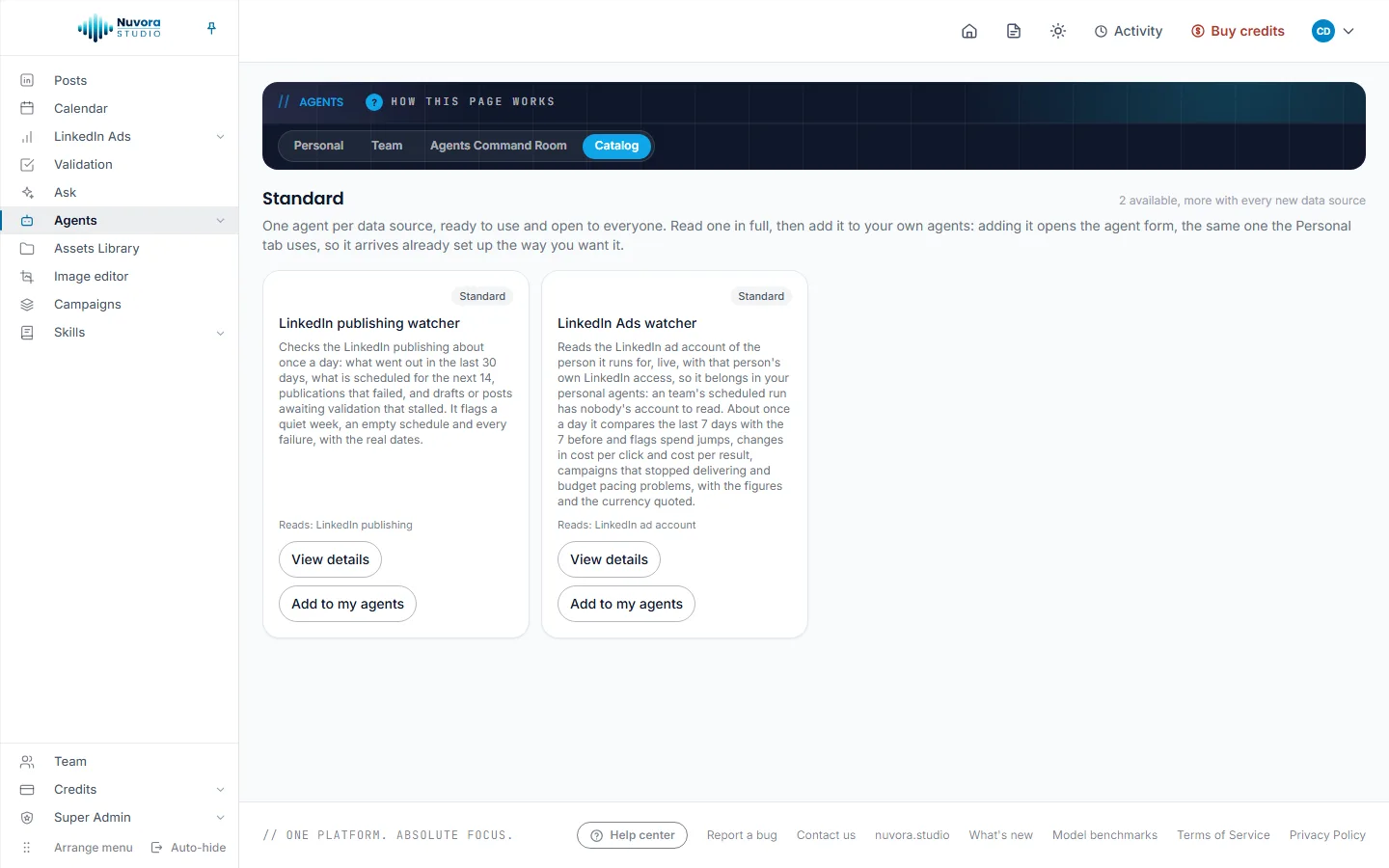
LinkedIn publishing watcher
It reads the LinkedIn publishing about once a day: what went out in the last 30 days, what is scheduled for the next 14, the publishing queue and the drafts. It flags:
- no post published for 7 days or more, saying since which date;
- nothing scheduled within the next 7 days;
- every failed publication, with its date, its account and the reason given;
- scheduled posts that were due but never sent;
- drafts untouched for 7 days or more;
- posts waiting for validation for 3 days or more;
- approved posts nobody scheduled.
A steady rhythm with a filled schedule gives one finding at most. The agent only reads what the person it runs for can see: a draft its author keeps private is left out. A post already published counts, whoever wrote it.
Its findings appear under the month view of the Calendar, in LinkedIn publishing findings.
LinkedIn Ads watcher
It reads the LinkedIn ad account of the person it runs for, live, with that person’s own LinkedIn access. About once a day it compares the last 7 days with the 7 before, campaign by campaign, with the month’s budget pacing. It flags:
- spend up or down 25% or more, for the account or a campaign;
- cost per click or cost per result moving 20% or more;
- campaigns switched on that stopped delivering, and why LinkedIn holds them back;
- spend this month heading well over or under what the running daily budgets allow;
- the account alerts worth acting on.
It quotes the figures of both periods with the currency, and ignores campaigns whose spend is negligible in both.
Add it to your own agents. It needs a person’s ad account to read, and a team agent’s scheduled run belongs to nobody in particular: it would find nothing to read. Connect your ad account first, on My Connections. See LinkedIn Ads.
Its findings appear under the LinkedIn Ads Dashboard, in LinkedIn Ads findings.
Add a standard agent
- Open Agents > Catalog.
- Click View details to read the agent in full before you take it: what it reads, the model it runs on, how often it runs, whether it searches the web, and its instructions.
- Click Add to my agents. The agent form opens, already filled in with the standard setup. Change anything you want, then confirm with Add the agent.
The agent joins My agents, switched on, and the Catalog card now reads In my agents. The Catalog itself stays as shipped.
You can also add one from the bottom of My agents: unfold Add an agent and click Add next to the agent.
Create an agent from scratch
A custom agent reads the data you pick and follows instructions you write.
- Open Agents > My agents.
- Unfold Create an agent from scratch.
- Fill in the form (see below). On its Scope tab, under Data it reads, tick what it should read:
- In the app: Social activity (the social content of the last 30 days, what was drafted, planned and published), LinkedIn publishing (the LinkedIn posts of the last 30 days and the next 14, published, scheduled, failed, and the drafts waiting) and LinkedIn ad account (the ad account of the person the agent runs for, read live, the last 7 days against the 7 before).
- From the Assets Library: any of your team’s campaigns, listed first and marked Campaign, and any folder or document of the library. A campaign brings its brief and every asset in it, pictures and clips by their prompt. A folder brings every document in it and in its subfolders. PDF, Word, Excel, Markdown and text files are read; pictures and clips are left aside. Every download is billed like one from the Assets Library. Past six entries, a search box (Search a campaign, a folder or a document) narrows the list. Manage the library opens the library in a new tab.
- Connected systems: the systems connected to your team, if any. Manage connections opens the page where they are connected.
- On the General tab, write its Instructions: what it should look for in that data, what counts as a finding, and what it should ignore. Improve with AI, next to the box, writes them for you from the agent’s name and scope, or rewrites what you typed.
- Click Create the agent. It starts switched on.
You can only give an agent data you can see yourself. Each block follows your rights, as on its own pages.
The agent form
The same form serves for adding, creating and editing an agent. Name, at the top, is the name shown on its card and in the emails. Under it, four tabs split the rest. The form opens on the tab you used last.
General
| Field | What it does |
|---|---|
| What users are told it does | The sentence shown on its card. |
| Instructions | What it watches and how to judge it. Leave it empty on a standard agent to keep the standard instructions. What it may report and how it grades severity is fixed by the platform. |
Each of the two boxes has an Improve with AI button. With text in the box, it rewrites it; with the box empty, it writes it from the agent’s name and scope. It writes with the model picked at the top of the tab, under Improve with AI writes with. The price shows under the box, with Undo, which puts back what you had. Nothing is saved until you save the agent.
Scope
Scope shows everything the agent works on, and lets you change any part of it at any time: change what you want, then click Save.
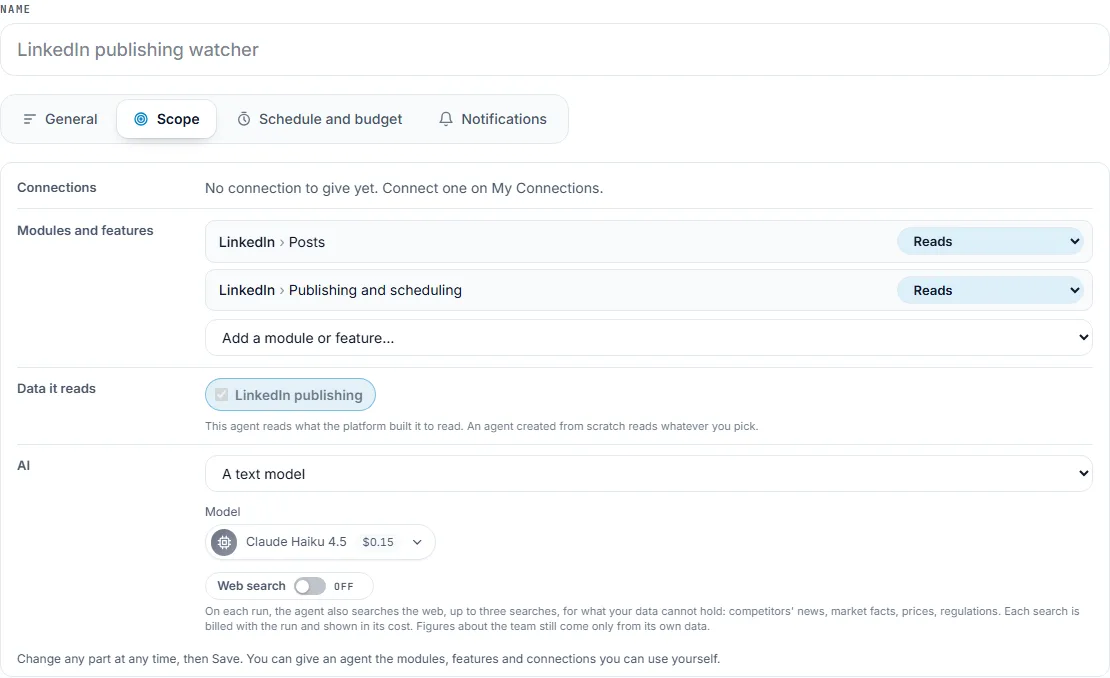
| Row | What it holds |
|---|---|
| Connections | The accounts of yours it may use, such as your LinkedIn ad account for the LinkedIn Ads watcher, each with what it may do there: Off, Reads, or Reads and changes. When there is none to give, the row says so, with a link to My Connections. |
| Modules and features | The parts of Nuvora it works in, named as in the rights of your team (LinkedIn > Posts, for example), each with Off, Reads or Reads and changes. Add a module or feature… gives it one more, among those of Nuvora. |
| Data it reads | Fixed for a standard agent: it reads what it was built to read. Your choice for one you created. |
| AI | The kind of model it runs: No AI model, A text model, An image model or A video model. Then the model itself, picked from a list that shows what one run costs with each model (Standard keeps the agent’s own), and the Web search switch. With No AI model, a run costs nothing. |
Web search ON: on each run the agent also searches the web, up to three searches, for what your data can’t hold (competitors’ news, market facts, prices, regulations). Each search is billed with the run. OFF: its own data only.
Two rules hold the scope in place:
- You can only give an agent the modules, features and connections you can use yourself. Data blocks follow your rights too, as on their own pages.
- A run never reads or writes anything outside the scope as it is saved. Switch a part off, and the next run leaves it alone.
When you create an agent from scratch, the Scope tab holds Data it reads and AI only. The rest of the scope shows once the agent exists, the next time you open it.
Schedule and budget
| Field | What it does |
|---|---|
| Runs every (hours) | The minimum time between two scheduled runs. |
| Monthly budget (USD) and Weekly budget (USD) | The most this agent may spend per calendar month and over any seven days. Whichever is reached first stops it from running. Empty means no limit of its own. Under them, This month and Last seven days show what it spent. |
Notifications
| Field | What it does |
|---|---|
| Email the results to | The agent’s owner (your own agents) or the team’s Admins (team agents), These people only with a list of addresses, or Nobody. |
| Email content | Summary and link, or Full results with the findings in the email. |
A field left empty uses the standard version of the agent. Changes apply from the next run.
Manage your agents
On My agents, each agent card shows its name, whether it is on and how often it runs, the model it runs on and what it reads. On each card:
- On / Off: switches the agent on or off. Switched off, it keeps its setup but stops running.
- Edit & test: opens the form. Click Save to keep your changes.
- Duplicate: makes a new agent of yours, prefilled with this one’s setup.
- Remove from these agents (a standard agent) or Delete this agent (one you created): removes it from your list. The Catalog and the team’s agents are not touched.
Test before you rely on it
In Edit & test, under Test run, click Run on real data. The agent runs as written above, unsaved edits included, on your current data, and the findings are shown there only: nothing is posted to a findings list and the agent’s memory of the last pass is left untouched. It is a real, paid AI call.
When agents run
A switched-on agent runs on its schedule. The scheduler makes one pass a day, and an agent runs on that pass once its Runs every (hours) has gone by since its last run. Both standard agents run about once a day.
A run skips the AI call entirely, and costs nothing, when nothing changed since the last pass or when there is no data to read yet (for example, no ad account connected).
To run an agent now, open Agents > Runs and click Run now next to it.
The Agents Command Room
Runs opens the Agents Command Room.
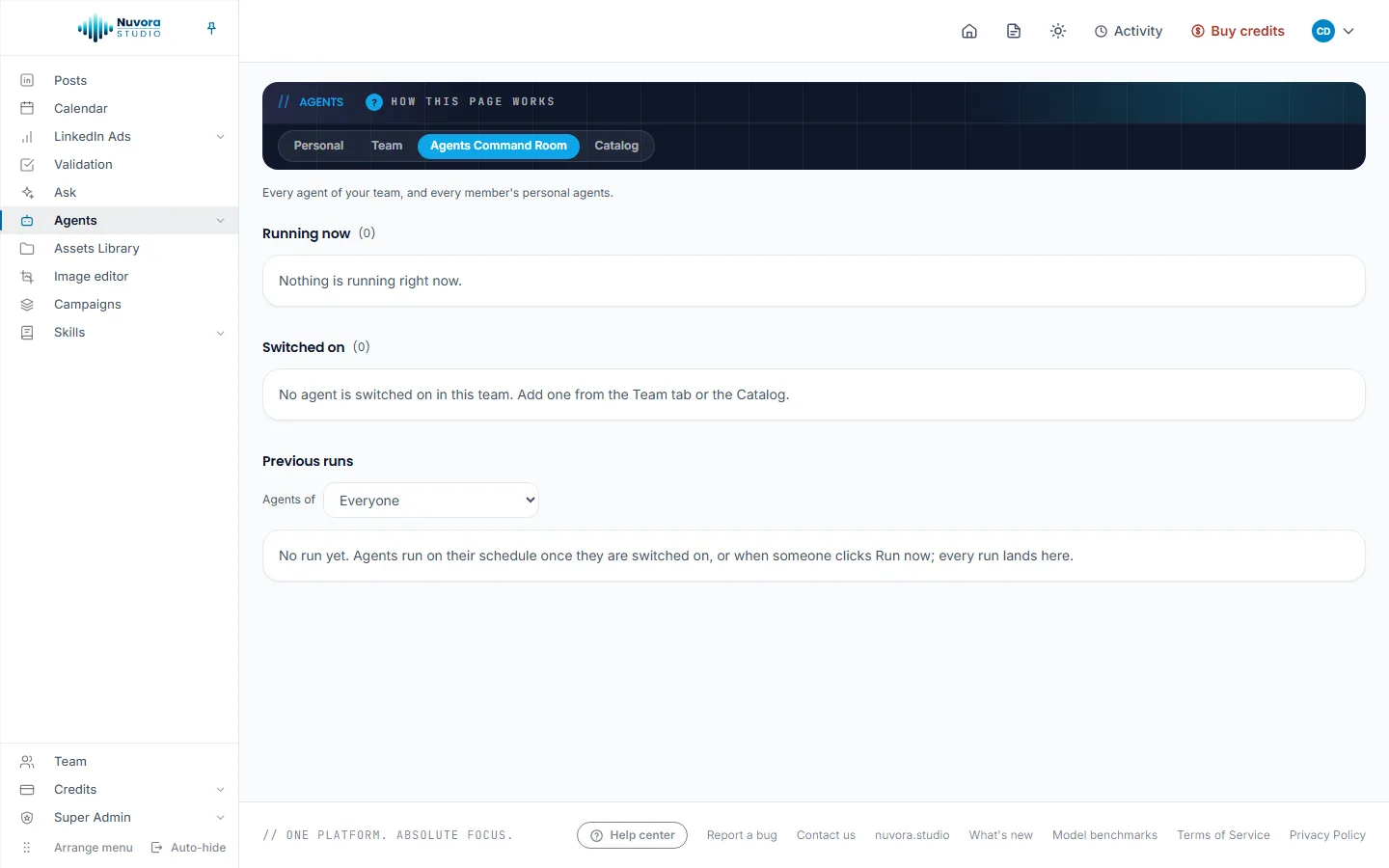
- Running now: the runs going on, and the ones waiting for the next pass of the scheduler. The page refreshes by itself while something runs.
- Switched on: the agents that run on their own, with Last run: and Next run:, and Run now, which starts a real, paid run at once.
- Previous runs: the 50 most recent runs, scheduled or started by hand. Test runs are not listed. Each row says how it ended: failed, no data to read, nothing changed, or the number of findings. Open a row to read the findings, the model, the tokens used and the price of the run.
An Admin sees every agent of the team and every member’s personal agents, can run any of them, and filters Previous runs with Agents of. Everyone else sees their own agents.
Findings
Each finding has a severity (critical, warning or info), a date, a title, an explanation and, often, Suggested: with a next step.
Where you read them:
- LinkedIn publishing findings, under the month view of the Calendar, for the LinkedIn publishing watcher.
- LinkedIn Ads findings, under the LinkedIn Ads Dashboard, for the LinkedIn Ads watcher.
- Previous runs in the Agents Command Room, for every agent, including the ones you created.
- The results email, when the agent sends one.
In the two findings lists, Creators and Admins can act on each finding:
| Button | What it does |
|---|---|
| Acknowledge | Marks it as seen. It stays in the list, marked acknowledged. |
| Resolve | It was handled: it leaves the list. |
| Dismiss | It was noise: it leaves the list. |
| Draft response | Writes the concrete response with AI and keeps it under the finding, as Drafted response:. A paid run, its price shown with the draft. |
| Draft post | Writes a LinkedIn post answering the finding and saves it as a draft in your posts, marked Post drafted: under the finding. A paid run, its price shown with the draft. |
Run watchers now, at the top of a findings list, runs the agents at once and shows what the run cost next to the button.
The results email
Only scheduled runs send an email. When you run an agent yourself, the results show on screen.
After each scheduled run that reached the AI, the agent writes to the people chosen in Email the results to: by default, its owner for a personal agent and the team’s Admins for a team agent. The email summarizes the run (when it ran, what it read, what came out, what it cost), even when nothing was worth flagging, and its button opens the run in the Agents Command Room. With Full results, the findings are in the email too.
A run that skipped the AI, because nothing changed or there was nothing to read, sends nothing.
Team agents
Team agents (the Team tab) is for Admins. The agents added there are shared: they run for the whole team, and their runs are paid by the team.
- Create an agent from scratch at the top and Add an agent at the bottom work as on My agents.
- Configure picks what you set up, for example the team’s agents, or one member’s personal agents, managed on their behalf.
Members see the team’s agents on My agents, under Your team’s agents. View details shows one in full, and Add to my agents makes a copy of their own, which they change, run and schedule, and whose runs are billed to them. The team’s agent stays as it is.
Keep the LinkedIn Ads watcher in personal agents: as a team agent it has no one’s ad account to read.
What a run costs, and who pays
A run that reaches the AI is paid: the tokens of the model, plus each web search when Web search is on. A run that finds nothing changed, or nothing to read, costs nothing.
| Run | Charged to |
|---|---|
| A scheduled run of your personal agent | You, the agent’s owner, counted against your daily limit on the team’s credits. |
| A scheduled run of a team agent | The team. |
| Run now | The person who clicks it. |
| Improve with AI on the agent form | The person who clicks it, at the price shown under the box. |
The price of every run that reached the AI is shown in Previous runs and in the results email. The agent’s own Monthly budget (USD) and Weekly budget (USD) stop it before it spends more; a tighter limit set for you or the team still wins. See Balance and payments.
Who can do what
| Role | Agents |
|---|---|
| Admin | Everything below, plus Team agents, every member’s runs in the Agents Command Room, and Run now on any agent. |
| Creator | Adds, creates, edits, tests, duplicates and runs their own agents; acts on findings. |
| Viewer | Opens the Agents pages and reads how agents are set up, but can’t add, change, test or run one: “Your role is read-only, so you can look at how these agents are set up but not change them or run a test.” |
| Client | No access. |