A skill is a reusable set of instructions the AI follows: a method, a checklist, a house style, a list of rules. You write it once, and you pick it when the AI writes for you, so you never paste the same instructions twice.
In Nuvora, skills shape the drafts of your LinkedIn posts, and they can join a question in Ask.
Where skills are used
In a post’s brief
When you write a post, open Skills and material, at the right edge of the brief. Its Skills card holds a dropdown of every skill switched on that applies to Social: your team’s, marked Team, and your own, marked Personal. Manage skills opens this page in a new tab.
LinkedIn post format is picked by default. Its rules become the format of the draft, and the draft is checked and repaired against them: a hook under 140 characters, 1,300 to 2,500 characters of plain text, 3 to 5 hashtags at the end, no link in the body. Unpick it and the draft is written free-form, with no such check.
Every other skill applies only when you pick it. What you pick goes with the run and everything generated from it.
In Ask
On the Ask page, Use a skill shows the same kind of dropdown, with every skill switched on of your team and your own. Nothing is applied unless you pick it.
What skills cost
A skill adds words to the request, so it counts for a few more tokens in the price of the run it joins. Keep skills short and specific: what to do, what to avoid, how to format.
The Skills menu
| Entry | Who sees it | What it holds |
|---|---|---|
| My skills | Everyone | Your own skills: the ones you added from the Catalog or from your team, and the ones you wrote. Only these can be edited. |
| Team skills | Admins in the menu; every member through the Team tab on the Skills pages | The skills your admins wrote for everyone in the team. |
| Catalog | Everyone | Every standard skill Nuvora ships, open to all. |
The Skills pages also share three tabs at the top: Personal, Team and Catalog.
My skills
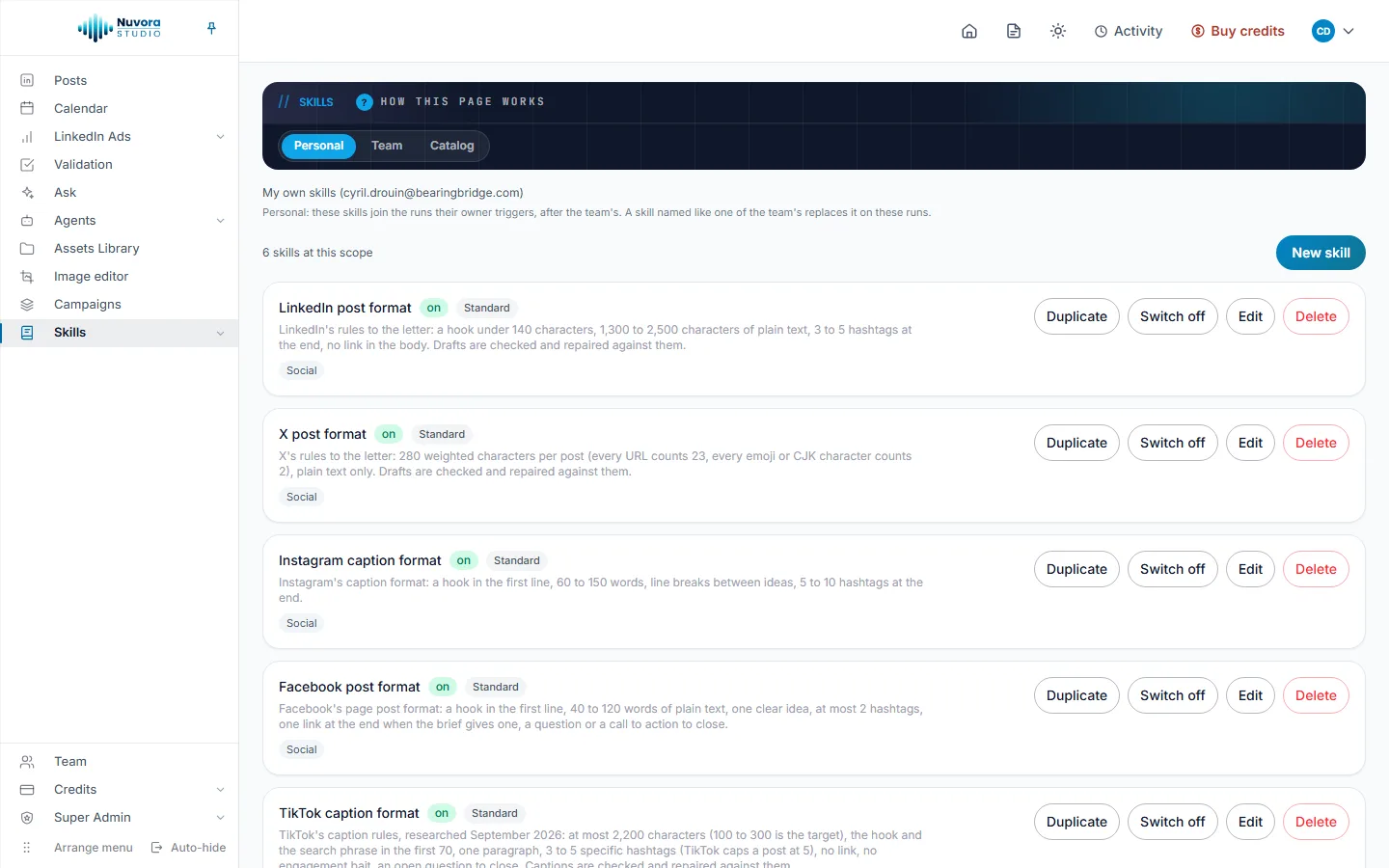
Your list starts with the standard post format skills, LinkedIn post format among them, each marked Standard and on. The list also holds the format skills of other networks: a LinkedIn post uses them only if you pick them, and you can switch them off.
Each skill shows where it applies (Social), and has:
- Duplicate: makes a variant of it.
- Switch off (or Switch on): a skill switched off is kept but no longer offered.
- Edit: opens the form. Change the Name, What it is for (shown to people, not to the AI), the Instructions (what the AI follows) and Where it applies, then click Save.
- Delete: removes it from your list, after you confirm. A skill you took from the Catalog or from your team stays where it was there. A standard post format skill you delete comes back with its shipped text; switch it off instead to keep it out of the way.
To write one from nothing, click New skill, fill in the same form and click Create skill. Instructions hold up to 8,000 characters. Write them the way you would brief a colleague: short rules or numbered steps work best.
Under Where it applies, tick Social so the skill is offered in your posts. A skill with nothing ticked is stored and still offered in Ask, where you pick skills by hand, but nowhere else.
A Viewer can read the skills but not change them.
The Catalog
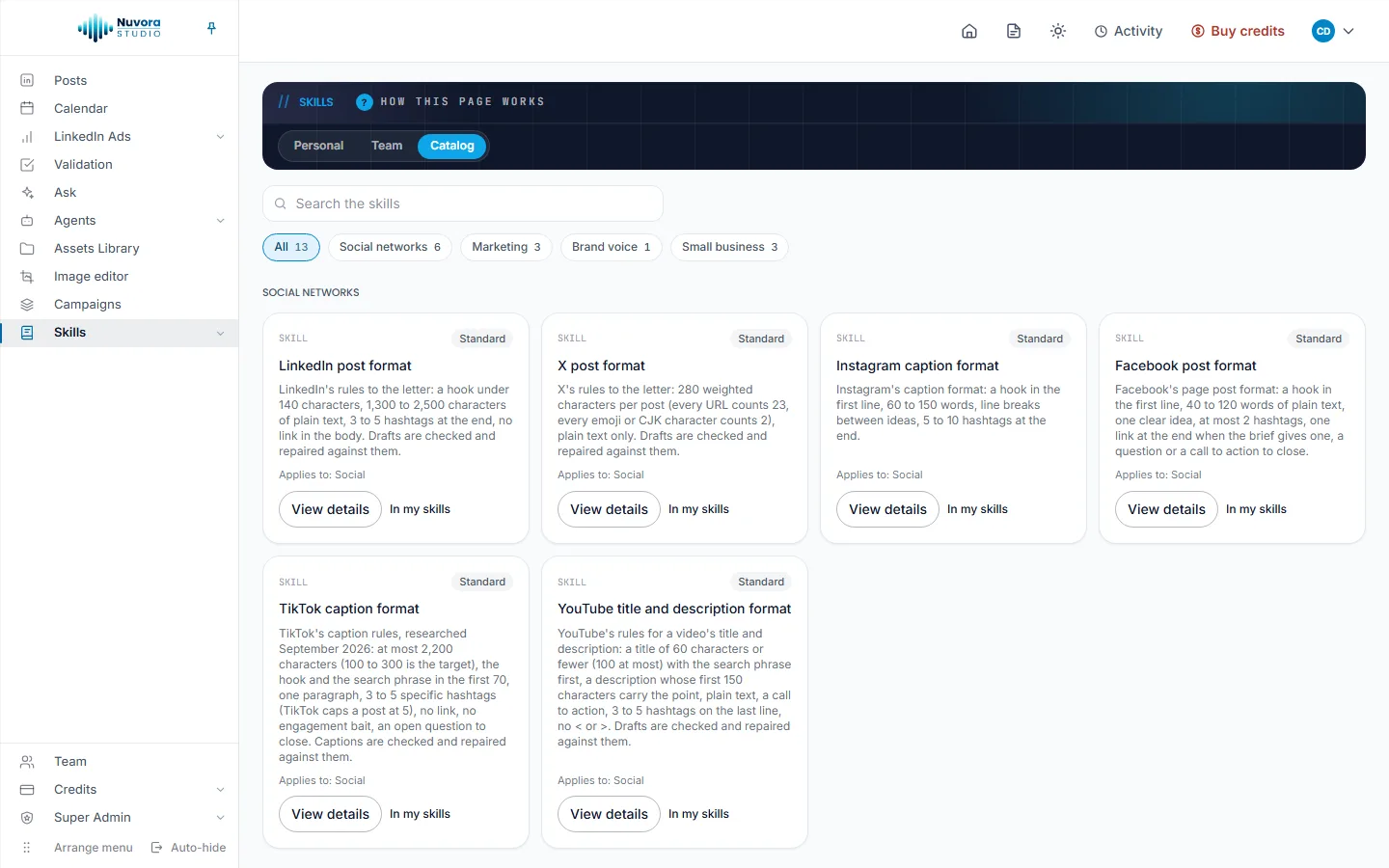
The Catalog groups the standard skills in sections, with a search box (Search the skills) and one chip per section: Social networks, Marketing, Brand voice and Small business. Each card says Applies to, which tells you where the skill works.
- Social networks holds the posting rules of each network, LinkedIn post format first. These skills are already in your own list, so their cards read In my skills.
- Marketing, Brand voice and Small business hold writing methods such as Brand voice enforcement, Brand review, Draft marketing content and Social content calendar for small business.
To take a skill:
- Click View details to read the whole skill before you take it: what it is for, where it applies and the instructions the AI follows.
- Click Add to my skills. Your own copy appears under My skills, and the card now reads In my skills.
The Catalog itself stays as shipped. You edit your copy.
Team skills
Team skills are written by the team’s admins for everyone. They are offered in every member’s skill dropdowns, before each person’s own skills.
- Admins open Skills > Team skills to write, edit, switch off and delete them, with the same form as above. The Configure list at the top picks the team’s skills, or one member’s own skills to manage them on that member’s behalf.
- Everyone else opens the Team tab on the Skills pages to read the team skills switched on. Each one has View details, Add to my skills and Duplicate.
Add to my skills puts a copy with the same name among your own skills. A skill of yours named like a team skill replaces it on your own runs, so you can adjust it for yourself. Duplicate makes a separate skill of yours that applies beside the original.
Standard skills are not added to the team: the Catalog is open to every member, who adds what they need to their own skills.