A campaign puts the material of one LinkedIn push under a single name: the visuals, the carousel slides, the briefs and documents, the posts. You write a short brief for it, and from then on Ask, your agents and your next post can read the whole set at once, instead of you pointing at files one by one. Campaigns in the menu, under Image editor, unfolds into a short list: All campaigns first, which opens the Campaigns page, then each of your team’s campaigns by name, in alphabetical order. Click a name to open that campaign.
A campaign doesn’t copy anything. It points at files that already sit in the Assets Library, so one file can belong to several campaigns, and removing it from a campaign never deletes it.
These campaigns have nothing to do with the campaigns of your LinkedIn ad account, which you run from LinkedIn Ads.
The Campaigns page
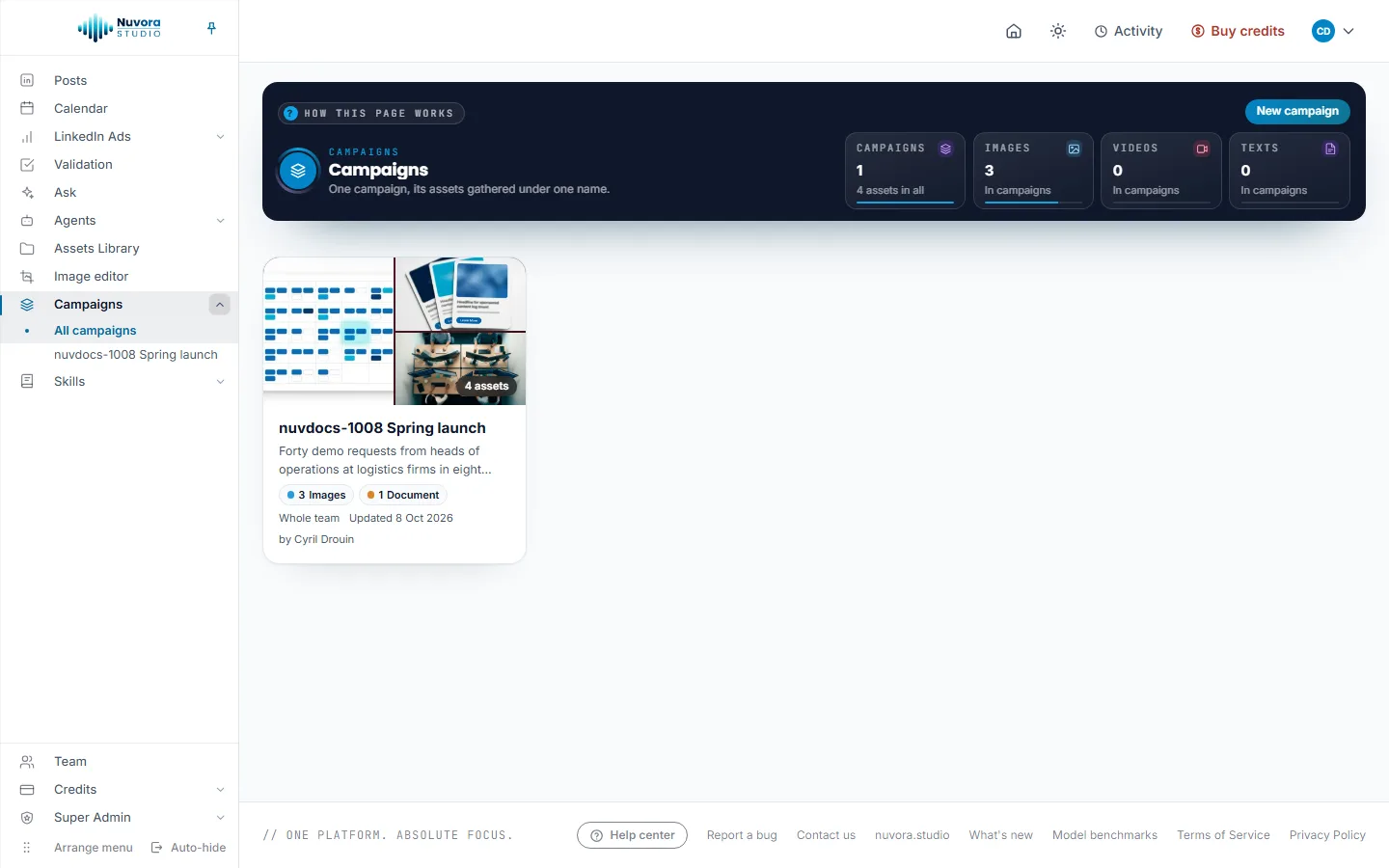
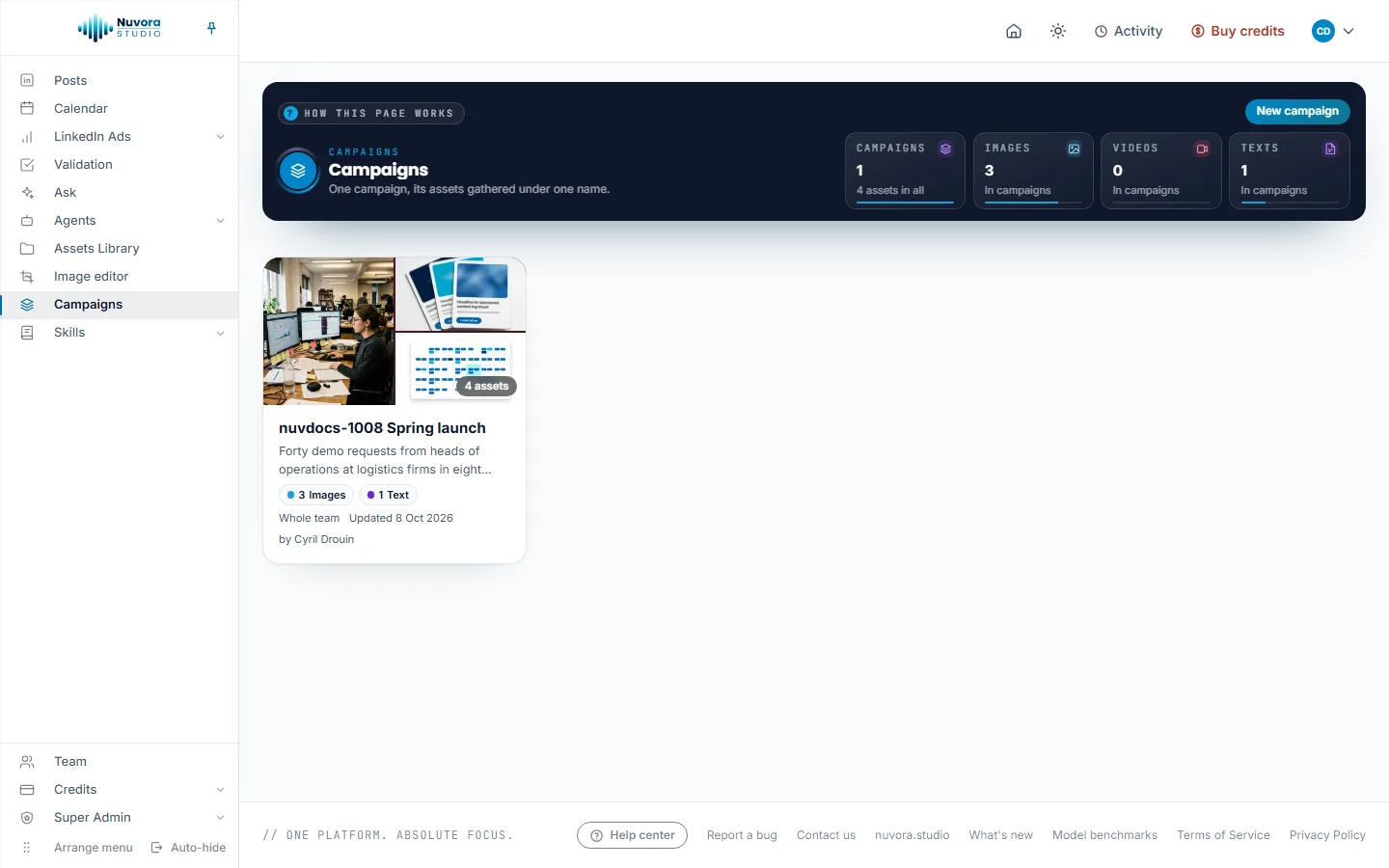
The dark band at the top holds How this page works, New campaign, and four tiles: Campaigns, with the number of assets they hold in all, then Images, Videos and Texts, counted across every campaign.
Under the band, each campaign has a card: a few of its pictures, its name, the start of its brief, how many assets of each type it holds, the day it was last updated and who made it. Click a card to open the campaign.
Create a campaign
- Click New campaign in the band.
- Type a Name, up to 120 characters. Two campaigns of the team can’t share a name.
- Write the Brief, if you like: the goal, the audience, the key message, the dates. It’s optional, but Ask and your agents read it with the assets, so a few lines here make their answers sharper. It takes up to 4,000 characters.
- Click Create the campaign.
The campaign opens on its own page, with the library already open so you can add its first assets. Cancel closes the form without creating anything.
Add assets
There are three ways in, and they all add the same thing: a file of the Assets Library.
- From the campaign’s page. Click Add assets in the band. Under Add assets from the library, search by name, prompt, text or tag, or keep one type with All, Images, Videos, Texts, Documents or Other files. Tick what belongs to the campaign and click the add button, which counts what you ticked (Add 2 assets, for example). Assets already in the campaign say In the campaign. The picker shows the first 200 matches; search to narrow it down. Manage the library opens the Assets Library in a new tab.
- From one file in the Assets Library. Open the file’s Actions menu and pick Add to a campaign. A strip opens under the row: it says which campaigns already hold the file (Already in:) or that it is In no campaign yet. Pick a campaign in the list and click Add. On a file that already sits in a campaign, the menu item reads Campaigns.
- From several files at once. Tick their rows in the Assets Library. The bar that appears has a campaign list and Add to campaign.
In the strip and in the bar, the list ends with New campaign…: type a name in Name of the campaign and the campaign is created with the files in it. You can fill in its brief afterward, on its page.
Anything that lands in the library can go into a campaign: the text of a post, a picture added to it, a visual saved from the Image editor, a file you uploaded.
Fill a campaign as you create
You don’t have to file your work after the fact. Two places have a Campaign choice, set to None by default:
- In LinkedIn posts: next to Draft with AI in the brief, and again in the post’s pictures step, with the render settings.
- In the Assets Library: in the band, next to New folder, where it reads No campaign.
Pick a campaign there, and while it stays picked, everything the page saves to the Assets Library joins that campaign: the post and its pictures, autosaved edits, renders and uploads. Each file still lands in the library as usual.
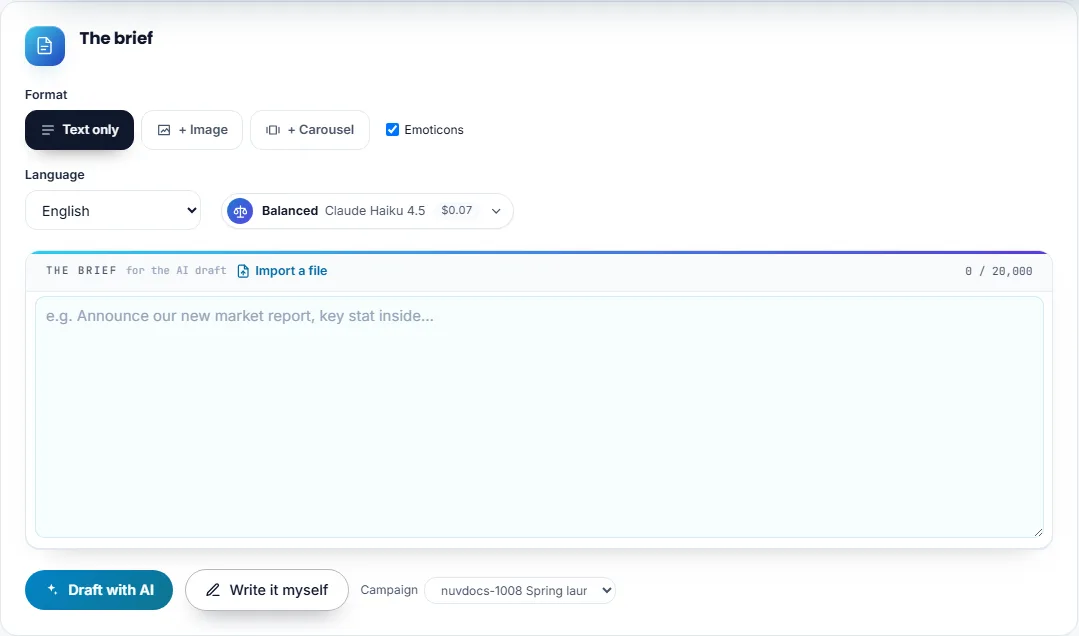
The choice belongs to the page, not to one field: the brief and the pictures step of a post always show the same campaign, and changing one changes the other. A reload puts the page back on None.
Switching back to None stops new work from joining. Nothing already in the campaign leaves it. To take a file out, use Remove on the campaign’s page.
Only the people who may change campaigns see the choice: creators and admins by default. Uploads sent to Validation don’t offer it.
Filter the library by campaign
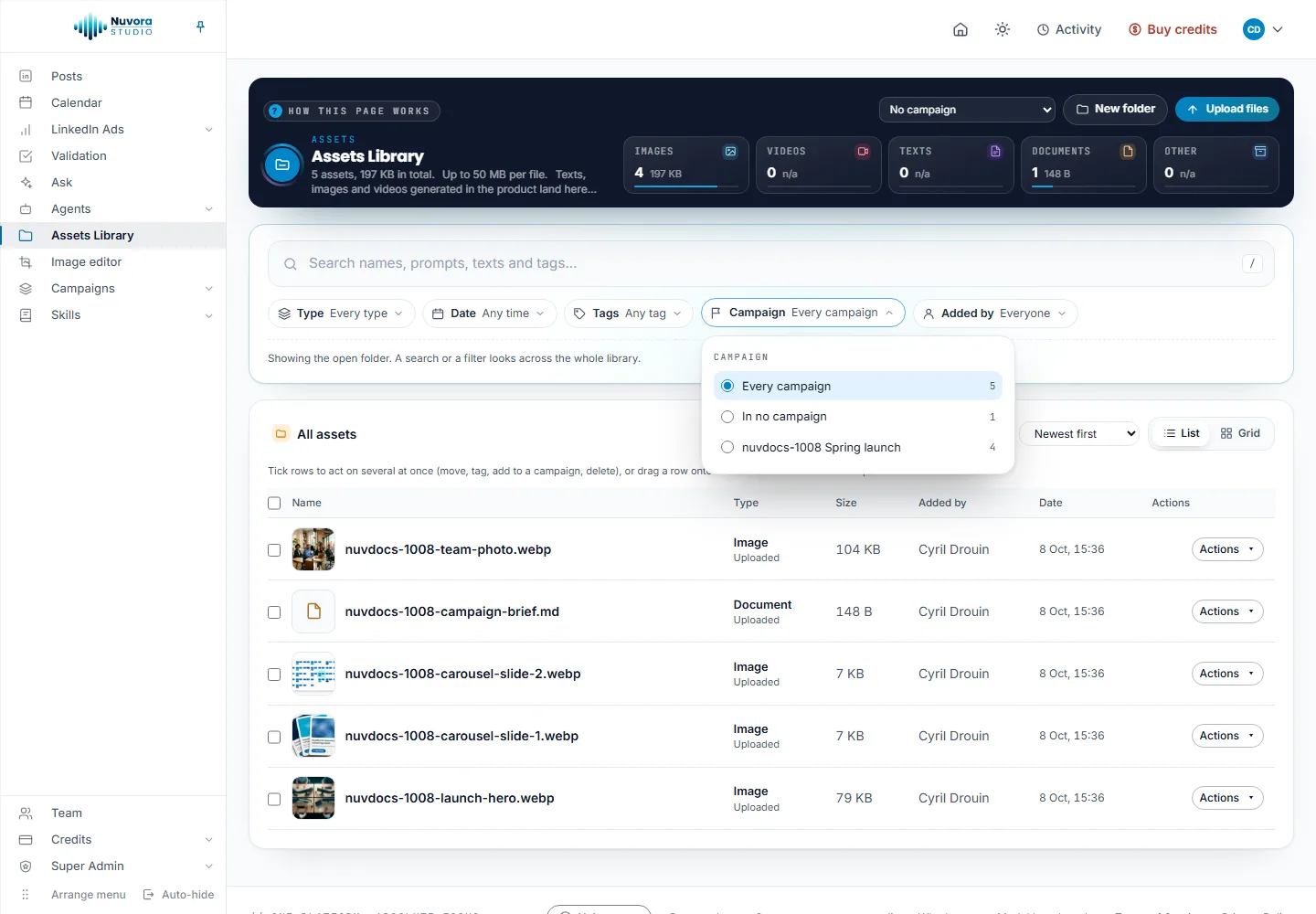
Once your team has a campaign, the Assets Library gets a Campaign filter, between Tags and Added by. It offers Every campaign and In no campaign, handy for spotting what still needs a home, then each campaign by name with the number of files it would show. The campaign you pick shows as a chip under the filters, like any other filter. Click the chip to remove it.
The campaign’s page
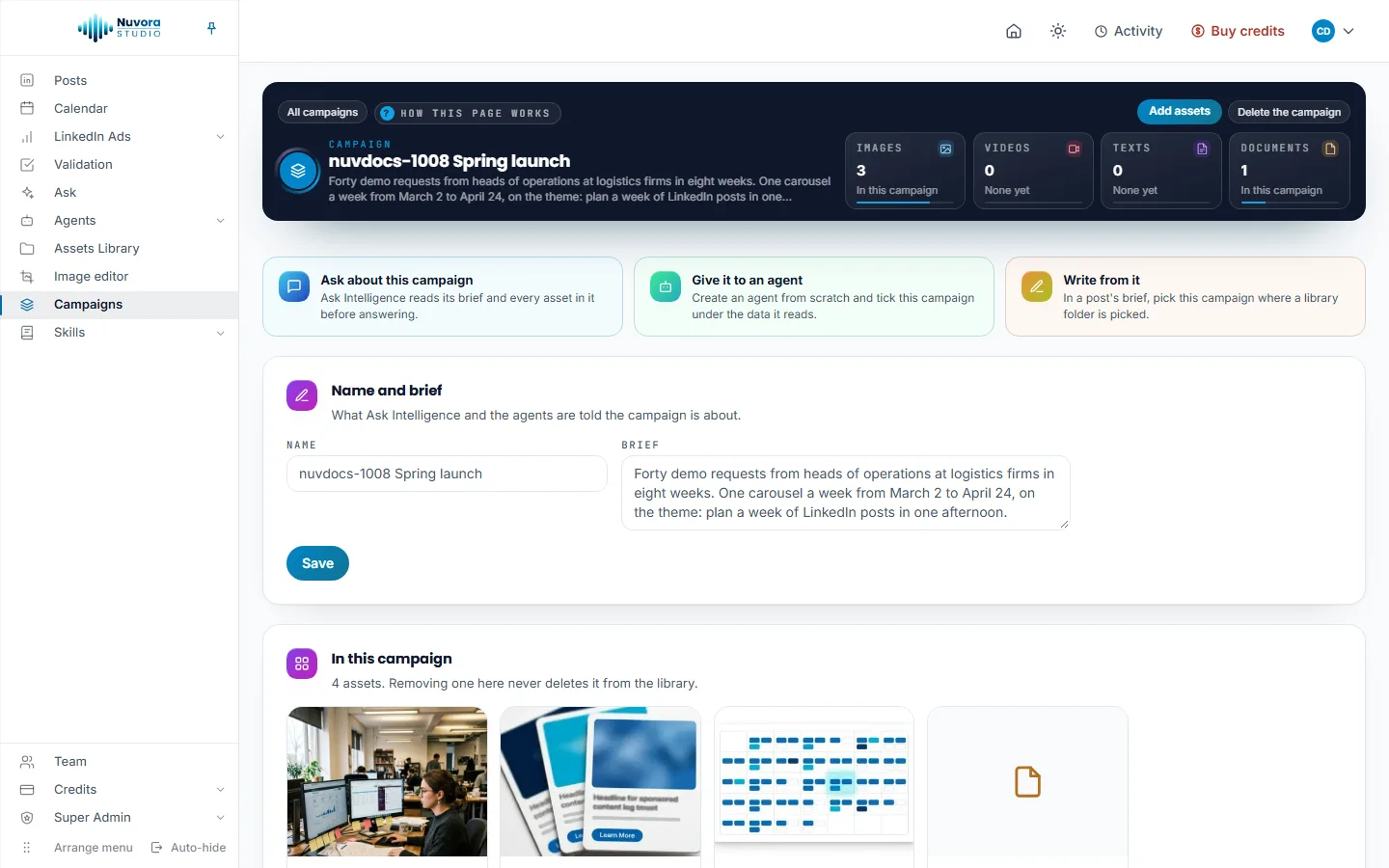
The band shows the campaign’s name and brief, All campaigns to go back to the list, Add assets, Delete the campaign, and one tile per type: Images, Videos, Texts and Documents.
Under it, three cards say where the campaign is used:
- Ask about this campaign opens Ask with the campaign already named in the question box. Ask reads its brief and every asset in it before answering.
- Give it to an agent opens Agents, where you create an agent from scratch and tick this campaign under the data it reads.
- Write from it reminds you that a post’s brief can be written from this campaign.
Name and brief lets you rename the campaign and rewrite its brief. Click Save when you’re done.
In this campaign lists its assets. Each one has Open in its module, when the file was made somewhere in Nuvora, In the library, which shows it in the Assets Library, and Remove, which takes it out of the campaign and leaves it in the library. A new version of a file stays in the campaign. A file deleted from the library leaves every campaign on its own.
Use a campaign
In Ask
Type @ in the question box, then the first letters of the campaign’s name. Campaigns show in the list with the word Campaign next to them, alongside the folders and files of the library. Pick one, and Ask reads exactly that campaign: its brief, the list of its assets (name, type, the prompt behind each picture, tags, date) and the full text of its documents and written pieces. You can also just name the campaign in your question.
Campaigns is one of the rows under Data included, so you can leave every campaign out of a conversation. See Ask.
For example: “What does @Spring launch still lack for the last two weeks?”
In an agent
When you create an agent from scratch, the campaigns come first under From the Assets Library, each marked Campaign. Tick one, and on every run the agent reads its brief, the list of its assets, pictures and clips by their prompt, and its documents. If the campaign is deleted, the agent stops reading it. See Agents.
In a post
In a post’s brief, the Context folder from the Assets Library list has a Campaigns group under the folders. Pick a campaign, and the brief, the list of assets and the text of every document in it are read before the draft is written. See LinkedIn posts.
Who sees what
A campaign belongs to the team. Everyone in the team who can open Campaigns sees every campaign, and inside it only the assets they may see in the Assets Library: a file set to Only me stays visible to its owner alone, even in a shared campaign.
| Role | What they can do |
|---|---|
| Admin | Everything a creator does, and deletes any campaign. |
| Creator | Creates campaigns, adds and removes assets, renames them, rewrites their brief, picks them in the Campaign choice of posts and uploads, and deletes the campaigns they created. |
| Viewer | Opens the campaigns and reads them. |
| Client | Doesn’t see Campaigns. |
An admin can fine-tune this person by person with the Campaigns row of Rights, module by module, under Assets Library, or switch the Campaigns module off for someone. See Your team.
Delete a campaign
Click Delete the campaign in the band, then confirm. Only the campaign goes: every asset stays in the Assets Library, and the agents that read it stop reading it.
What it costs
Campaigns cost nothing. Creating one, filling it and opening it are free. What reads a campaign is billed like any run of its own: an answer in Ask, an agent’s run or a draft shows its price as usual, and a longer campaign makes a longer read. See Balance and payments.