Calendar in the menu shows your LinkedIn publishing day by day: what still has to be written and published, what Nuvora is booked to send, what is already live, and what LinkedIn refused. A post you schedule or publish from Posts lands here on its own, with the profile or page it goes out on.
The band
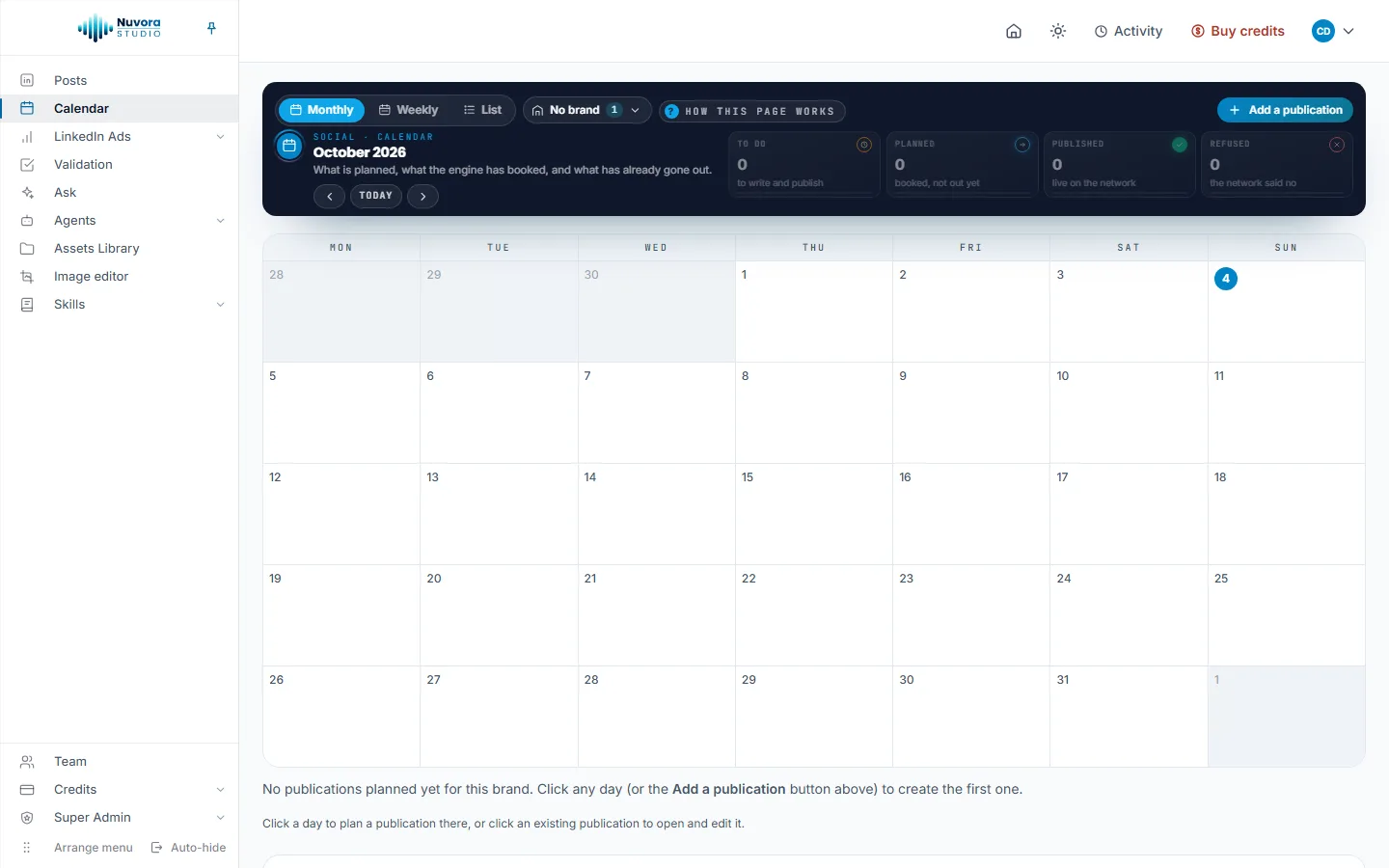
The dark band at the top holds:
- Monthly, Weekly and List, the three ways to read the calendar;
- How this page works, a short note about the colors and the views;
- Add a publication, to plan one by hand;
- the period on view, with the arrows to the previous and next month (or week) and Today to come back;
- four counters for the period on view: To do, Planned, Published and Refused. The bar under each one is its share of the period.
The No brand button beside the three views is your team’s own plan. Your team has only this one, so there is nothing to choose there.
The account button next to it chooses which of your own LinkedIn accounts the calendar reads: your profile and the pages you connected on My connections. An account belongs to whoever connected it, so a post that goes out only on a colleague’s account stays on their calendar. Not on an account yet covers what is planned or published by hand, Tick all ticks them all, Untick all clears them, and Manage my accounts opens My connections in a new tab. Your choice is remembered in this browser.
What the colors mean
Each publication wears one of four colors, the same as the counters:
| Color | Counter | What it means |
|---|---|---|
| Amber | To do | Planned, but nothing is booked: it still has to be written and published. |
| Blue | Planned | Booked: Nuvora sends it by itself at the hour shown, and it is not out yet. |
| Green | Published | Live on LinkedIn. |
| Red | Refused | Its time came and LinkedIn refused it. The reason is on the card. |
Hours are shown in your own time zone, set in Settings. See Account and sign-in.
Monthly
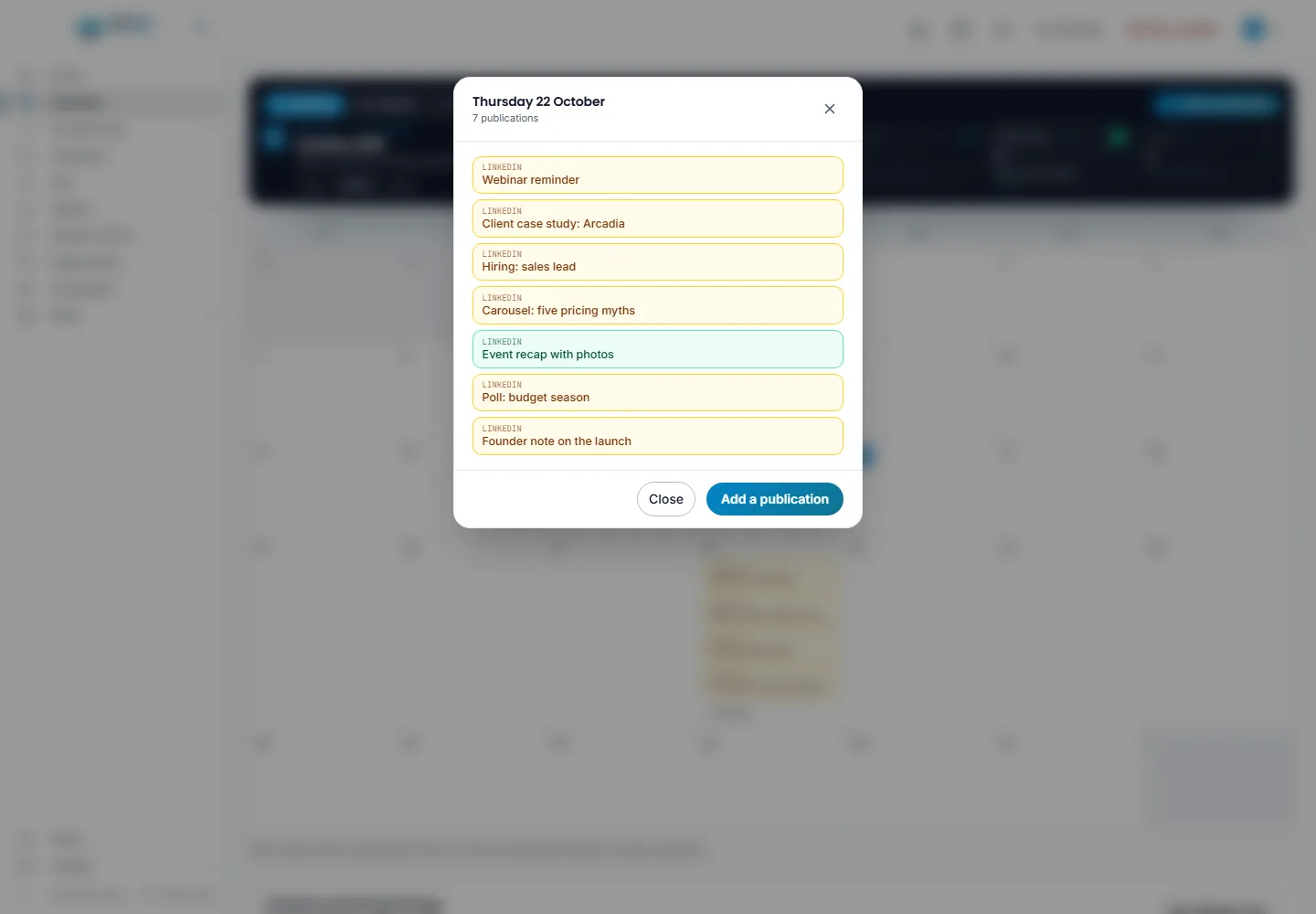
The month as a grid, Monday to Sunday, today framed in cyan with a Today tag. Days gone by sit on a grey hatched ground and take no new publication, since what is done is done; their cards still open. Each publication is a small card on its day: the network, the hour it goes out, a word for where it stands (Planned, Sending or Did not go out), the initials of the person in charge, and the title. Point at a card to read the account it goes out on and, for a refused one, why.
- Click an empty part of a day to plan a publication on that day.
- Click a post written in Posts to open it there, on the last step it reached.
- Click a publication added by hand to open it in its window and change it.
A busy day
A day shows up to four publications. The rest wait behind a +N more button under them (+3 more for three more), so one busy day never stretches its week down the page.
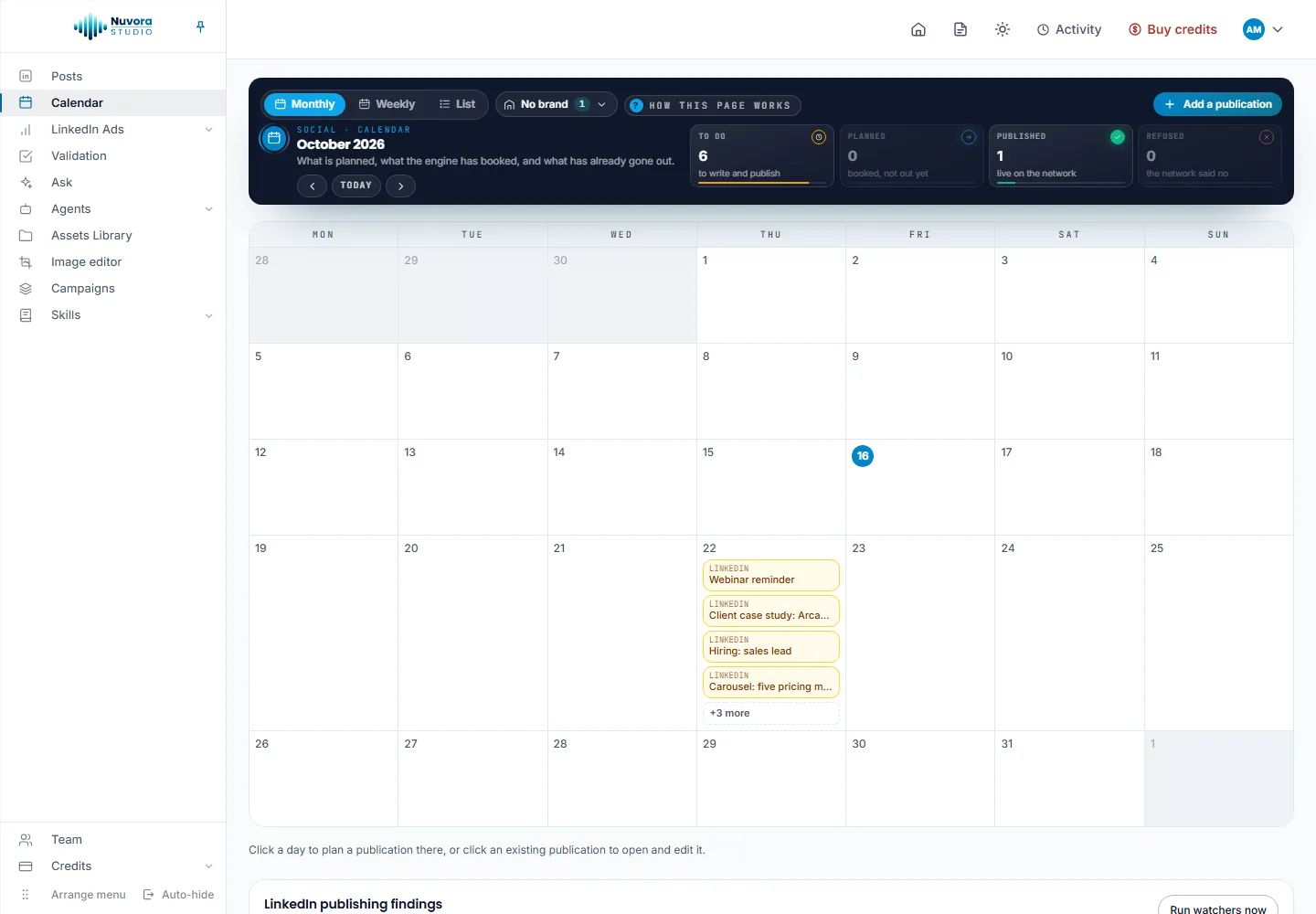
Click +N more to open the whole day in a window: the date, the number of publications, and every publication of the day in the order it goes out, the ones added by hand without an hour last. Each card wears its color and opens like a card of the grid. Add a publication plans one more on that day, and Close (or Escape) brings you back to the month. To move a send to another day, drag its card on the grid itself: the cards of the window can’t be dragged.
Weekly
The week as one row per day, Monday to Sunday. Each card shows its state, In charge: and the person (or Nobody in charge yet), its notes, and, for a post sent by Nuvora, each account it goes out on with its hour and state. On a card:
- Edit the plan opens the window of a post written in Posts, to change its day, the person in charge or its notes. Clicking the card itself opens the post.
- Mark as published turns an amber card green.
- Add the link opens the window to paste the address of a post marked published.
- View the post opens it on LinkedIn.
+ Add a publication, under each day, plans one on that day. A day with nothing on it says Nothing planned.
List
Every publication on one line, in the order it goes out.
- Pick the period: This month (the arrows on the band move it month by month), From today (everything still ahead) or Everything.
- Type in Search a title, a network, a person: the search reads the title, the notes, the network, the accounts and the person in charge.
- Keep one state with the filter: Every state, To do, Planned, Published or Refused.
The columns are Date, Hour, Publication, Network, In charge, State and Accounts. Click Date to reverse the order. The last column holds the same actions as the weekly cards, and the count of publications shows beside the filters. The four counters follow the period and the search, not the state filter.
Add a publication
Click Add a publication on the band, or click a day. The window asks for:
- Title: one line saying what the post is about.
- Publish date, already set to the day you clicked.
- Platform: LinkedIn.
- Who is in charge: the teammate responsible for writing and publishing it, or Nobody yet.
- Status: To do or Published.
- Link to the published post (optional): paste it once the post is live.
- Notes (optional): anything the team should know.
Click Save. A publication added this way is yours: nobody else in the team sees it on the calendar. To share the work, write the post in Posts and pick Everyone in the team there.
Delete, at the bottom of the window, takes a publication off the plan after you confirm. It is there for the person who planned it while only they can see it, and for admins.
Move a scheduled post
Drag a blue card to another day, on the monthly grid or the weekly rows. The send moves with it and keeps its hour: Nuvora sends the post on the new day. A refused card can be dragged too: it is booked again on the new day, at the same hour. A day that has already passed is refused: pick a day ahead, or schedule the post again from Posts.
LinkedIn publishing findings
Under the monthly grid, LinkedIn publishing findings shows what the LinkedIn publishing watcher noticed. It checks your LinkedIn publishing about once a day: what went out in the last 30 days, what is scheduled for the next 14, publications that failed, and drafts or posts awaiting validation that stalled. It flags a quiet week, an empty schedule and every failure, with the real dates.
The watcher runs once it is among your agents or your team’s: add it from Agents > Catalog. See Agents. Until it has something to say, the panel reads No open findings.
Each finding shows its level (info, warning or critical), its date, what happened and a Suggested: next step. Creators and admins can act on it:
- Acknowledge: you have seen it. It stays in the list, marked acknowledged.
- Resolve: it is handled. It leaves the list.
- Dismiss: it is noise. It leaves the list.
- Draft response: AI writes the concrete response to the finding, shown under it.
- Draft post: AI writes a LinkedIn post answering the finding, saved as a draft in Posts.
Both drafts are paid, and their cost shows next to them. Drafting acknowledges a new finding.
Run watchers now runs your team’s switched-on agents at once, not only this one, and says how many new findings came back, with the cost of the run next to the button. If no agent is switched on yet, it says so. Admins also see Configure watchers, which opens Team agents to switch an agent on or off and set how often it runs.
Who can do what
| Action | Who |
|---|---|
| Read the calendar and the findings | Everyone in the team |
| Add, change, mark published, move a send | Creators and admins |
| Delete a publication | The person who planned it while it is theirs alone, or an admin |
| Act on a finding, run the watchers | Creators and admins |
| Configure the watchers | Admins |
Client logins don’t see the calendar. A client follows the posts made for it in its Client space.
What it costs
The calendar itself costs nothing: planning, moving and marking publications is free. Each run of a watcher that reaches the AI is paid, and so are Draft response and Draft post. Every charge against your credits is listed in Usage, under Credits in the menu.