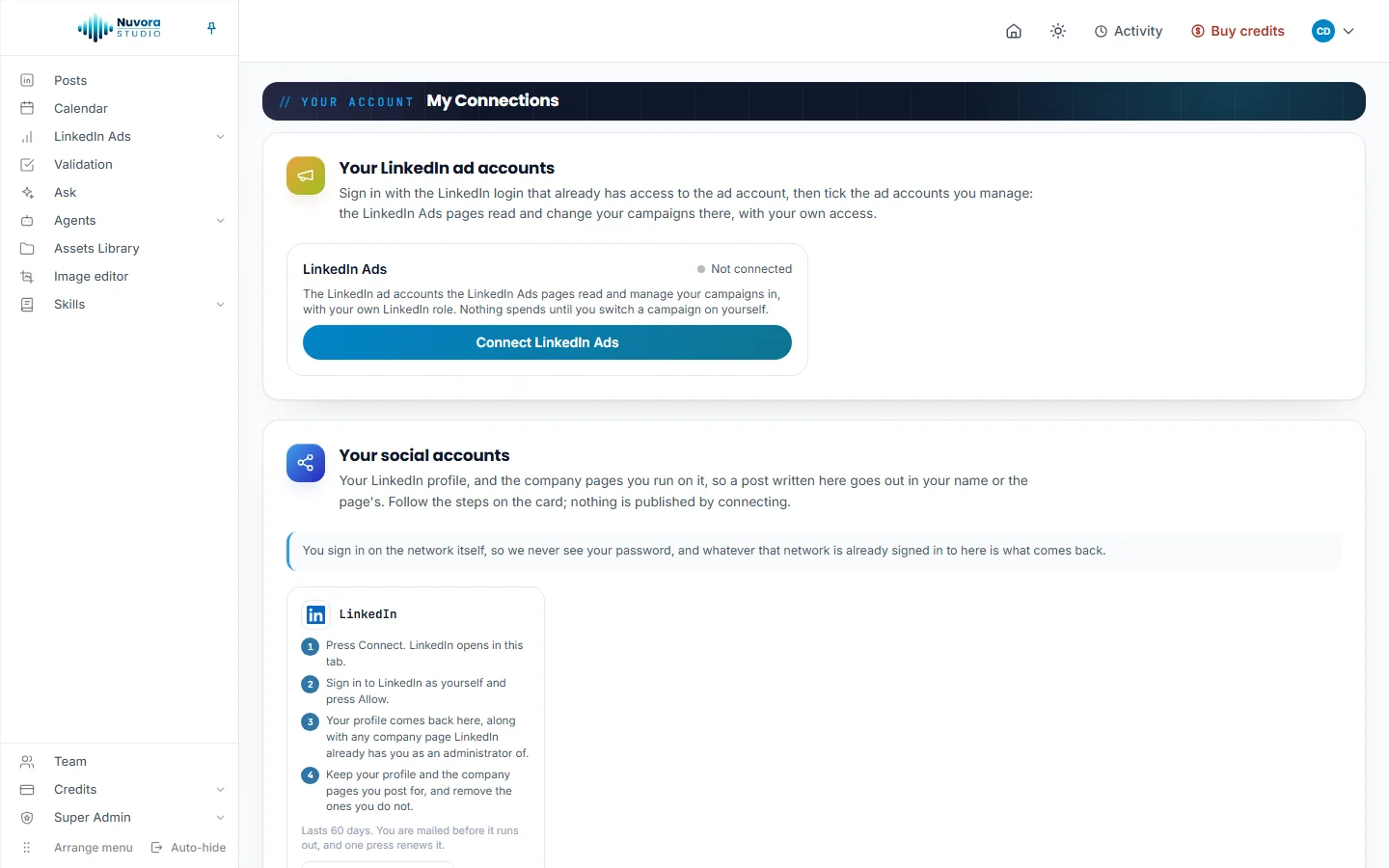
My Connections is where you connect your own LinkedIn: your profile and the company pages you run, so your posts go out in your name or the page’s, and your LinkedIn ad account, so the LinkedIn Ads pages read your own campaigns. Click your picture at the top right, then My Connections. In User Settings, the Your connections section leads there too, with Open My Connections.
The page holds two cards: Your LinkedIn ad accounts first, then Your social accounts.
Yours alone
Everything you connect here is yours. Nobody else in your team, admins included, can see it, publish with it or read your ad accounts through it, and you can’t use a teammate’s either. Each person who publishes or reads the ad account connects their own LinkedIn.
You sign in on LinkedIn itself, so Nuvora never sees your password. Connecting publishes nothing and spends nothing.
Client logins can’t open My Connections: they publish nothing.
Your LinkedIn ad accounts
The LinkedIn Ads card holds the ad accounts the LinkedIn Ads pages read and manage your campaigns in, with your own LinkedIn role. Nothing spends until you switch a campaign on yourself.
- Click Connect LinkedIn Ads. LinkedIn opens in the same tab.
- Sign in with the LinkedIn login that already has access to the ad account in Campaign Manager, and allow the access.
- Back on My Connections, the card shows that login, then Accounts you manage with this login: every ad account it opens, each with its name, its number and its currency.
- Tick the ad accounts you manage. Each tick is kept at once, and the card says Kept. The LinkedIn Ads pages offer the accounts you ticked. The account you work in on the LinkedIn Ads pages carries an In use tag here.
If the login opens no ad account at all, the card says This LinkedIn login opens no ad account: sign in with the login that has a role on the account in Campaign Manager.
Several LinkedIn logins are fine. Once one is connected, a box reads “Manage LinkedIn ad accounts with another LinkedIn login? Connect it too: its accounts join the picker on the LinkedIn Ads pages.” Click Connect another LinkedIn login and sign in as that login. Each login gets a card of its own, with its own ticks.
Disconnect on a login’s card asks you to confirm, then removes it: its ad accounts leave the LinkedIn Ads pages until you connect it again, and the permission you gave is withdrawn.
What you do with the ad account, the Dashboard, Campaigns and the Ad Library, is in LinkedIn Ads.
Your social accounts
This card holds what you publish on: your LinkedIn profile, and the company pages you run on it. LinkedIn is the only network Nuvora publishes on.
Connect LinkedIn
The LinkedIn card lists the steps:
- Press Connect an account. LinkedIn opens in this tab.
- Sign in to LinkedIn as yourself and press Allow.
- Your profile comes back here, along with any company page LinkedIn already has you as an administrator of.
- Keep your profile and the company pages you post for, and remove the ones you do not.
Back on the page, a line says how many accounts came back, for example “1 account connected. It is yours alone: nobody else in the workspace can publish on it. Remove anything you did not mean to connect.”
Whatever LinkedIn is already signed in to in this browser is what comes back. So Connect another account shows a note first, with Sign out of LinkedIn, which opens LinkedIn’s sign-out in a new tab, and Continue. Sign out there (or open the page in a private window), click Continue, then sign in as the other login. If LinkedIn still sends back a login that was already connected, the page names it and says that nothing was added.
A company page that is missing means LinkedIn doesn’t list you as an administrator of it. Ask the page owner to add you, then connect again.
Your connected accounts
Once something is connected, the LinkedIn card counts it (1 connected) and names each account with its status; click a name to jump to its row below. Each row shows the account’s name, LinkedIn and its handle, its type (Profile or Page), Yours alone, and the date of its last post. Four buttons act on it:
- Rename changes the name shown in Nuvora, handy when two pages look alike.
- Switch off stops the account: nothing new can be scheduled on it, and anything already queued will not go out. Switch on brings it back.
- Connect again runs the LinkedIn sign-in again and renews the connection.
- Remove deletes the connection, after you confirm. Nothing can be published on it afterwards, and the posts it already sent stay on LinkedIn. It is refused while a post is still scheduled on the account: cancel that post first, or switch the account off instead.
How long a connection lasts
A LinkedIn connection lasts 60 days. One press on Connect again renews it.
Each row carries a status line:
| Status | What it means |
|---|---|
| Connected, 45 days left (the count varies) | All good. |
| Connect it again within 5 days (the count varies) | It runs out within a week. Click Connect again now. |
| Connect it again to publish | It ran out or was withdrawn on LinkedIn. Scheduled posts on it won’t go out until you connect it again. |
| Switched off | You switched it off. |
| Something went wrong on the last send, or LinkedIn’s own reason | The last publication on it failed, for the reason shown. |
About a week before a connection runs out, Nuvora emails you that LinkedIn will stop publishing in so many days, with a Connect it again link to this page. If it runs out anyway, a second email says it has to be connected again; nothing in the queue is lost, and connecting it again takes one click.
The connection check after you sign in
Once you’re in, Nuvora checks the LinkedIn connections you made and left switched on: your social accounts and your LinkedIn ad logins. An access can stop working without a sound, when you change your LinkedIn password or withdraw the access on LinkedIn, and you’d otherwise find out only when a post fails.
The check never holds you up. Your first page opens at once, the check runs in the background as a Connection check row in Activity, and the answer comes to you on whatever page you’re on, as a notification in the bottom right corner of the screen. It never covers the page:
| Answer | What the notification shows |
|---|---|
| Everything works | Every connection works. A thin line along its bottom edge runs down, and the notification leaves on its own after about seven seconds. |
| Something needs attention | Some connections need attention, then one line per account with its name, its handle and “The access has expired or was withdrawn. Sign in to it again.” The notification follows you from page to page in that tab until you close it, or until a new check finds nothing wrong. |
| The check failed | The connection check could not be completed. Your connections weren’t tested. |
On an account that needs attention, Reconnect opens My Connections in a new tab, on the right card. Sign in there, come back, and click Check again on the notification. When the check needs attention or failed, the notification also holds Details, which opens the full check, Your connections, in a new tab and tests everything again.
To close the notification, click the cross in its corner (its tooltip reads Dismiss) or press Escape.
Accounts you switched off aren’t tested. With nothing connected, there’s no check and no row in Activity. The check runs once per sign-in.