The Assets Library holds every file of your team in one place, in folders: the visuals, documents and briefs you upload, and the pictures you add to your posts or save from the Image editor. Assets Library in the menu opens it.
The Image editor, right under it in the menu, works on a picture you already have: it frames it for LinkedIn, crops it, adjusts it, writes and draws on it and places a logo over it. It is described below.
A client login doesn’t see the Assets Library. What the team makes for a client reaches them in their Client space.
The library
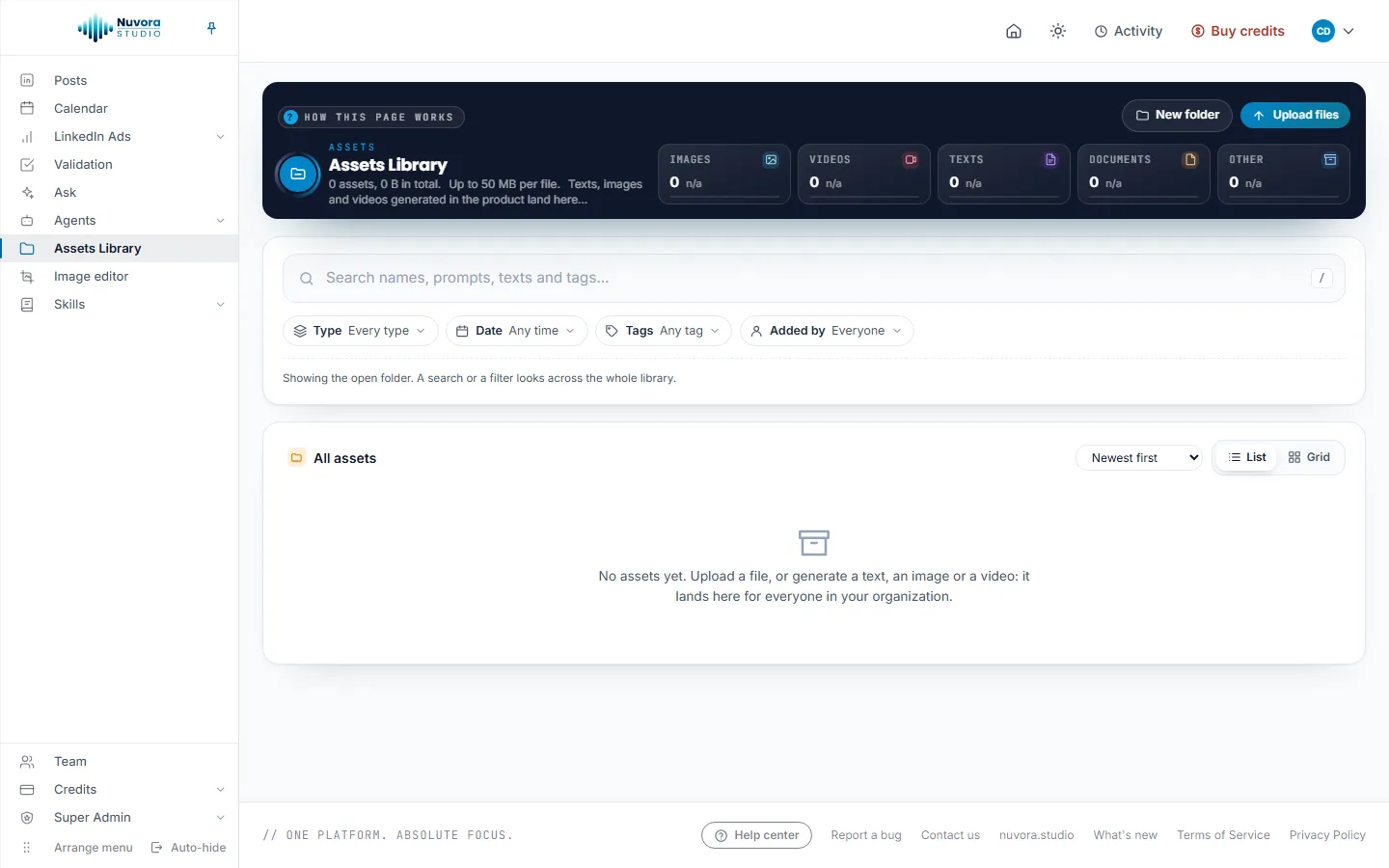
The dark band at the top holds New folder and Upload files, the number of assets and the space they take, and one tile per type: Images, Videos, Texts, Documents and Other. Click a tile to show only that type; click it again to show every type. A file can weigh up to 50 MB.
What you upload here is seen by everyone in your team. The pictures you add to a post are kept here too: taking a picture off a post leaves it in the library, ready to be picked again.
Upload
Click Upload files and pick one file or several. They go into the folder you have open, or into All assets at the top. A bar fills while each file uploads.
To file the upload in a campaign, pick it in the list next to New folder, which reads No campaign until you do. See Campaigns.
Find a file
- Type in Search names, prompts, texts and tags…: the words are looked for in the file names, the texts and the tags.
- Narrow with the filters under it: Type (each type, and whether it was Made here or Uploaded), Date (Today, Last 7 days, Last 30 days, Last 90 days, This year, or two days of your own), Tags, Campaign (once your team has a campaign; see Campaigns) and Added by.
- A search or a filter looks across the whole library, not only the open folder.
- Sort the list with Newest first, Oldest first, Name, A to Z or Largest first, and switch between List and Grid.
Folders
Click New folder, type its name, and it appears in the folder you have open. Open a folder with a click; the path above the list takes you back up. To move a file, drag its row onto a folder, or pick Move in its Actions menu.
Tick several rows to act on them together: move them, add or remove a tag, add them to a campaign, or delete them.
Deleting a folder deletes everything inside it. A folder that holds files added by someone else can’t be deleted: only the person who added a file can delete it.
A folder also serves as material to write from: in a post’s brief, Context folder from the Assets Library has every text document of the folder read before the writing starts (see LinkedIn posts), and Ask can read a folder when you name it.
Add files to a campaign
A campaign gathers the files of one LinkedIn push under a name and a brief, so that Ask, your agents and your posts can read them together. The files stay where they are: a campaign only points at them, and one file can sit in several campaigns.
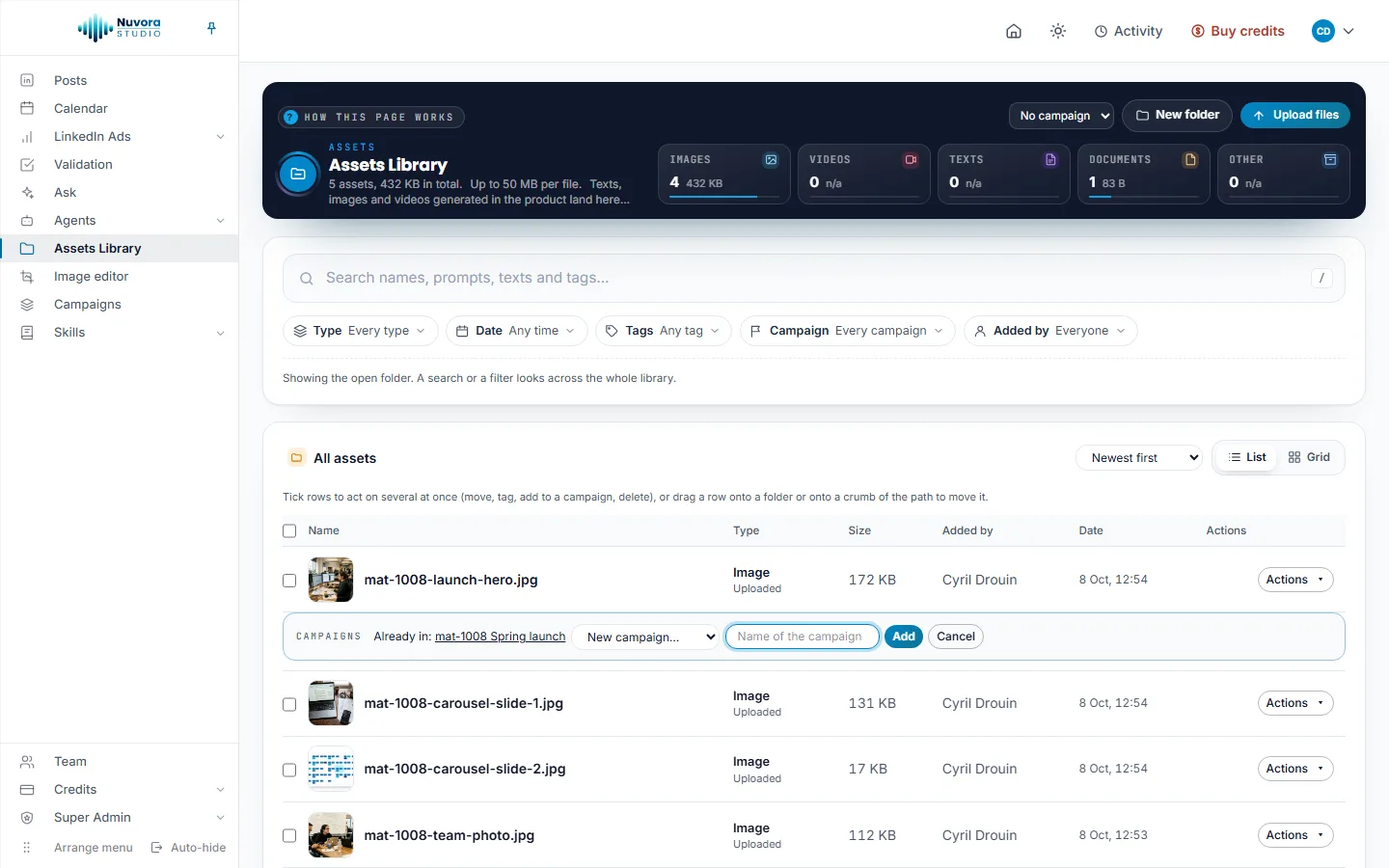
- One file: in its Actions menu, pick Add to a campaign. A Campaigns strip opens under the row and says which campaigns already hold the file (Already in:, each name a link to the campaign) or that it is In no campaign yet. Pick a campaign and click Add. On a file that already sits in a campaign, the menu item reads Campaigns.
- Several files: tick their rows, pick a campaign in the bar that appears, and click Add to campaign.
To start a campaign on the spot, pick New campaign… at the end of the list, type its name in Name of the campaign, and add. The new campaign holds the files right away; write its brief later, on its page.
The Actions menu
Click a row to open the file. Each row also has an Actions menu. What it offers depends on the file:
| Item | What it does |
|---|---|
| Open in its module | On a file that keeps the address of the page it was made on, opens it there. |
| View | Opens the picture or the clip full size. On a picture, the viewer has an Edit button that opens the Image editor. |
| Download | Saves the original file to your computer. |
| Edit image | Opens the picture in the Image editor. Shown on the pictures a browser can edit, such as JPG, PNG, WebP, GIF and AVIF. |
| Versions | Lists the earlier versions of a file, once it has more than one, each with its own Download. |
| Upload a new version | Replaces a file you uploaded with a newer one. The earlier one stays under Versions. |
| Tags | Your own words, such as “Q3 launch” or “approved”. Type a tag and press Enter, or click one of the tags already In use, then Save. Click a tag anywhere to filter on it. |
| Rename | Changes the name shown in the library. |
| Move | Puts the file in another folder. |
| Add to a campaign | Adds the file to a campaign, or to a new one named on the spot. Reads Campaigns once the file sits in one. |
| Who sees it | Shown on a file of your own work that you added: Only me or Everyone in the team. |
| Delete | Removes the file for good, after you confirm. Only the person who added a file sees it. |
Who can do what
Everyone in the team browses, searches and downloads. Uploading, tagging, renaming and moving take a Creator or an Admin role: a Viewer reads only. Only the person who added a file can delete it.
What files cost
Keeping files has a small daily storage charge, taken from your team’s credits, and downloading one has a small transfer charge, taken from your credits like any paid action. Delete what you no longer need and the storage charge goes down from the next day. When the credits run out, new files can’t be uploaded until you top up. See Balance and payments.
The Image editor
The Image editor frames a picture for LinkedIn, crops it to any format, turns and mirrors it, adjusts its light and colors, applies a look, writes captions on it, draws arrows, lines, boxes and circles, and places a logo or any other picture over it. Editing is free and happens in your browser: the page says Runs in your browser · Free, and nothing leaves your computer until you save.
Open a picture
| From | How |
|---|---|
| Image editor in the menu | Drop a picture on Drop a picture here, or click to choose one, or click From the Assets Library and pick one. |
| The Assets Library | Edit image in a picture’s Actions menu, or Edit in the full-size viewer. |
| A post | The pencil on one of the post’s pictures. See Edit a picture of a post. |
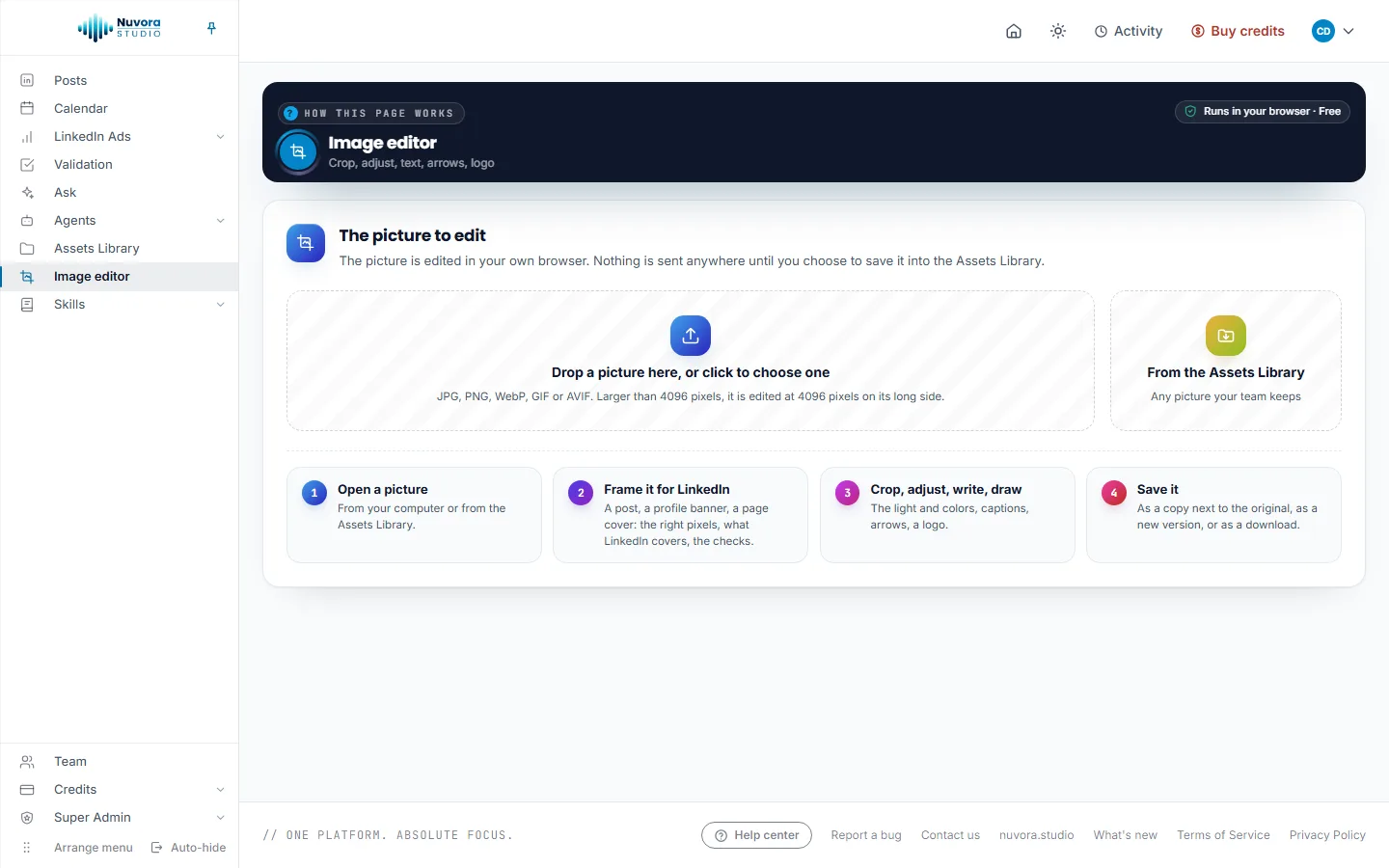
The editor takes JPG, PNG, WebP, GIF and AVIF pictures. A picture larger than 4,096 pixels on its long side is edited at 4,096 pixels, and the Save panel says so.
The workspace
The editor covers the whole screen. The top bar shows the picture’s name, Undo and Redo, the zoom (click the percentage to fit the picture to the window) and Save. The rail on the left opens one panel at a time: Social, Crop, Adjust, Effects, Text, Draw and Picture. Save opens the last panel, Save the picture. The editor opens on Crop, or on Social when you edit the picture of a post.
Everything you add on top of the picture (a caption, an arrow, a box, a logo) stays a separate piece until you save: click it to move it, resize it, restyle it or delete it. A selected piece shows four buttons above its settings: duplicate, bring forward, send backward and delete.
Social: frame it for LinkedIn
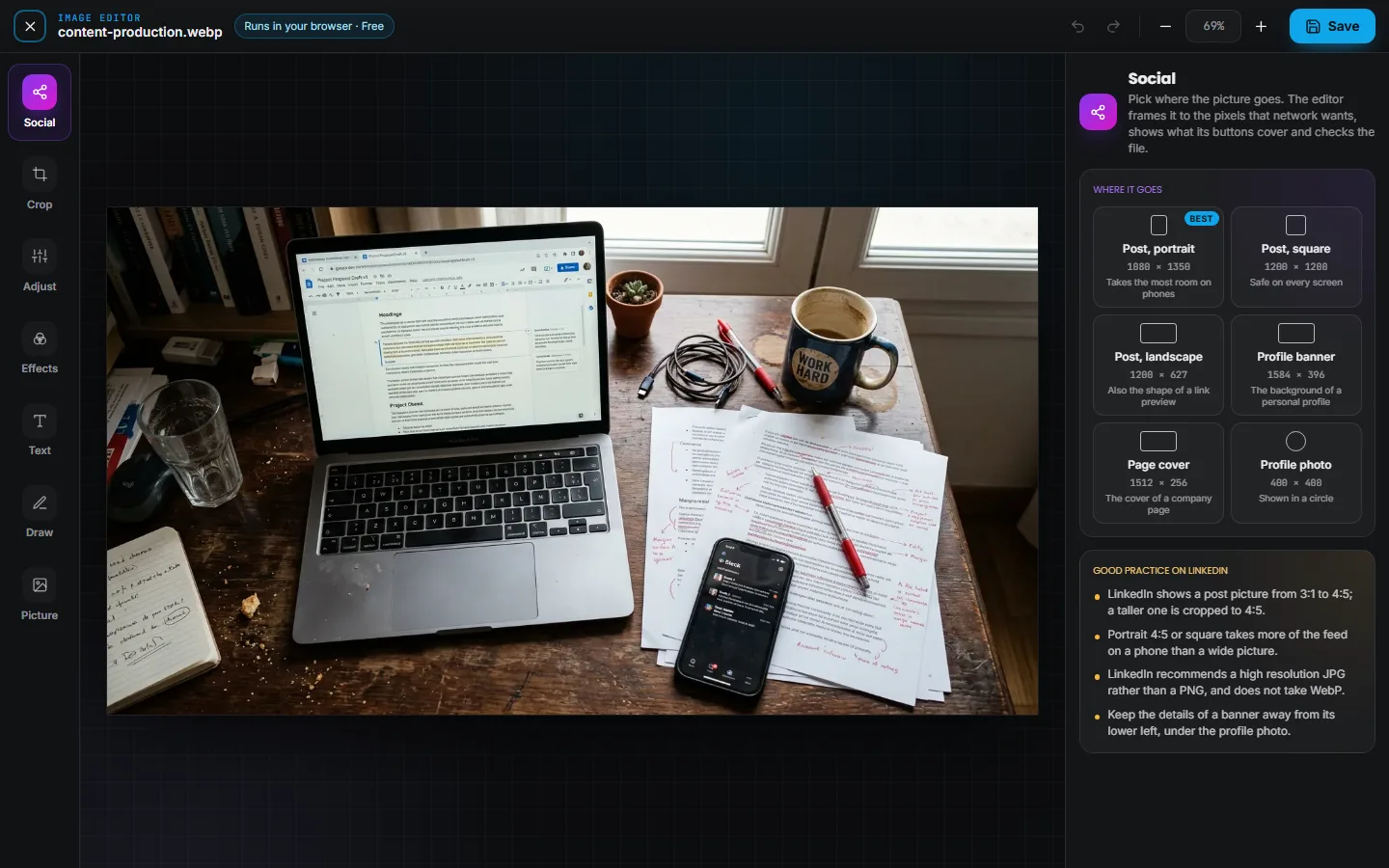
The Social panel prepares a picture for one place on LinkedIn, at the pixels LinkedIn wants.
- Under Where it goes, pick the placement. Best marks LinkedIn’s own recommendation for a post.
| Placement | Size in pixels | What it is |
|---|---|---|
| Post, portrait (Best) | 1080 × 1350 | Takes the most room on phones |
| Post, square | 1200 × 1200 | Safe on every screen |
| Post, landscape | 1200 × 627 | Also the shape of a link preview |
| Profile banner | 1584 × 396 | The background of a personal profile |
| Page cover | 1512 × 256 | The cover of a company page |
| Profile photo | 400 × 400 | Shown in a circle |
- Under Frame it, pick how the picture gets that shape:
- Crop to fill: a crop box of the right shape appears over the picture. Drag it over the part to keep.
- Fit it whole: nothing is cut. The space around the picture is filled, under Around the picture, with a Blurred picture of itself or a plain color.
- On a banner, a page cover or a profile photo, leave Show what the network covers on to see what LinkedIn lays over the picture: the round profile photo at the lower left of a banner, the page logo at the lower left of a page cover and a corner to keep clear at its lower right, or the circle of a profile photo. Keep your words and your logo out of those zones.
- Click Apply the format. The picture takes the placement’s size, and the Save panel is set to a file LinkedIn takes, with a name that says the network and the size, such as “(LinkedIn 1080x1350)”.
Once a placement is picked, the panel also shows:
- How it will show: small previews of the picture as LinkedIn shows it: in the feed, on a computer and on a phone for a banner or a page cover, or in a circle for a profile photo.
- Checks: the shape, whether the picture is wide enough (at least 552 pixels) and sharp enough for the size, whether LinkedIn takes the file format (it doesn’t take WebP), the weight of the file against LinkedIn’s limit for that placement, whether anything you added sits where LinkedIn covers the picture, and whether your words are large enough to read on a phone.
- Save for LinkedIn: applies the format if you haven’t, and opens the Save panel.
- Good practice on LinkedIn: a few short rules, such as keeping a banner’s details away from its lower left, under the profile photo.
Crop
Drag the corners of the box, or pick a format under Format: Free, Original, Square (1:1), Portrait (4:5), Story (9:16), Wide (16:9), Link (1.91:1), Photo (3:2) or Screen (4:3).
Once you have picked a placement in Social, it comes first in this list, with its size. The size of the result, in pixels, shows under the formats. Turn and mirror holds Turn left, Turn right, Mirror and Upside down. Click Apply the crop to cut the picture, or Reset to start over. Captions and drawings already on the picture follow it when it is cut or turned.
Adjust
Eight sliders under Light and color: Brightness, Contrast, Saturation, Vibrance, Warmth, Hue, Sharpness and Blur. The picture changes as you slide. Double-click a slider to put it back to zero, or click Reset all.
Effects
Looks offers one look over the whole picture, on top of your adjustments: Original, then Mono, Noir, Sepia, Vintage, Kodachrome, Technicolor, Polaroid and Brownie. Each one shows a small preview of your own picture. Click Original to take the look off.
Text
Click Add text, or double-click the picture where the caption should go, then type. Drag the caption where it belongs; double-click it later to change the words. For the selected caption, or the next one, pick:
- the Font and its Size;
- bold, italic or underline, and the alignment;
- the Color, and a Highlight behind the words;
- a Dark outline or a Soft shadow, which keep light words readable on a light picture.
Draw
Pick a tool under Tool, then drag on the picture: Pen, Highlighter, Arrow, Straight line, Box or Circle. Select goes back to picking and moving what is already there. Under Style, set the Line color, a Fill for a box or a circle, the Thickness and the Opacity. Everything drawn can be moved and restyled afterwards.
Picture: a logo over yours
Under Add a picture, pick From your computer (a PNG with a transparent background works best for a logo) or From the Assets Library. Once it is on the picture, set its Opacity, and click one of the nine squares under Place it to send it to a corner, an edge or the middle, from Top left to Bottom right. A light logo in a corner makes a watermark.
Undo and shortcuts
Undo goes back up to 60 steps. The keyboard works too:
| Keys | What they do |
|---|---|
| Ctrl+Z | Undo |
| Ctrl+Shift+Z or Ctrl+Y | Redo |
| Ctrl+D | Duplicate the selected piece |
| Delete | Delete the selected piece |
| Arrow keys | Move the selected piece; with Shift, in bigger steps |
| Enter | Apply the crop, or apply the format on the Social panel |
| Ctrl+S | Open the Save panel |
| Escape | Leave the text you are typing, close the Save panel, drop the selection, then close the editor |
On a Mac, use Cmd in place of Ctrl.
Save
Click Save at the top right. Once a format is applied in Social, the panel opens with Made for LinkedIn and the placement, and a Checks button that goes back to them. The Save the picture panel asks for:
- Name: the original name followed by “(edited)”, which you can change. After Apply the format, the name says the network and the size instead.
- Format: PNG (sharp and lossless, keeps transparency, the largest file), JPG (the lightest for photos; transparent areas turn white) or WEBP (light and sharp, keeps transparency). JPG and WebP add a Quality slider. Made for LinkedIn and saved as WebP, the panel warns that LinkedIn doesn’t take it.
- Size: the Width and the Height, whose proportions stay locked, with quick picks at 100%, 75%, 50% and 25%, and at 2048 px or 1080 px on the long side when the picture is larger. Sharpen after resizing is a switch.
Then pick how to keep it:
- Save a copy in the Assets Library: a new file, next to the original in the same folder, or at the top of the library when the picture came from somewhere else. The original stays as it is.
- Save as a new version: offered on a file you uploaded. The edit replaces the file in the library, and the previous one stays under Versions.
- Download: saves the picture to your computer, in the format and at the size shown on the button. Nothing goes into the library.
Once a picture is saved, the panel says Saved. with a link, Open it in the Assets Library, which opens it in a new tab. You can keep editing and save again. A picture saved in the library counts toward your storage like any upload. Back to editing returns to the panel you were on.
Close the editor
Click the ✕ at the top left, or press Escape. If you have changes that aren’t saved, the editor asks Leave the editor?: click Leave without saving to drop them, or Keep editing to go back and save.
Edit a picture of a post
In Posts, a post’s pictures carry a pencil, Edit this picture. It opens the picture in the Image editor on its Social panel, so you can pick the LinkedIn placement and apply its format straight away.
Edit the picture, then open Save. The main button reads Save and use it in the post: the edited copy is saved in the Assets Library, takes the place of the old picture in the post (the same slide in a carousel), and the editor closes. The step then says “The edited picture is in the post. The original stays in the Assets Library.” Download is there as well; it changes nothing in the post.