The Scratchpad is a notebook that follows you on every page of Nuvora. It slides in from the right, over whatever you are doing, and holds your own notes in sheets: text, files and recordings. Nobody else sees a sheet, not even an Admin.
Open and close it
Click the notepad button at the top of the screen, beside the home button, or press Alt+N from any page. Alt+N or the Close (Alt+N) button closes it again, and so does Escape.
The drawer stays open from page to page, on the sheet you left in front, so you can keep reading a note while you move from Posts to the Calendar.
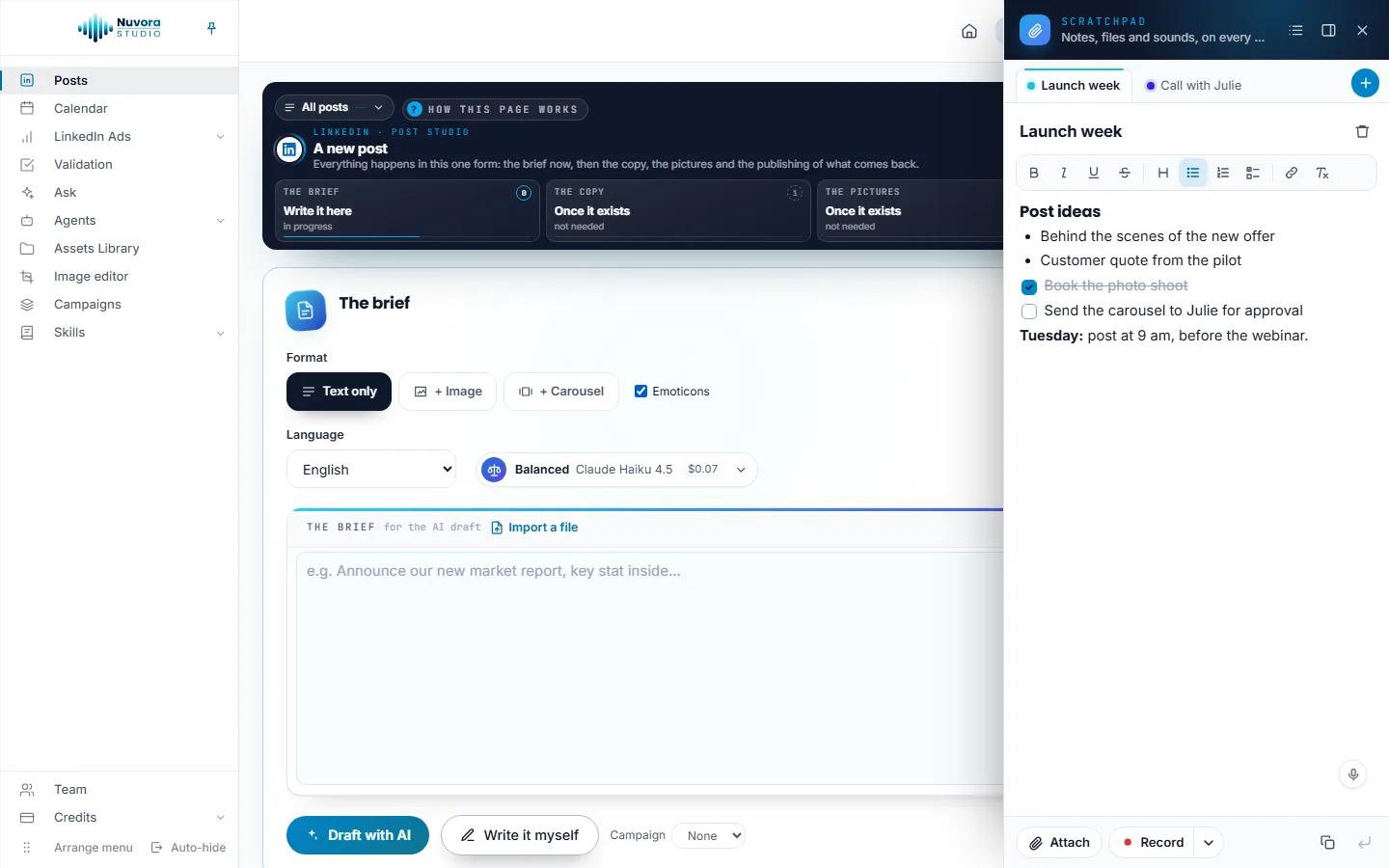
The band at the top of the drawer holds three buttons:
- All sheets: the list of every sheet, with Search your sheets.
- Keep it beside the page: the page makes room for the drawer instead of passing under it, so both stay readable side by side. Click again (Let it slide over the page) to go back. On a narrow screen, the drawer always slides over the page.
- Close (Alt+N).
To make the drawer wider or narrower, drag its left edge. Nuvora remembers the width, and whether you keep it beside the page, in this browser.
Sheets
Each sheet is a tab along the top of the drawer. A tab carries the sheet’s title, or its first line when it has no title.
- New sheet (the + button) starts a blank sheet. A sheet is kept from the first thing you put in it.
- Type a title in Untitled sheet, at the top of the sheet.
- Drag a tab to put your sheets in another order.
- All sheets lists them all, in your order, each with the start of its text, when it last changed and how many files it holds. Search your sheets reads the titles and the text. Click a sheet to open it.
- Delete this sheet, the bin beside the title, removes the sheet with its text, its files and its recordings, after you confirm. An empty sheet goes without a question.
You can keep up to 100 sheets, and a sheet holds up to 200,000 characters.
Write in a sheet
Write anything: the sheet saves itself about a second after you stop typing, and again when you click elsewhere or close the tab. The bottom of the drawer says Saving…, then Saved. Open the drawer in another tab and you find the same text.
The formatting bar above the text offers Bold (Ctrl+B), Italic (Ctrl+I), Underline (Ctrl+U), Strikethrough, Heading, Bulleted list, Numbered list, Checklist, Link (Ctrl+K) and Clear formatting. In a checklist, click a box to tick it: the line is struck through. Text you paste keeps its basic formatting and nothing else.
Speak instead of typing. The sheet has the microphone of voice input in its corner, like every long text box: click it and speak, and your words appear where your cursor is. See Account and sign-in.
Use a note elsewhere
Two buttons at the bottom right put a note to work:
- Copy the text of the sheet copies the part you selected in the sheet, or all of it, ready to paste anywhere.
- Insert into the field you were writing in puts the same text where your cursor was in the page: the brief of a post, a comment, a search box. Click in a field of the page first, then in the drawer.
Files and recordings
Attach files
Click Attach, drop files anywhere on the drawer, or paste a picture into the text: each file uploads with its progress bar and joins the sheet under Files and recordings. Pictures, sounds and clips show and play right in the sheet. A file can weigh as much as your team allows for one upload in the Assets Library.
For each file:
- double-click its name to rename it (Enter keeps the name, Escape gives up);
- click a picture to view it larger;
- Download saves it on your computer;
- Keep a copy in the Assets Library adds a copy to your team’s Assets Library. The copy is yours alone there (Only me) until you share it from the library with Everyone in the team. The sheet keeps its own copy. It takes the right to add files to the library;
- Delete removes the file from the sheet.
Record a sound
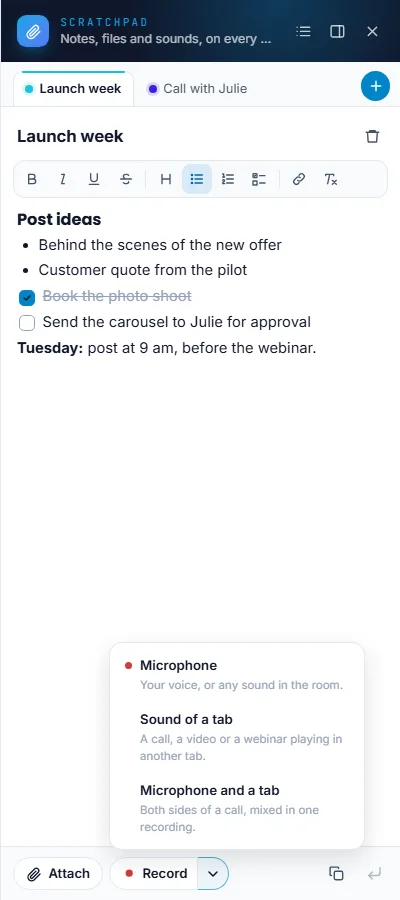
Record records into the sheet. The arrow beside it, What to record, picks the source:
| Source | What it records |
|---|---|
| Microphone | Your voice, or any sound in the room. |
| Sound of a tab | A call, a video or a webinar playing in another tab. Your browser asks which tab to share: pick it and tick Share tab audio. |
| Microphone and a tab | Both sides of a call, mixed in one recording. |
While it records, the drawer shows the time and the sound level, with Pause, Stop and keep and Throw away (after you confirm). A kept recording joins the sheet’s files. If it can’t be stored, it is saved to your computer instead, so it is never lost. Leaving the page ends the recording.
The first time, your browser asks for the microphone or for the tab to share. If you refuse, Nuvora says so and records nothing.
Who sees it
Your sheets are yours alone: nobody else in the team can open them, Admins included, and nothing in them is ever shared. A copy you keep in the Assets Library stays yours too, until you share it from the library.
The Scratchpad is offered to every role, Viewers included: everyone writes in their own sheets. An Admin can still switch it off for someone, or hold them to reading, on the Scratchpad row of their rights. See Your team. Client logins have no Scratchpad.
What it costs
Writing is free. Files and recordings count toward your team’s storage like the files of the Assets Library: a small daily storage charge, taken from your team’s credits, and a small transfer charge when you download one. Showing a picture or playing a recording in the sheet costs nothing. Delete a file, or the sheet that holds it, and the storage charge goes down from the next day. When the credits run out, new files can’t be uploaded until you top up. See Balance and payments.