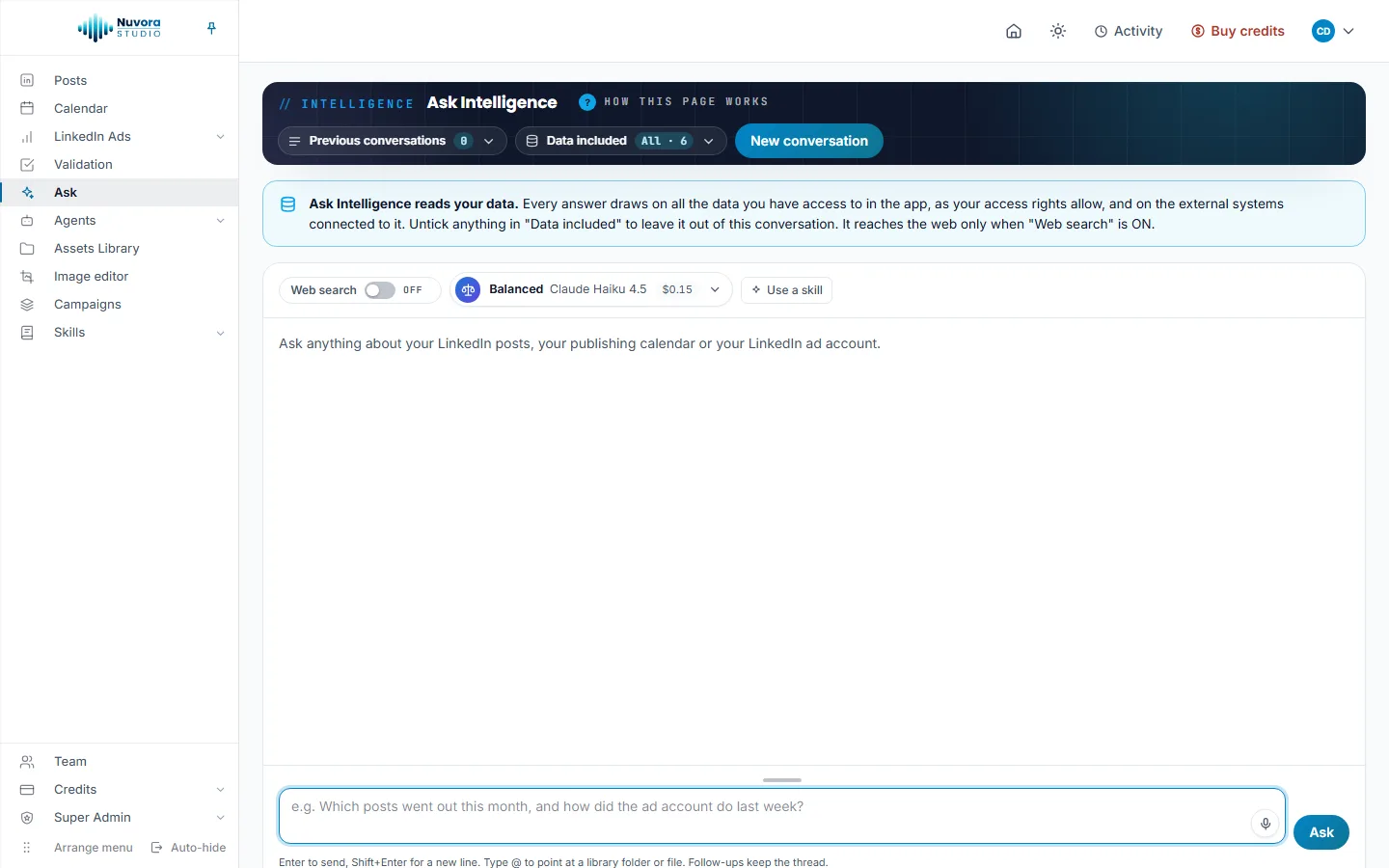
Ask is where you ask questions about your LinkedIn work in your own words. Open Ask in the menu: the page is titled Ask Intelligence. It reads your data, as your access rights allow, and writes the answer with what it drew on and what it cost.
For example: “Which posts went out this month, and how did the ad account do last week?”
What Ask can read
| Data | What Ask reads |
|---|---|
| LinkedIn posts | Your LinkedIn posts: drafted, scheduled and published, with their status and planned date, read in full when the question needs the text. Also the publishing calendar: what is planned and what went out, with dates, status and the live link. |
| LinkedIn Ads | Your own LinkedIn ad account, read live with your LinkedIn access: each campaign’s group, status, objective, daily budget and bid, with spend, impressions, clicks, click rate, results and cost per result, over 7 to 90 days (30 by default), against the period before. |
| Assets Library | The team’s files and folders, and the documents themselves: PDF, Word, Excel, Markdown, text, and the texts written in Nuvora. |
| Campaigns | Your team’s campaigns: each one’s brief, the list of its assets (name, type, the prompt behind each picture, tags, date) and the full text of its documents and written pieces. |
| Validation | What is waiting for validation, who asked and who decides, and what was decided, with the latest comments. |
Each kind of data follows your rights: the LinkedIn posts need the Posts or Publishing and scheduling right, LinkedIn Ads needs the LinkedIn Ads right, campaigns need the Campaigns right, and the ad account is always your own, connected on My Connections. See LinkedIn Ads.
Ask only reads. It never changes a post, a campaign or a file.
Ask a question
- Type your question in the box at the bottom (up to 1,000 characters).
- Press Enter or click Ask to send it. Shift+Enter starts a new line.
- The answer appears in the thread. Ask a follow-up in the same box: follow-ups keep the thread, and the button now reads Send.
Under each answer:
- Based on: names the data the answer drew on, for example LinkedIn Ads or Validation.
- From the web: lists the pages it used, when web search was on.
- The last line gives the number of tokens and the price of that answer, with the number of web searches when there were any.
Point at a folder, a document or a campaign with @
Type @ in the box, then the first letters of a name. A list of the Assets Library folders and files you may see opens, with your team’s campaigns among them, each marked Campaign. Pick one: it is written into your question, and Ask reads exactly that folder, document or campaign instead of guessing which one you meant.
For example: “Summarize the brief in @Clients/Acme”, or “Write three post ideas from @Spring launch, in the tone of its brief.”
On a campaign’s own page, Ask about this campaign opens Ask with the campaign already in the box. These campaigns are the ones of the Assets Library, not your LinkedIn ad campaigns.
Data included
Data included in the band lists everything Ask may read for you, all ticked by default. Untick what this conversation should leave out. Include all ticks everything again, Clear unticks everything.
The choice is kept with the conversation. It can only narrow what you reach, never widen it.
Conversations
Every conversation is kept, and only you see your own.
- New conversation starts a fresh one. The one on screen stays in your list.
- Previous conversations shows how many you have and opens the list, newest first, with a search box. Click one to reopen it where you left it. Rename gives it a title of your own, Delete removes it after a confirmation.
Web search
By default Ask answers from your own data only. The Web search switch lets an answer use the web as well.
- When it is ON, the answer may search the web, lists the pages it read and keeps them apart from your data. Searches per answer, up to sets how many searches the next answer may run, from 1 to 6. Fewer searches, lower price.
- Each search is charged and joins the price shown under the answer.
- The choice is kept with the conversation.
When web search isn’t allowed for your team, the switch stays OFF and the page says “Web search is off for your organization.”
Not every model can search the web. With one that can’t, the page says “This model has no web search of its own.” While the switch is ON, the model picker only offers the models that search.
Pick a model
The model picker shows the choice you are on, its model and what a typical answer costs. Click it to open Choose a model: pick Quick, Balanced or Best, or any model under All models. The star Recommended here marks the model Ask runs when nobody chooses. Your choice is remembered on this browser for Ask. See Choosing a model.
To hide models you never use, go to Settings > My models. See Account and sign-in.
Use a skill
Use a skill opens Skills to apply: your own skills and your team’s. Nothing is applied unless you pick it. A skill you pick rides along with the questions you send while it is picked, whatever it was written for. Manage skills opens the Skills pages. See Skills.
What it costs
Each answer is a paid AI run. Its price is shown under the answer and charged as shown, like any other run in Nuvora. See Balance and payments.
What adds to the price:
- the length of the question, of the thread so far and of the data read;
- the model you picked;
- each web search, when the switch is ON.
When your credits or a spending limit would be exceeded, the question is refused with the reason, and nothing is charged.
Who can use Ask
| Role | Ask |
|---|---|
| Admin | Asks questions, over everything their rights open. |
| Creator | Asks questions, over everything their rights open. |
| Viewer | Opens the page but can’t ask: a question is refused with “Your role (viewer) is read-only.” |
| Client | No access. |