Nuvora is a workspace for LinkedIn, and for LinkedIn only. You write posts with AI or by hand and publish them on your LinkedIn profile or on the company pages you administer, now or at the hour you pick. Every post planned, scheduled and published shows on a calendar. Your LinkedIn ad account is read live, with its dashboard, its campaigns and the Ad Library. Posts can wait for a teammate’s or a client’s approval before they go out. Ask answers questions about your posts, your calendar and your ad account, and agents watch your publishing rhythm and your ad account for you. Your visuals live in the Assets Library, where the Image editor frames a picture for LinkedIn, and campaigns gather the material of one LinkedIn push for Ask, your agents and your posts.
You can work alone, or in a team that shares one prepaid balance, held in US dollars, and works for clients who sign in to see what was made for them. Every paid run says what it costs: a picture render or a publication shows its price before you press, and an AI draft or answer shows its cost as soon as it’s done.
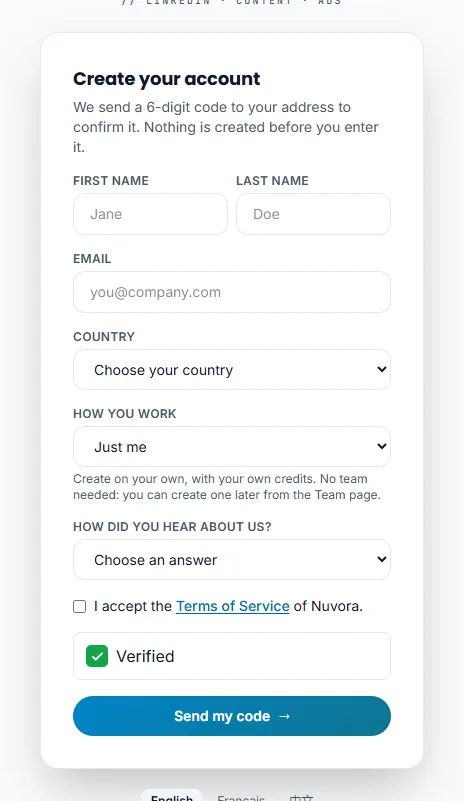
Create your account
- On the sign-in page, click Create an account.
- Type your First name, Last name and Email. A name can’t contain a web address or an email address.
- Under Country, pick the country you work from. The list is written in the language of the page; when Nuvora can tell where you connect from, that country is already picked, and you change it if it is wrong.
- Under How you work, open the list and pick one of the three options. Just me is picked to start with, and the line under the list explains the option you picked:
- Just me: “Create on your own, with your own credits. No team needed: you can create one later from the Team page.” No team is created: you work as a Creator. If you create a team later from the Team page, you become its Admin.
- Create a team: “You run it: invite people, and they create from one shared pool of credits.” A field appears: type the name of your team, which can’t contain a web address or an email address either. You are its administrator.
- Join a team: “Your team already uses Nuvora: an admin lets you in.” A field appears where you type your team’s name or your admin’s email address.
- Under How did you hear about us?, open the list, which reads Choose an answer, and pick the one that fits: Google or another search engine, An AI assistant (ChatGPT, Gemini, Claude, Perplexity…), An exhibition or a trade show, A referral, someone recommended us or Somewhere else.
- Tick the box to accept the Terms of Service.
- Click Send my code, under the box marked I’m not a robot, which ticks itself while the page loads: there is nothing to click. Nuvora emails you a 6-digit code. Nothing is created before you enter it.
The country and the answer are both required: without them, the form says Please choose your country. or Please tell us how you heard about us. Your country shows on your page in the team, for your admins; how you heard about us stays with Nuvora.
The code is valid for 20 minutes. Temporary mailboxes can’t open an account: use your work or personal address. If the address already has an account, you receive an email saying so instead of a code.
Enter the code
The next screen is Check your inbox.
- Just me or Create a team: type the code in Verification code, choose a Password of at least 8 characters, then click Create my account. You are signed in and land on Discovery, the page that presents everything you can do (see Discovery and tips).
- Join a team: type the code and click Send my request. No password is asked yet. The screen Your request is sent tells you that the team’s admins have been told. Once one of them accepts, you receive an invitation by email. Open it, choose your password, and click Join and sign in: you land on Discovery too.
Nothing arriving? Check the spam folder, or click start again to correct the address.
Sign in
Type your Login (your email address) and your Password, then click Sign in. The box marked I’m not a robot above the button ticks itself while the page loads and reads Verified a second later: it keeps scripts out, and there is nothing to click. The sign-in page speaks your browser’s language, English, French or Chinese, and the language names under the card switch it. Once you’re in, Nuvora speaks the language saved on your account; change it any time in User Settings, under Language.
The very first time you sign in, Nuvora opens Discovery: every module of your menu, the first steps worth taking, the help center and a quick guided tour of the screen. If you were heading for a page, from a link in an email for instance, Continue to your page takes you there. After that, you land on Posts, or on the home page you chose in User Settings, and Discovery stays in the menu under your picture. A client login always lands on its Client space, and a commercial partner on Commissions.
New teams also ask for a second step: a 6-digit sign-in code sent to your email address, valid for 10 minutes. Type it under Sign-in code and click Confirm and sign in. Leave Trust this browser for 30 days, so it only asks for my password. ticked on a computer you use every day. An admin can switch this step off for the whole team on the Team page. See Account and sign-in.
Once you’re in, Nuvora checks your LinkedIn connections in the background. If one needs reconnecting, a notification in the bottom right corner of the screen says so. See My Connections.
The first page after you sign in also brings a few tips, on a small card in the bottom right corner: how to do something, a feature you may have missed, a way to work faster. On your very first sign-in, they wait until you leave Discovery. See Discovery and tips.
Find your way around
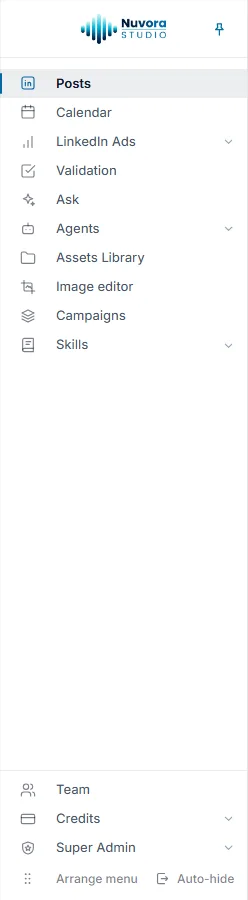
The menu on the left holds the LinkedIn modules first, then the housekeeping at the foot:
| Menu entry | What it opens |
|---|---|
| Posts | Your LinkedIn posts: brief, copy, pictures, then publishing on your profile or a company page. See LinkedIn posts. |
| Calendar | Every post planned, scheduled and published, by month, by week or as a list. See Calendar. |
| LinkedIn Ads | Dashboard, Campaigns and Ad Library: your ad account read live from LinkedIn. See LinkedIn Ads. |
| Validation | The posts and files waiting for someone’s approval, and what you sent for approval. See Validation. |
| Ask | Questions answered from your posts, your calendar and your LinkedIn ad account. See Ask. |
| Agents | My agents, Team agents (admins only), Catalog and Runs: agents that watch the publishing and the ad account. See Agents. |
| Assets Library | Every file of your team, in folders. See Assets Library. |
| Image editor | A picture framed to the LinkedIn sizes, cropped, adjusted, written on and branded. See The Image editor. |
| Campaigns | The visuals, documents and posts of one LinkedIn push, gathered under a name and a brief for Ask, your agents and your posts. Not the Campaigns tab of LinkedIn Ads, which holds your ad campaigns. See Campaigns. |
| Skills | My skills, Team skills (admins only) and the Catalog: the instructions that shape your drafts. See Skills. |
| Partner | Only for commercial partners. See Partners. |
| Team | The people who share your balance, and your clients. See Your team. |
| Credits | Your balance: Buy credits to top it up, Invoices and Usage. See Balance and payments. |
An admin can switch a module off for one person; it then leaves that person’s menu. A client login sees a much shorter menu: Client space and Validation. See Client space.
The bar at the top of every page holds:
- A house button that makes the page you’re on your home page, the one you land on when you sign in. Click it again to go back to the default.
- A sun or moon button that switches between light and dark.
- Activity: the drafts, renders and checks running for you, and how they ended. It keeps following a run while you move to another page, and a card in the bottom right corner tells you when one ends. Coming back to more than five finished runs, you get a card for the five newest and one While you were away card with the count and a More button that opens your Log. See everything in the Log, at the foot of the panel, opens it too, and Clear finished takes the finished runs off the panel without deleting them: they stay in the Log.
- Your balance: the amount you can spend right now. Click it to top up. When the balance is empty, it reads Buy credits. A client login has no balance, so it sees no amount here.
- Your picture, which opens a menu with User Settings, Log (your own history, see Log), Discovery, Billing & credits, Team, My Connections, the System, Light and Dark choices, the language row and Sign out.
The footer links to the Help center, Report a bug, Contact us, the nuvora.studio website, What’s new, the Terms of Service and the Privacy Policy.
Your first post
- Connect LinkedIn. Click your picture at the top right, then My Connections. On the LinkedIn card under Your social accounts, click Connect an account, sign in to LinkedIn as yourself and press Allow. Your profile comes back, along with the company pages LinkedIn lists you as an administrator of. Keep the ones you post for. See My Connections.
- Check your balance. The amount in the top bar is what you can spend. If it reads Buy credits, top up first on Credits > Buy credits. See Balance and payments.
- Open Posts in the menu. A new post is ready; New post clears the form for another one.
- Write the brief. Pick the Format (Text only, + Image or + Carousel), the Language and the model that writes (Quick, Balanced or Best: see Choosing a model). In the brief box, say what the post is about, who it speaks to and what it has to achieve.
- Click Draft with AI. The copy comes back on the next step, ready to edit, with a line that says what the draft cost. Prefer to write it yourself? Write it myself opens the editor with no AI call and nothing billed.
- Publish. Open Publishing. On the Publish automatically tab, tick your profile or a page under Who it goes out as, then click Publish now, or Schedule to pick a day and a time. Nothing is ticked for you: Schedule and Publish now stay locked until you tick an account.
Every scheduled and published post then shows on the Calendar. The full walkthrough, pictures and approvals included, is in LinkedIn posts.